

When building an iOS app that needs document scanning, developers face a fundamental question: Which vision framework should I choose?
In this post, we’ll compare two popular options: WeScan, an open-source scanning library by WeTransfer, and VisionKit, Apple’s native framework for document capture.
Before we dive into the details, here’s a quick summary.
📌 In short
- WeScan supports edge detection, auto-capture, cropping, torch toggling, and perspective correction.
- VisionKit offers the same features, plus user guidance and auto-enhancement.
- WeScan doesn’t have built-in OCR.
- VisionKit has a text recognition component that can be combined with the document scanner.
- WeScan requires some setup, but is still straightforward.
- VisionKit is built-in with no dependencies.
- WeScan is highly customizable, from scanner UI to decoding logic.
- VisionKit is less customizable, as it’s proprietary.
- WeScan is community-maintained with a slow update cadence. However, you can fork and ship your own fixes.
- VisionKit is part of the Apple SDK and updated only with OS releases.
- WeScan relies on community contributions. Many of the “closed” issues are auto-staled rather than resolved.
- VisionKit offers support through Apple’s Developer Forum and Feedback Assistant, but responses are not guaranteed.
- WeScan is free and open source. You can use and redistribute it with attribution.
- VisionKit is also free, but not open source. It’s subject to Apple’s developer license and ecosystem rules.
- WeScan
- Compile error with newer Xcode versions
- Lenses in corner selector showing wrong image part
- Lack of batch scanning feature
- No support for CocoaPods
- VisionKit
- UI bugs in iOS 26 and iPadOS 26
- Limited customization
- No option to limit the number of scans
WeScan vs. VisionKit: A side-by-side comparison
WeScan is an open-source iOS library for document scanning. The library was originally developed by WeTransfer. It requires Swift 5.0 and supports iOS 10.0 and newer.
VisionKit is Apple’s framework for data capture. The document scanner is provided as part of this framework via VNDocumentCameraViewController, a built-in camera interface for scanning physical documents. It is available on iOS 13+ and works with Swift 5.0.
Features and capabilities
Both libraries support document scanning from the device’s camera, but neither allows scanning directly from the photo gallery.
WeScan supports the basic features like document edge detection, automatic capture and cropping. It also provides perspective correction. However, it is limited to scanning a single page at a time and lacks user guidance. The output can be exported as either a UIImage or a PDF.
VisionKit has the same core features and adds more: multi-page scanning, automatic document enhancement (deskewing, flattening, and contrast adjustment), and real-time user guidance. However, its output is limited to UIImage only.
| Feature | WeScan | VisionKit |
| Scan multiple pages | ❌ No | ✅ Yes |
| Scan from image | ❌ No | ❌ No |
| Edge detection | ✅ Yes | ✅ Yes |
| Auto-capture | ✅ Yes | ✅ Yes |
| Cropping | ✅ Yes | ✅ Yes |
| Torch toggle | ✅ Yes | ✅ Yes |
| Perspective correction | ✅ Yes | ✅ Yes |
| User guidance | ❌ No | ✅ Yes |
OCR capabilities
Neither library has built-in OCR.
WeScan can be extended with external OCR frameworks such as Tesseract OCR, but this requires additional setup and post-processing.
VisionKit integrates seamlessly with Apple’s Vision framework. It’s fairly easy to combine the document scanner API with the framework’s text recognition API by using VNRecognizeTextRequest.
Integration complexity
Here, VisionKit has the upper hand. As it’s a system API, it has no external dependency. You simply create and present VNDocumentCameraViewController.
WeScan, while also straightforward, involves a bit more setup. Developers must import the library (via Swift Package Manager), set a delegate, and handle callbacks for processing results and dismissing the scanner.
Customization
WeScan is highly flexible. Developers can modify almost every aspect of the scanner UI, from colors and overlays to detection logic itself. Forking the project allows for even deeper customization, making it suitable for bespoke scanning experiences.
VisionKit, in contrast, is a closed system component. You cannot adjust its interface or behavior beyond what Apple provides. Actions as simple as hiding a button or adding a flash control are not supported.
Maintenance and updates
WeScan has seen little development activity recently. Its GitHub repository shows several stale issues and no tagged releases since 2023. You can open a pull request or issue, but there is no guarantee that code will be merged or fixes released, let alone quickly. Still, because it’s open source, you can fork it, apply fixes, and ship your own build when needed.
VisionKit is bundled with iOS and updated automatically as part of Apple’s annual iOS releases. That means no version management or dependency conflicts, but also no control over when fixes or improvements become available.
Community and support
WeScan depends on its GitHub community for support. Although the issue count is technically modest, many were auto-closed by a stale bot rather than resolved. Community forks and discussions on developer platforms can help fill the gap.
With VisionKit, developers can ask questions and share workarounds on the Apple Developer Forums under the VisionKit tag. Bugs can be reported via Feedback Assistant. Additionally, discussions around the library also circulate on Reddit and StackOverflow.
In the table below, you can find links to the most relevant developer resources.
Cost and licensing
WeScan is released under the MIT license, meaning the code is open source and free. You can use, modify and redistribute it as long as you keep the copyright and license notice.
VisionKit is also free but not open source. It’s part of Apple’s proprietary SDKs and subject to the Apple Developer Program License Agreement. This means you must integrate it within the bounds of Apple’s ecosystem and distribute through approved channels like the App Store or TestFlight.
Limitations
While both libraries are functional, they have their quirks. Below, we have listed the most common issues flagged by developers in the GitHub repository, Stack Overflow, Reddit, or on other forums.
WeScan
Compile error with Xcode
Swift Xcode doesn’t allow @available(…, unavailable) decorators on stored properties. WeScan uses that pattern, so newer toolchains throw a compiler error and the project fails to build. This compiler error has been reported on multiple Xcode versions, including 14.x and 15.x.
Lenses in corner selectors show wrong part of image
The magnifying lens that appears when dragging crop corner selectors may display the wrong area due to an image-orientation mismatch. This makes precise corner adjustments difficult. The issue was flagged in 2023 and remains open.
Lack of batch scanning feature
WeScan can’t scan more than one page in one go. While developers have requested this feature, it remains unsupported.
No support for CocoaPods
CocoaPods cannot find a compatible WeScan version because WeScan no longer supports a CocoaPods spec. The library maintainers recommend integrating the project manually or using another supported method, like Swift Package Manager.
VisionKit
UI bugs in iOS 26 / iPadOS 26
VisionKit suffers from multiple interface problems on iOS and iPadOS 26. On iPad, the cancel button no longer appears. On iOS, the top bar appears as a gray strip beneath the status bar, and edit buttons and labels are difficult to see. These issues did not occur in earlier iOS versions and likely stem from changes in VisionKit or UIKit rendering behavior introduced in iOS 26.
Limited customization
The VNDocumentCameraViewController offers very few customization options out of the box. Simple actions like changing button colors or displaying feedback after a successful scan are not possible. For this reason, developers suggest building your own UI from scratch, or even switching to the WeScan library.
No support for limiting the number of scans
VisionKit does not provide any delegate method or property to limit the number of pages a user can scan. On the one hand, this is inconvenient when you need to restrict scanning to a specific number of pages. On the other hand, there also appears to be a built-in maximum of 24 scans per session.
So, which library should you choose?
Choose WeScan if you need greater flexibility or want to customize the scanning experience. As an open-source library, it allows deep modification, though it entails more maintenance. Be aware that it may need adjustments to stay compatible with future Xcode and iOS versions.
Use VisionKit if you need a stable, system-integrated solution that works reliably out of the box and requires minimal setup. It’s well suited for production apps where Apple’s native interface, multi-page scanning, and long-term OS support are priorities.
The Scanbot iOS Document Scanner SDK: The commercial alternative
If your project demands enterprise-grade reliability and you can’t afford maintenance uncertainty, consider a commercial SDK such as the Scanbot Document Scanner SDK.
✅ Advanced features that are easy to use
User guidance provides on-screen instructions throughout the scanning process, while real-time feedback confirms when a scan has been successfully captured.
The Document Quality Analyzer evaluates factors such as visibility, clarity, and text readability, providing instant feedback on whether the image meets the desired quality standards. If it doesn’t, the user is prompted to retake the scan, reducing the need for manual intervention in later processing stages.
The scanner supports the following export formats: PDF, TIFF, JPG, and PNG.
🌙 Optimized for challenging conditions
Scanning in low light or at angles? No problem. The Scanbot SDK automatically applies perspective correction and enhances the image for artifacts. Custom image filters include binarization, binarization with antialiasing, grayscale, and color.
With this heavy-duty image processing and the Document Quality Analyzer, the SDK makes a stark difference in real-world applications.
“Document photos were often so bad that the back office couldn’t read them, making them hard to audit and manage for record keeping. Scanbot SDK helps ensure that we get quality document scans each time.” (Jason Pesek – Head of Product, Core Platform, and Mobile Apps at Motive)
🔒 100% offline and data secure
The Scanbot SDK works fully offline, ensuring uninterrupted workflows independent of the network connection. All data is processed locally on the device. This also ensures complete data security and compliance with GDPR and CCPA regulations.
👩💻 Developer-friendly integration
The Ready-to-Use UI allows for quick integration and easy customization. Developers can rely on the variety of guides on our tech blog, extensive documentation, example code, and the technical support team.
“Integrating the Scanbot SDK into our application took us only three weeks and left us with countless benefits.” (IT Research & Development Team at VakıfBank)
The Scanbot Document Scanner SDK is also available for Android, Web, React Native, Flutter, .NET MAUI, Capacitor, Cordova, and Xamarin.
Curious to test it out? Try our demo app or request a free 7-day trial license to test our scanner directly in your project!
Setting up the Scanbot iOS Document Scanner SDK
You can set up a fully functional document scanning app in minutes, even without a trial license. The scanner will then run for 60 seconds per session.
Here’s how it works with a clean Xcode project using Storyboard and Swift.
Step 1: Prepare the project
Go to File > Add Package Dependencies… and add the Scanbot SDK package for the Swift Package Manager.
Then open your Main App Target’s Info tab and add a Privacy – Camera Usage Description key with a value such as “Grant camera access to scan documents”.
Step 2: Set up the main screen
Open Main.storyboard and add a UIButton with a meaningful label (e.g., “Scan Document”) to the main view.
Then create an IBAction for the button in ViewController.swift and implement the button action to present the scanner view controller.
@IBAction func scanDocumentButtonTapped(_ sender: UIButton) {
    // Code to present the scanner view controller will go here
}
Don’t forget to add the following import:
import ScanbotSDKStep 3: Implement the scanning feature
This step involves presenting the Document Scanner view controller. You’ll need to instantiate the scanner, present it modally, and handle the scanned document. Note that we’ll implement the share(url:) function in the next step.
Inside scanDocumentButtonTapped() in ViewController.swift, add the following code:
let configuration = SBSDKUI2DocumentScanningFlow()
SBSDKUI2DocumentScannerController.present(on: self,
                                          configuration: configuration) { documentResult in
    guard let documentResult = documentResult else { return }
    let configuration = SBSDKPDFConfiguration()
    let generator = SBSDKPDFGenerator(configuration: configuration)
    Task {
        guard let url = try? await generator.generate(from: documentResult) else { return }
        self.share(url: url)
    }
}
Step 4: Implement the PDF export feature
In its current state, our app can scan documents, but there’s no way to export them. Let’s implement the following function in ViewController.swift so that after a user has scanned a document and taps the “Submit” button, a PDF will automatically be generated, ready to be shared.
func share(url: URL) {
    let activityViewController = UIActivityViewController(activityItems: [url],
                                                          applicationActivities: nil)
    if let popoverPresentationController = activityViewController.popoverPresentationController {
        popoverPresentationController.sourceView = view
    }
    present(activityViewController, animated: true)
}
Your final ViewController.swift will look like this:
import UIKit
import ScanbotSDK

class ViewController: UIViewController {

    override func viewDidLoad() {
        super.viewDidLoad()
        // Do any additional setup after loading the view.
    }

    @IBAction func scanDocumentButtonTapped(_ sender: Any) {
        let configuration = SBSDKUI2DocumentScanningFlow()
        SBSDKUI2DocumentScannerController.present(on: self,
                                                  configuration: configuration) { documentResult in
            guard let documentResult = documentResult else { return }
            let configuration = SBSDKPDFConfiguration()
            let generator = SBSDKPDFGenerator(configuration: configuration)
            Task {
                guard let url = try? await generator.generate(from: documentResult) else { return }
                self.share(url: url)
            }
        }
    }

    func share(url: URL) {
        let activityViewController = UIActivityViewController(activityItems: [url],
                                                              applicationActivities: nil)
        if let popoverPresentationController = activityViewController.popoverPresentationController {
            popoverPresentationController.sourceView = view
        }
        present(activityViewController, animated: true)
    }
}
Now your iOS Document Scanner app is ready. Build and run the app and give it a try!
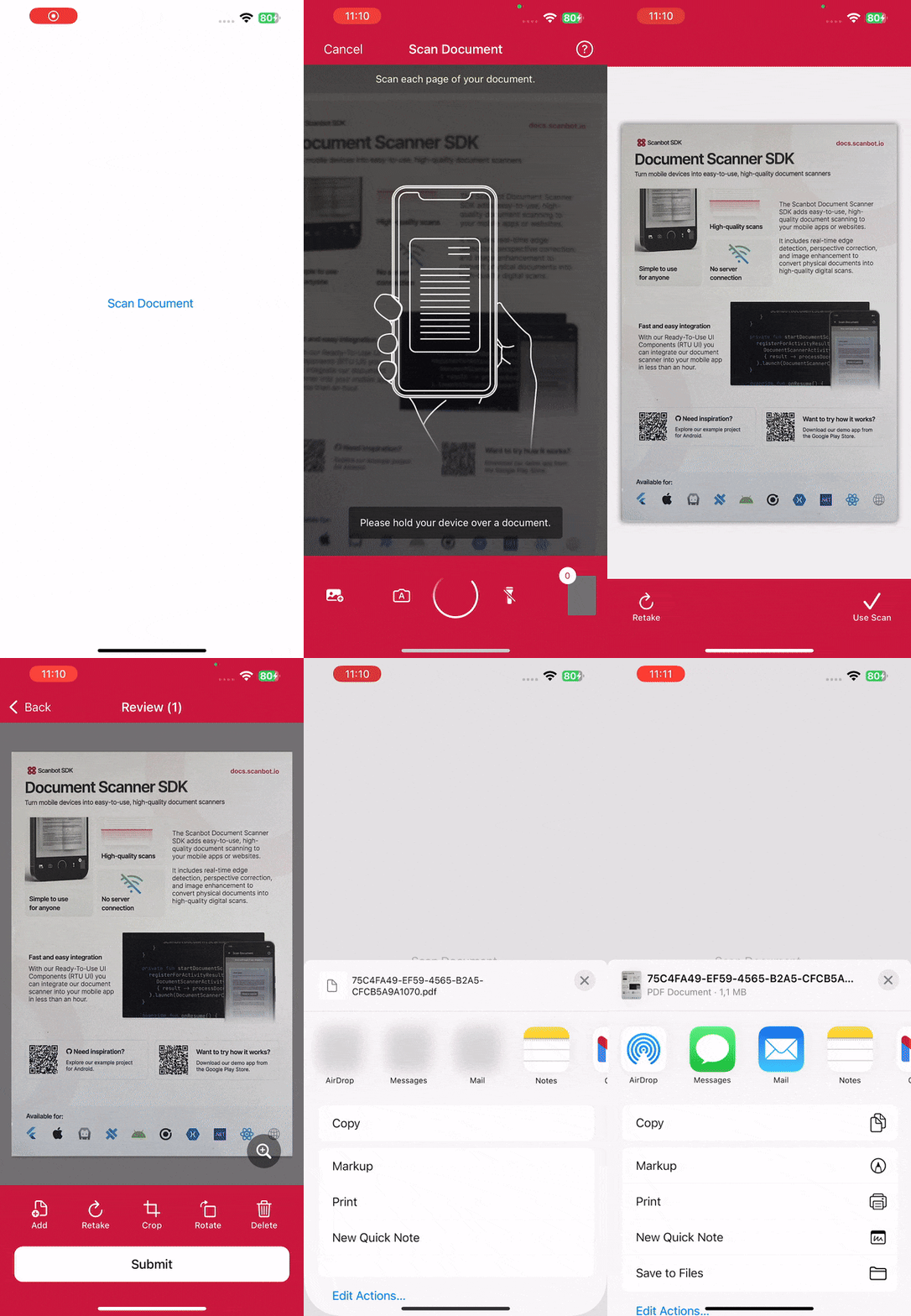
For more information on how to configure and implement each screen in your app, head over to our RTU UI documentation.
Should you have questions or run into any issues, we’re happy to help! Just shoot us an email via tutorial-support@scanbot.io.
Happy scanning! 🤳
What is the difference between WeScan and VisionKit?
WeScan is open source, while VisionKit is proprietary. This means that WeScan lets you modify the UI and detection logic, but requires more maintenance. VisionKit, by contrast, works out of the box with minimal setup, supports multi-page scanning, and stays up to date with iOS releases — though it’s less customizable.
What are the risks of choosing open-source software?
Using open-source libraries like WeScan can be attractive, but be aware that updates and bug fixes depend on community contributions and long-term continuity is not ensured. Additionally, there is no guaranteed support when you face issues or crashes.
Paid SDKs, like the Scanbot SDK, trade that cost for predictability and reliability. You receive regular updates, clear roadmaps, extensive developer resources, and expert support.
How do I integrate the Scanbot iOS Document Scanner SDK?
Setup is straightforward: Just follow the steps in the code snippet above. If you need full instructions, check out the integration tutorial on our tech blog. For more information, navigate to our documentation.


