

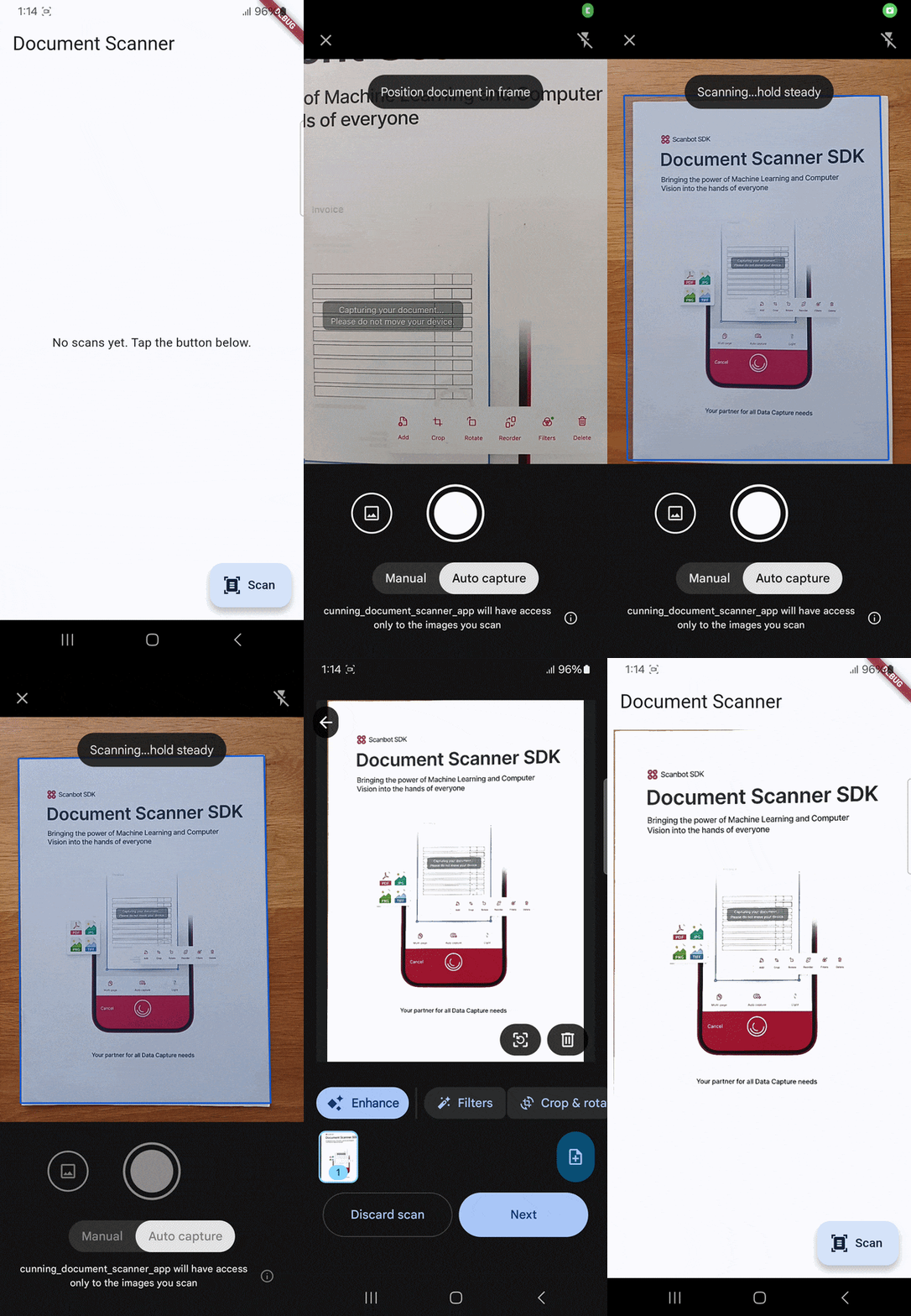
In this tutorial, you’ll learn how to build a cross-platform mobile app for scanning documents using Flutter and cunning_document_scanner, a package that streamlines the integration of camera-based document scanning (including automatic edge detection and cropping) into Flutter apps via simple API calls. Under the hood, it uses Google’s ML Kit on Android and Apple’s VisionKit on iOS.
Prerequisites
- The Flutter SDK configured in your system environment path
- For Android development: A physical Android device with USB debugging and/or wireless debugging enabled, or an Android Virtual Device with camera access
- For iOS development: A Mac with Xcode set up for Flutter development and a physical iOS device, since the iOS simulator lacks camera access
We’ll use VS Code with the Flutter extension in this tutorial, but you can also follow along using any other IDE set up for Flutter development.
Step 1: Prepare the project
First, create a new Flutter project and navigate to the project directory.
flutter create cunning_document_scanner_app
cd cunning_document_scanner_app
Open pubspec.yaml and add the cunning_document_scanner dependency.
dependencies:
  flutter:
    sdk: flutter
  cunning_document_scanner: ^1.4.0
Then fetch the package.
flutter pub getIn android/app/build.gradle.kts, set the minSdk version to 23 to satisfy the ML Kit requirements.
defaultConfig {
    applicationId = "com.example.cunning_document_scanner_app"
    minSdk = 23 // Required by the ML Kit dependency
    targetSdk = flutter.targetSdkVersion
    versionCode = flutter.versionCode
    versionName = flutter.versionName
}
The cunning_document_scanner package also requires iOS 13+ for compatibility, so set this in ios/Podfile via platform :ios, '13.0'. You’ll also need to add a preprocessor block, since the library depends on permission_handler, which uses a compile-time opt-in system for permissions. iOS requires that your app only include code for permissions it actually declares in Info.plist. To enforce this, permission_handler ships with all permissions disabled by default and requires you to explicitly turn on the ones you need. That’s what the PERMISSION_CAMERA=1 flag does.
platform :ios, '13.0'

post_install do |installer|
  installer.pods_project.targets.each do |target|
    target.build_configurations.each do |config|
      config.build_settings['GCC_PREPROCESSOR_DEFINITIONS'] ||= [
        '$(inherited)',
        'PERMISSION_CAMERA=1',
      ]
    end
  end
end
With this done, you can open ios/Runner/Info.plist and declare the camera permission.
<key>NSCameraUsageDescription</key>
<string>This app needs camera access to scan documents.</string>
For Android, you don’t need to declare the camera permission yourself, since Flutter plugins typically bundle their own AndroidManifest.xml declaring the permissions they need and Android’s manifest merger automatically combines those into your app’s manifest at build time.
Step 2: Implement the document scanning feature
Open lib/main.dart and replace its content with the following code:
import 'dart:io';
import 'package:flutter/material.dart';
import 'package:cunning_document_scanner/cunning_document_scanner.dart';

void main() => runApp(const MyApp());

class MyApp extends StatelessWidget {
  const MyApp({super.key});

  @override
  Widget build(BuildContext context) {
    return MaterialApp(
      title: 'Document Scanner',
      theme: ThemeData(colorSchemeSeed: Colors.blue),
      home: const ScannerPage(),
    );
  }
}

class ScannerPage extends StatefulWidget {
  const ScannerPage({super.key});

  @override
  State<ScannerPage> createState() => _ScannerPageState();
}

class _ScannerPageState extends State<ScannerPage> {
  List<String> _scannedPaths = [];

  Future<void> _scan() async {
    try {
      final paths = await CunningDocumentScanner.getPictures(
        noOfPages: 5,              // Android only: limit to 5 pages
        isGalleryImportAllowed: true, // Android only: allow gallery import
      );
      if (paths != null && paths.isNotEmpty) {
        setState(() => _scannedPaths = paths);
      }
    } catch (e) {
      ScaffoldMessenger.of(context).showSnackBar(
        SnackBar(content: Text('Scan failed: $e')),
      );
    }
  }

  @override
  Widget build(BuildContext context) {
    return Scaffold(
      appBar: AppBar(title: const Text('Document Scanner')),
      body: _scannedPaths.isEmpty
          ? const Center(child: Text('No scans yet. Tap the button below.'))
          : ListView.builder(
              itemCount: _scannedPaths.length,
              itemBuilder: (context, index) => Padding(
                padding: const EdgeInsets.all(8.0),
                child: Image.file(File(_scannedPaths[index])),
              ),
            ),
      floatingActionButton: FloatingActionButton.extended(
        onPressed: _scan,
        icon: const Icon(Icons.document_scanner),
        label: const Text('Scan'),
      ),
    );
  }
}
Let’s break this down.
void main() => runApp(const MyApp());This is your app’s entry point. runApp() loads your root widget (MyApp), which is this one:
class MyApp extends StatelessWidget {
  const MyApp({super.key});

  @override
  Widget build(BuildContext context) {
    return MaterialApp(
      title: 'Document Scanner',
      theme: ThemeData(colorSchemeSeed: Colors.blue),
      home: const ScannerPage(),
    );
  }
}
This defines the overall app structure, specifically the app’s name (title), global styling (theme), and the first screen shown (ScannerPage). The latter consists of the following code:
class ScannerPage extends StatefulWidget {
  const ScannerPage({super.key});

  @override
  State<ScannerPage> createState() => _ScannerPageState();
}
It needs to be a StatefulWidget, since the screen changes as scans are added. It delegates its logic to _ScannerPageState, which looks like this:
class _ScannerPageState extends State<ScannerPage> {
  List<String> _scannedPaths = [];
This code stores the file paths of scanned images in _scannedPaths, which starts empty, as there are no scans yet. This is the app’s state (meaning data).
You can find the app’s core logic in the scanning function that follows:
Future<void> _scan() async {
  try {
    final paths = await CunningDocumentScanner.getPictures(
      noOfPages: 5,
      isGalleryImportAllowed: true,
    );
This calls the scanner plugin, opens the camera UI or gallery, and returns a list of image file paths. For Android only, you can define the maximum number of pages via noOfPages and whether the user can pick images from the gallery via isGalleryImportAllowed.
The results are handled like this:
    if (paths != null && paths.isNotEmpty) {
      setState(() => _scannedPaths = paths);
    }
If scanning was successful, _scannedPaths is updated and setState() tells Flutter to rebuild the UI. In case of an error, the app shows a small pop-up message (SnackBar):
  } catch (e) {
    ScaffoldMessenger.of(context).showSnackBar(
      SnackBar(content: Text('Scan failed: $e')),
    );
  }
}
Finally, there’s the UI layout:
@override
Widget build(BuildContext context) {
  return Scaffold(
    appBar: AppBar(title: const Text('Document Scanner')),
    body: _scannedPaths.isEmpty
        ? const Center(child: Text('No scans yet. Tap the button below.'))
        : ListView.builder(
            itemCount: _scannedPaths.length,
            itemBuilder: (context, index) => Padding(
              padding: const EdgeInsets.all(8.0),
              child: Image.file(File(_scannedPaths[index])),
            ),
          ),
    floatingActionButton: FloatingActionButton.extended(
      onPressed: _scan,
      icon: const Icon(Icons.document_scanner),
      label: const Text('Scan'),
    ),
  );
}
The build method creates the entire screen: a standard layout with a top app bar, a main body that either shows a message (if no scans exist) or a scrollable list of scanned images, and a floating button that triggers the scanning process. The UI automatically updates whenever _scannedPaths changes.
Step 3: Test your app
Now that your app is ready, build and run it to scan a document:
flutter runConclusion
This concludes our tutorial on how to set up a document scanning app in Flutter using cunning_document_scanner.
Free solutions like this can be great for prototyping and personal projects. However, they have their drawbacks.
Since cunning_document_scanner is a wrapper for Google’s ML Kit and Apple’s VisionKit, its functionality depends entirely on these two libraries. This also means document scanning will look and behave differently on Android and iOS devices.
For companies looking to integrate a document scanning solution into their mobile apps, there’s an additional challenge: Neither Google nor Apple offer dedicated support for their ML Kit and VisionKit libraries. This means you cannot submit feature requests nor count on help when things don’t work as expected.
We developed the Scanbot Document Scanner SDK to help companies overcome these hurdles. Our goal was to provide a developer-friendly solution for a wide range of platforms that consistently delivers high-quality results, even in challenging circumstances – enterprise-grade support included.
💡 To learn more about the differences between these document scanning libraries, please refer to our Scanbot SDK vs ML Kit and Scanbot SDK vs VisionKit pages.
In the following tutorial, we’ll show you how to set up a document scanning app using the Scanbot Flutter Document Scanner SDK.
Building a Flutter document scanner app with the Scanbot SDK
To set up your app, you’ll follow these steps:
- Preparing the project
- Initializing the SDK
- Implementing the scanning feature
- Implementing the PDF export feature
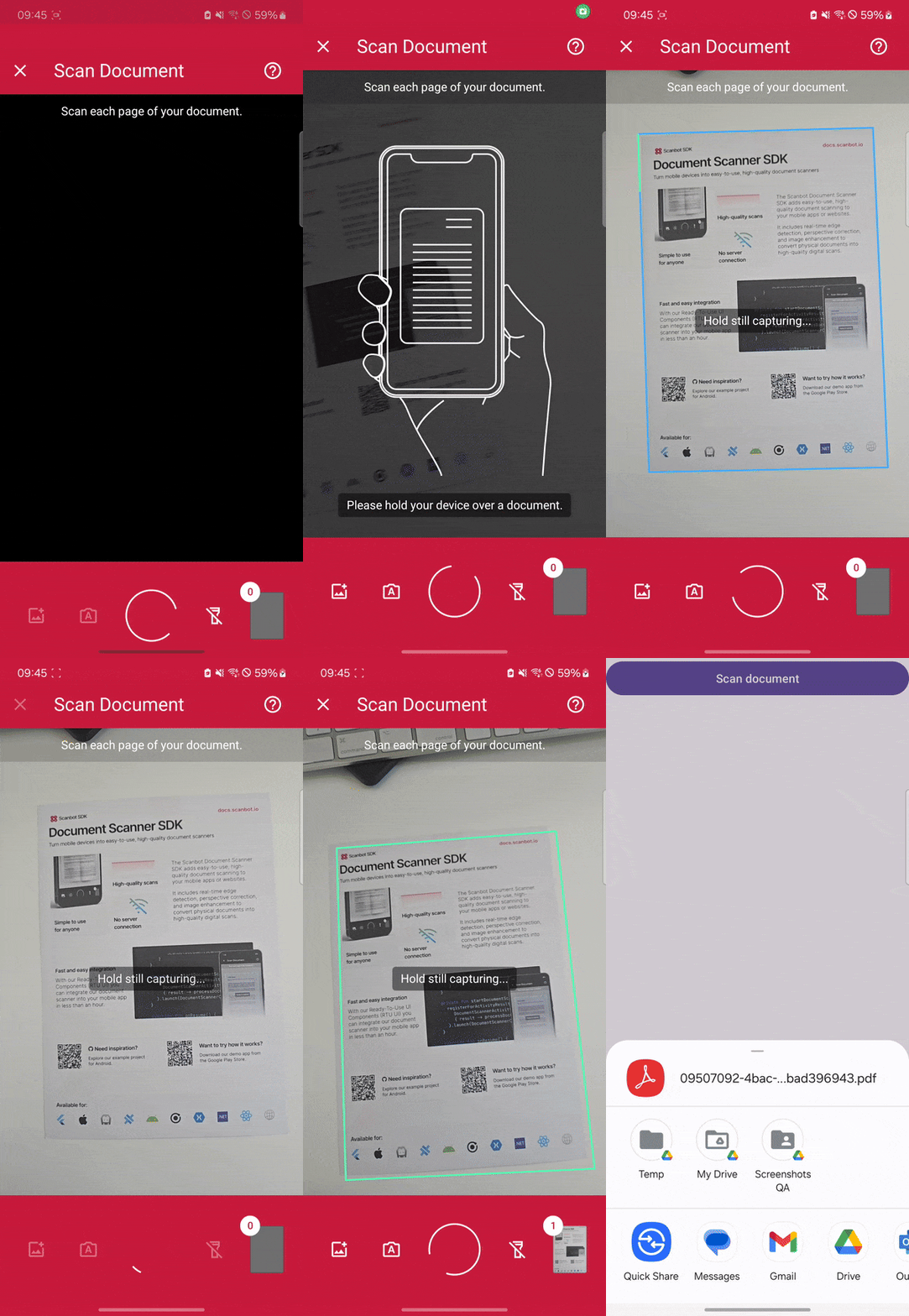
Thanks to the SDK’s Ready-to-Use UI Components, we’ll have an intuitive user interface out of the box.
Let’s get started!
Step 1: Prepare the project
1. Create a new Flutter project
Open your terminal and execute:
flutter create document_scanner_app
cd document_scanner_app
2. Add the Scanbot SDK package
Open pubspec.yaml and add the scanbot_sdk dependency.
dependencies:
  flutter:
    sdk: flutter
  scanbot_sdk: ^8.0.0
Then, fetch the package.
flutter pub get💡 We use Document Scanner SDK version 8.0.0 in this tutorial. You can find the latest version in the changelog.
3. Configure Android-specific settings
We need to access the device camera to scan documents. Therefore, open android/app/src/main/AndroidManifest.xml and add the necessary permissions:
<uses-permission android:name="android.permission.CAMERA" />
<uses-feature android:name="android.hardware.camera" />
4. Configure iOS-specific settings
Now open ios/Runner/Info.plist and add:
<key>NSCameraUsageDescription</key>
<string>Grant camera access to scan documents.</string>
Step 2: Initialize the SDK
Before we can use the Scanbot Document Scanner SDK, we need to initialize it. Make sure to call the initialization after entering the main widget creation. This ensures the SDK is correctly initialized.
In lib/main.dart, import the Scanbot SDK package:
import 'package:scanbot_sdk/scanbot_sdk.dart';Within your main widget, initialize the Scanbot SDK. This is typically done in the initState method of your main widget’s state class:
class _MyHomePageState extends State<MyHomePage> {
  @override
  void initState() {
    super.initState();
    _initScanbotSdk();
  }

  Future<void> _initScanbotSdk() async {
    var config = SdkConfiguration(
      licenseKey: "<YOUR_SCANBOT_SDK_LICENSE_KEY>",
      loggingEnabled: true,
    );

    await ScanbotSdk.initialize(config);
  }
  //...
💡 Without a license key, our SDK only runs for 60 seconds per session. This is more than enough for the purposes of our tutorial, but if you like, you can generate a license key using your app identifier.
Step 3: Set up the main widget
Now we’ll create a simple user interface that includes a button to initiate the document scanning process. Still in lib/main.dart, and in your main widget’s state class, define a widget with a button labeled “Scan Document”:
class _MyHomePageState extends State<MyHomePage> {
  // ... (existing code)

  @override
  Widget build(BuildContext context) {
    return Scaffold(
      appBar: AppBar(
        title: Text('Document Scanner'),
      ),
      body: Center(
        child: ElevatedButton(
          onPressed: _startDocumentScanner,
          child: Text('Scan Document'),
        ),
      ),
    );
  }

  Future<void> _startDocumentScanner() async {
    // To be implemented in the next step
  }
}
Next, we’ll connect the button with our RTU UI’s scanning screen.
Step 4: Implement the scanning feature
Within the _startDocumentScanner method, configure and launch the Scanbot Document Scanner UI. This involves creating a DocumentScanningFlow configuration and starting the scanner:
class _MyHomePageState extends State<MyHomePage> {
  // ... (existing code)

  Future<void> _startDocumentScanner() async {
    var configuration = multiPageScanningFlow();
    var documentResult = await ScanbotSdk.document.startScanner(configuration);
    // Handle the document if the result is 'Ok'
    if (documentResult is Ok<DocumentData>) {
      var documentData = documentResult.value;
      print(documentData);
    } else {
      print(documentResult.toString());
    }
  }

  DocumentScanningFlow multiPageScanningFlow() {
    // Create the default configuration object.
    var configuration = DocumentScanningFlow();

    // Customize text resources, behavior and UI:
    // ...

    return configuration;
  }
}
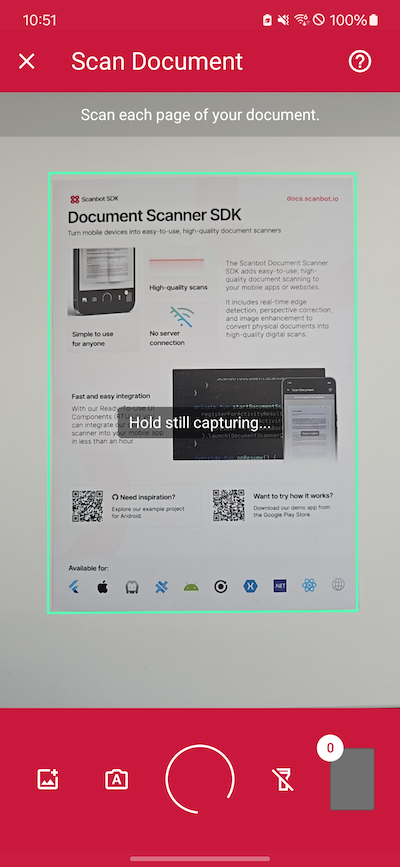
In this tutorial, we use a default configuration object. It will start the Document Scanner UI with the default settings: in multi-page scanning mode with an acknowledge screen after scanning each page. You can customize the UI and behavior of the Document Scanner by modifying the configuration object. For more information on how to customize the Document Scanner UI, please refer to the RTU UI documentation.
If you want, you can now run the app to try out the scanner without the PDF export feature.
Step 5: Implement the PDF export feature
Before implementing the export functionality, we need to add the share_plus dependency to pubspec.yaml and run flutter pub get once more.
dependencies:
  flutter:
    sdk: flutter
  scanbot_sdk: ^8.0.0
  share_plus: ^12.0.1
To enable users to scan documents, generate a PDF, and share it, we need to modify the _startDocumentScanner method. This method will first launch the document scanner, then process the scanned document to generate a PDF, and finally provide an option to share it.
  Future<void> _startDocumentScanner() async {
    var configuration = multiPageScanningFlow();
    var documentResult = await ScanbotSdk.document.startScanner(configuration);

    if (documentResult is Ok<DocumentData>) {
      var documentData = documentResult.value;
      var pdfOptions = PdfConfiguration(
        pageSize: PageSize.A4,
        pageDirection: PageDirection.PORTRAIT,
      );

      var pdfResult = await ScanbotSdk.pdfGenerator.generateFromDocument(
        documentData.uuid,
        pdfOptions,
      );

      if (pdfResult is Ok<String>) {
        await shareFile(pdfResult.value);
      } else {
        print(pdfResult.toString());
      }
    } else {
      print(documentResult.toString());
    }
  }

  // Method to share the generated PDF file
  Future shareFile(String fileUrl) async {
    final uri = Uri.parse(fileUrl);
    final path = uri.toFilePath();

    final params = ShareParams(
      files: [XFile(path)],
    );

    await SharePlus.instance.share(params);
  }

  DocumentScanningFlow multiPageScanningFlow() {
    var configuration = DocumentScanningFlow();
    return configuration;
  }
Now you can share a scanned document as a PDF file and use it. For example, you can send it via email or save it to a cloud storage.
Conclusion
And that’s it! You’ve successfully integrated a fully functional document scanner into your app 🎉
If this tutorial has piqued your interest in integrating document scanning functionalities into your Flutter app, make sure to take a look at the other neat features in the Flutter Document Scanner SDK’s documentation – or run our example project for a more hands-on experience.
Should you have questions about this tutorial or run into any issues, we’re happy to help! Just shoot us an email via tutorial-support@scanbot.io.
Happy scanning! 🤳
FAQ
How does cunning_document_scanner detect and process documents?
Under the hood, cunning_document_scanner uses Google’s ML Kit on Android and Apple’s VisionKit on iOS to scan documents. After capturing an image, it crops the document to its boundaries and applies basic enhancements, returning a clean, scanned version of the document.
What output format does cunning_document_scanner provide after scanning?
The cunning_document_scanner package returns scanned documents as image files (typically JPEG or PNG) via file paths. These images can then be displayed, stored, or further processed (e.g., converted into PDFs using another package).
Does cunning_document_scanner support scanning multiple pages?
Yes, the cunning_document_scanner supports multi-page scanning. You can configure the number of pages and allow users to scan multiple documents in one session.
Does cunning_document_scanner allow for importing images from the gallery instead of using the camera?
On Android, gallery import can be enabled, allowing users to select existing images. On iOS, however, this is not supported because the underlying native scanner (VisionKit) only allows document capture via the camera.
Does cunning_document_scanner provide PDF generation?
No, the package only returns scanned images (e.g., JPEG or PNG). If you need PDF functionality, you will need to use an additional package to convert the images into a PDF.
Can I customize the scanning UI of cunning_document_scanner?
Since cunning_document_scanner uses ML Kit’s and VisionKit’s scanning interfaces, UI customization is very limited.


