In this tutorial, you’ll learn how to create a web app for scanning barcodes and QR codes using Blazor, Microsoft’s framework for building client-side UIs with C# and HTML. To integrate the scanning functionalities, you’ll use the Scanbot Web Barcode Scanner SDK.
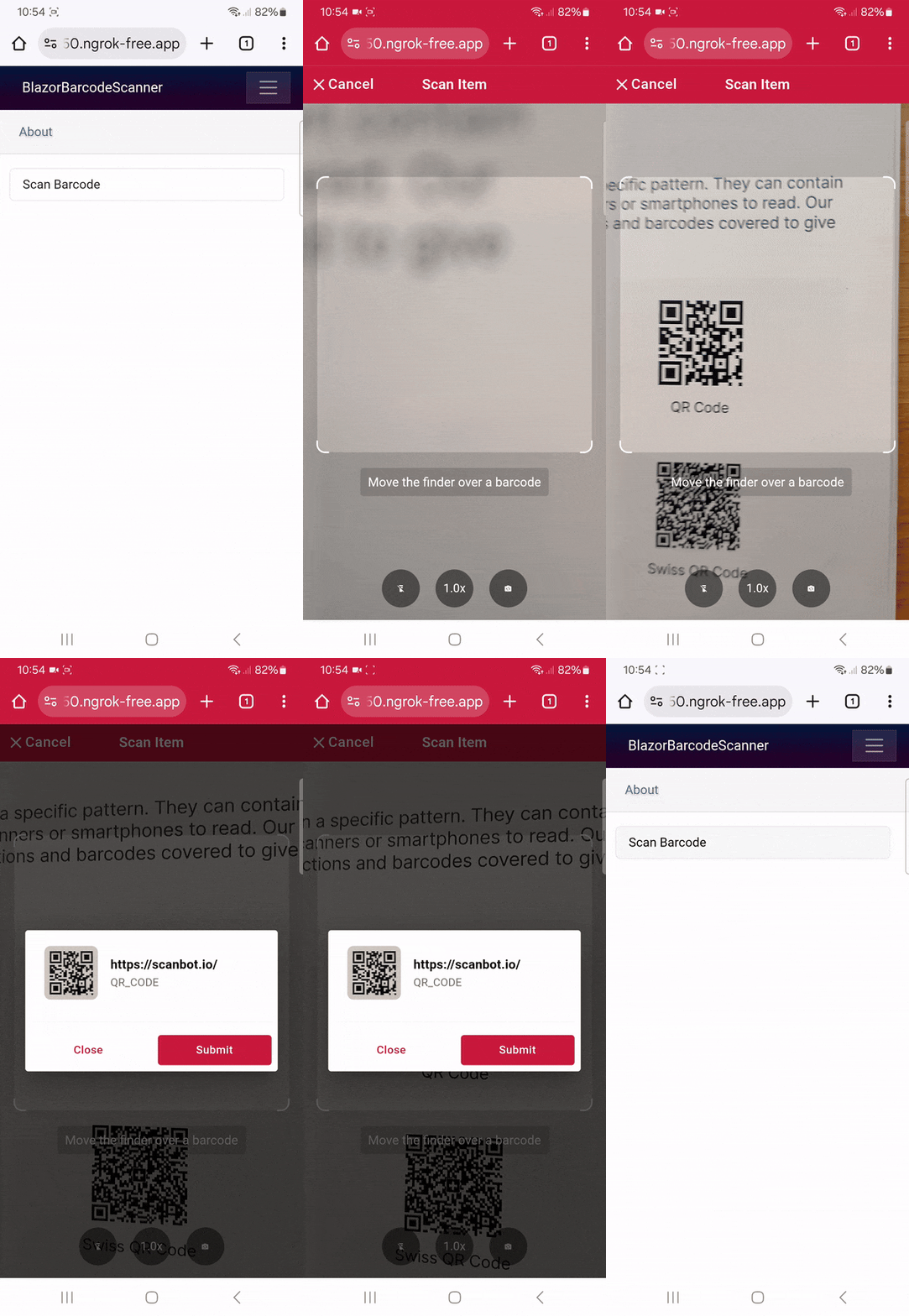
You’ll achieve this in three steps:
- Preparing the project
- Implementing the barcode scanning functionalities
- Building the UI
Prerequisites
- VS Code – however, you can also follow along using another IDE (e.g., JetBrains Rider), since the process will be similar
- .NET SDK
- C# Dev Kit extension for VS Code
Step 1: Prepare the project
Start by creating a new Blazor project.
In VS Code, you can use the command palette: Select “.NET: New Project…“, then “Blazor Web App“. Name your project (e.g., “BlazorBarcodeScanner”), confirm the project directory, and select “Create project“.
Next, open Components/App.razor and add the script for including the Scanbot Web SDK from a CDN in the file’s body, below <script src="_framework/blazor.web.js"></script>.
<script src="https://cdn.jsdelivr.net/npm/scanbot-web-sdk@latest/bundle/ScanbotSDK.ui2.min.js"></script>⚠️ Only import the SDK via a CDN for quick prototyping. In your production environment, download the Web SDK directly (or install it via npm) and include its files directly in your project. For Blazor, put them into wwwroot/wasm and update the enginePath property in the initialization code to /wasm/.
Step 2: Implement the barcode scanning functionalities
Create a new file wwwroot/js/scanbotSDKService.js, which will contain code for running the Scanbot Web SDK’s functions using Blazor’s JavaScript interop.
Open the file and add a method for initializing the SDK:
let scanbotSDK;

export async function initialize() {
  try {
    scanbotSDK = await ScanbotSDK.initialize({
      licenseKey: "",
      enginePath:
        "https://cdn.jsdelivr.net/npm/scanbot-web-sdk@latest/bundle/bin/barcode-scanner/",
    });

    console.log(scanbotSDK);
  } catch (e) {
    console.log(e.name + ": " + e.message);
  }
}
Then also add a method for starting the barcode scanner:
export async function startBarcodeScanner() {
  const config = new ScanbotSDK.UI.Config.BarcodeScannerScreenConfiguration();
  const useCase = new ScanbotSDK.UI.Config.SingleScanningMode();
  useCase.confirmationSheetEnabled = true;
  config.useCase = useCase;

  const result = await ScanbotSDK.UI.createBarcodeScanner(config);
  return result;
}
This will use the SDK’s single-barcode scanning mode with the UI’s default configuration. It also enables the confirmation dialogue for checking the scanned barcode’s value.
Step 3: Build the UI
Open Components/Pages/Home.razor (or another component of your choice) and replace the H1 and welcome text with a button that starts the barcode scanner.
<div class="row bg-white justify-content-center">
   <div class="list-group">
       <button type="button" class="list-group-item list-group-item-action" @onclick="StartScanBarcode">Scan Barcode</button>
   </div>
</div>
At the top of the file, inject the Blazor JavaScript interop service into the component and set its render mode to interactive server-side rendering.
@inject IJSRuntime JS

@rendermode InteractiveServer
Then, below the “Scan Barcode” button, use the interop mechanism to call the initialize function from scanbotSDKService.js.
@code {
    private IJSObjectReference? jsObjectReference;

    protected override async Task OnAfterRenderAsync(bool firstRender)
    {
        if (firstRender)
        {
            try
            {
                jsObjectReference = await JS.InvokeAsync<IJSObjectReference>("import", "./js/scanbotSDKService.js");

                if (jsObjectReference is not null)
                {
                    await jsObjectReference.InvokeVoidAsync("initialize");
                }
            }
            catch (Exception ex)
            {
                Console.WriteLine($"Error invoking: {ex.Message}");
            }
        }
    }
}
In addition, you need to call the startBarcodeScanner function.
private async Task StartScanBarcode()
{
    try
    {
        if (jsObjectReference is not null)
        {
            await jsObjectReference.InvokeAsync<string>("startBarcodeScanner");
        }
    }
    catch (Exception ex)
    {
        Console.WriteLine($"Error invoking: {ex.Message}");
    }
}
Your final Home.razor file will look like this:
@page "/"

@inject IJSRuntime JS

@rendermode InteractiveServer

<PageTitle>Home</PageTitle>

<div class="row bg-white justify-content-center">
    <div class="list-group">
        <button type="button" class="list-group-item list-group-item-action" @onclick="StartScanBarcode">Scan Barcode</button>
    </div>
</div>

@code {
    private IJSObjectReference? jsObjectReference;

    protected override async Task OnAfterRenderAsync(bool firstRender)
    {
        if (firstRender)
        {
            try
            {
                jsObjectReference = await JS.InvokeAsync<IJSObjectReference>("import", "./js/scanbotSDKService.js");

                if (jsObjectReference is not null)
                {
                    await jsObjectReference.InvokeVoidAsync("initialize");
                }
            }
            catch (Exception ex)
            {
                Console.WriteLine($"Error invoking: {ex.Message}");
            }
        }
    }

    private async Task StartScanBarcode()
    {
        try
        {
            if (jsObjectReference is not null)
            {
                await jsObjectReference.InvokeAsync<string>("startBarcodeScanner");
            }
        }
        catch (Exception ex)
        {
            Console.WriteLine($"Error invoking: {ex.Message}");
        }
    }
}
Now cd into your project directory and run the app to test your barcode scanner!
cd BlazorBarcodeScanner

dotnet run
💡 To test your web app on your phone, you have a few options. One option is to use a service like ngrok, which creates a tunnel to one of its SSL-certified domains. The Quick Start guide will help you get up and running quickly.
Conclusion
🎉 Congratulations! You’ve successfully built a barcode scanning web app using Blazor!
This tutorial showcases just one of the many scanner configurations the Scanbot SDK has to offer – take a look at the RTU UI documentation and API references to learn more.
Integration guides are also available for the following Web frameworks:
Should you have questions about this tutorial or run into any issues, we’re happy to help! Just shoot us an email via tutorial-support@scanbot.io.
Happy scanning! 🤳