In international travel, machine-readable travel documents (MRTDs) are the global standard for identity verification. Besides machine-readable passports (MRPs), this includes visas and some national ID cards. The core of all MRTDs is a standardized element designed for automated reading: the machine-readable zone (MRZ).
In this article, we take a closer look at the physical structure of passports and explain how the MRZ is formatted. We then explore how you can use mobile devices to reliably scan and extract passport data.
What is a machine-readable passport (MRP)?
A machine-readable passport (MRP) is a travel document with identity data that can be read by both humans and machines. To ensure global interoperability, MRPs follow ICAO Doc 9303. This standard defines machine-readable formats as well as the layout and data fields of passports. Today, the vast majority of passports issued worldwide are MRPs.
An MRP is a booklet with at least eight pages, including a data page on which the issuing State records the holder’s personal details along with information about the document’s issuance and validity. This page also includes the machine-readable zone (MRZ).
Layout of a machine-readable passport
The passport data page layout is heavily standardized. This ensures that officials and automated systems worldwide can consistently locate and interpret the personal and document data no matter the issuing authority.
Nonetheless, the layout offers some flexibility to accommodate the legal and cultural requirements of the individual issuing States. To balance international standardization and flexibility, the data page is divided into seven zones.
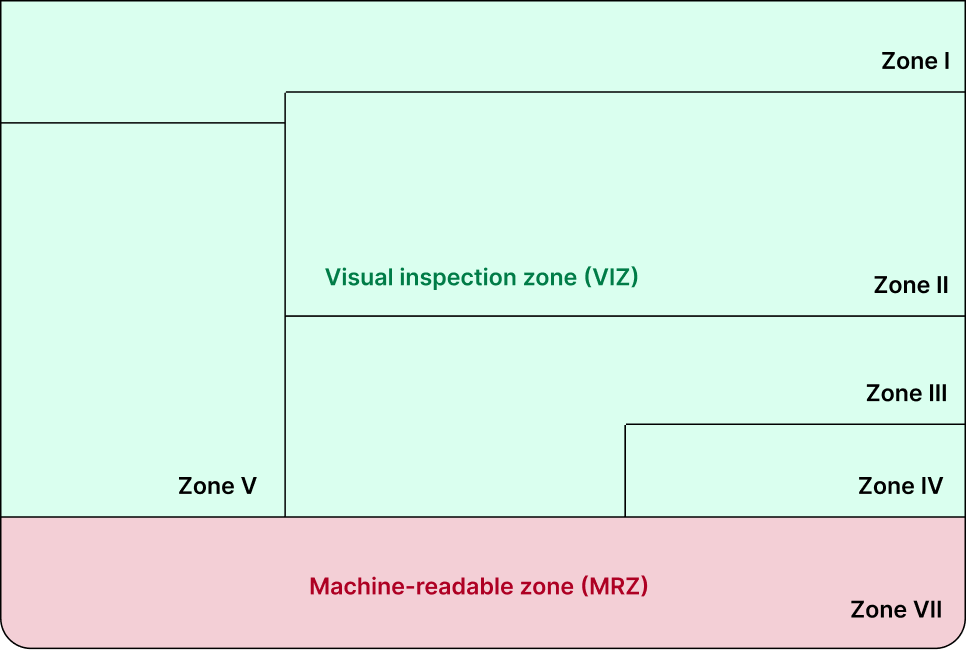
The seven each hold specific elements:
- Zone I: Header
- Zone II: Personal data
- Zone III: Document data
- Zone IV: Signature
- Zone V: Identification feature / Portrait picture
- Zone VI: Optional data
- Zone VII: Machine-readable zone (MRZ)
Zones I through VI constitute the visual inspection zone (VIZ), which is designed for human inspection. Zone VII is the machine-readable zone (MRZ), formatted specifically for optical character recognition (OCR).
The visual inspection zone (VIZ)
The visual inspection zone is intended for manual verification at border control and in administrative workflows. It occupies most of the data page and contains more information than the MRZ.
VIZ data elements
The VIZ includes human-readable fields such as the holder’s name, date of birth, and passport number, as well as the portrait picture. While many elements are mandatory, some are optional, meaning that issuing States may or may not choose to include them.
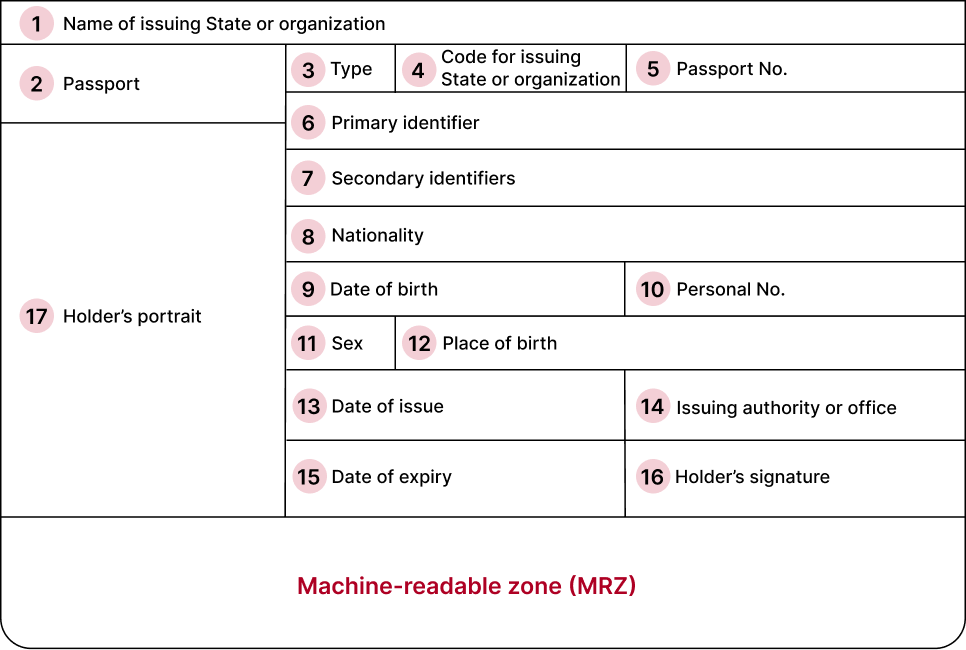
The table below lists the VIZ data elements, their meaning, and whether they are required to be present:
| Zone | Field | Data element | Meaning | Required? |
| I | 1 | Issuing State or organization | The full name of the State or organization that issued the MRP | Mandatory |
| I | 2 | Document | The document title in the national language | Mandatory |
| I | 3 | Document code | Document code Capital letter P to designate an MRP | Mandatory |
| I | 4 | Issuing State code | The three-letter ICAO country code for the issuing State | Mandatory |
| I | 5 | Passport number | A unique number assigned by the State to identify the specific document | Mandatory |
| II | 6 | Primary identifier | The holder’s surname | Mandatory |
| II | 7 | Secondary identifier | The holder’s given names | Mandatory |
| II | 8 | Nationality | The holder’s nationality as identified by the issuing State | Mandatory |
| II | 9 | Date of birth | The holder’s date of birth in a standardized format | Mandatory |
| II | 10 | Personal number | An identification number given to the holder by the State | Optional |
| II | 11 | Sex | The sex of the holder (F for female, M for male, or X for unspecified) | Mandatory |
| II | 12 | Place of birth | The city and/or State of the holder’s birthplace | Optional |
| III | 13 | Date of issue | The date the document was officially issued | Mandatory |
| III | 14 | Issuing authority | The specific office or organization that issued the MRP | Mandatory |
| III | 15 | Date of expiry | The date the document is no longer valid for travel | Mandatory |
| IV | 16 | Holder’s signature | The signature or usual mark of the rightful holder | Mandatory |
| V | 17 | Holder’s portrait | A secure, integrated image of the holder’s face | Mandatory |
Zone VI is optional and may contain additional discretionary data, often located on the back of the data page or on an adjacent page.
For dates, several formats are possible – they are defined in Part 3 of Doc 9303.
The machine-readable zone (MRZ)
The MRZ, officially Zone VII, contains a standardized, machine-readable subset of the data printed in the VIZ. It is located at the bottom of the data page and consists of two lines of 44 characters each.
The ICAO, in fact, defines several MRZ formats for use on different document types. The two-line format used for passports is TD3.
Next, we will look at how the passport MRZ is structured internally.
MRZ data encoding on passports (TD3 format)
The MRZ follows a strict left-to-right structure. All unused character positions are filled with the filler character “<” to preserve consistent spacing and length.
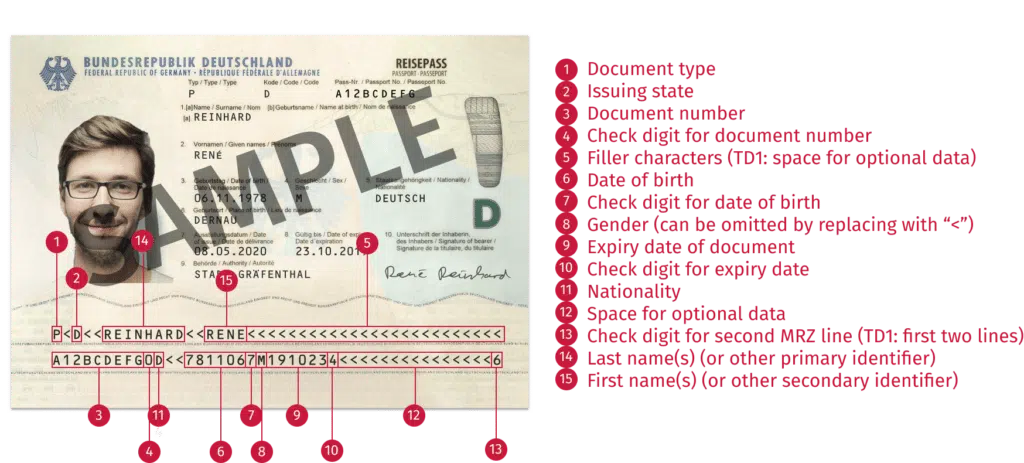
Line 1 encodes document and name information:
| Character positions | Data element | Details & formatting |
| 1–2 | Document code | The first character is ‘P’ for passport; the second identifies the specific type (e.g., ‘PP’ for ordinary, ‘PD’ for diplomatic) |
| 3–5 | Issuing State | The three-letter ICAO country code representing the issuing State or organization |
| 6–44 | Name | The holder’s primary and secondary identifiers, separated by two filler characters (<<) |
Line 2 encodes the holder’s passport and personal information:
| Character positions | Data element | Details & formatting |
| 1–9 | Passport number | The unique document number; spaces are replaced with filler characters (<) |
| 10 | Check digit | A digit used to verify the passport number |
| 11–13 | Nationality | The three-letter ICAO code for the holder’s nationality |
| 14–19 | Date of birth | Format: YYMMDD |
| 20 | Check digit | A digit used to verify the date of birth |
| 21 | Sex | M for male, F for female, or < for unspecified |
| 22–27 | Date of expiry | Format: YYMMDD |
| 28 | Check digit | A digit used to verify the date of expiry |
| 29–43 | Personal number | Optional personal or document data at the discretion of the State |
| 44 | Composite check digit | An overall check digit calculated using data from the lower line |
Check digits
Check digits embedded throughout the MRZ can be used to verify that the data has been read correctly. They are calculated using a Modulus 10 algorithm that assigns numeric values to characters and applies a repeating weighting pattern. This mechanism allows scanning systems to automatically detect recognition errors.
NFC-enabled passports
Most modern passports – often referred to as ePassports or biometric passports – have a contactless NFC chip embedded in the booklet. The chip securely stores biometric data such as the holder’s facial image and, in some cases, fingerprints.
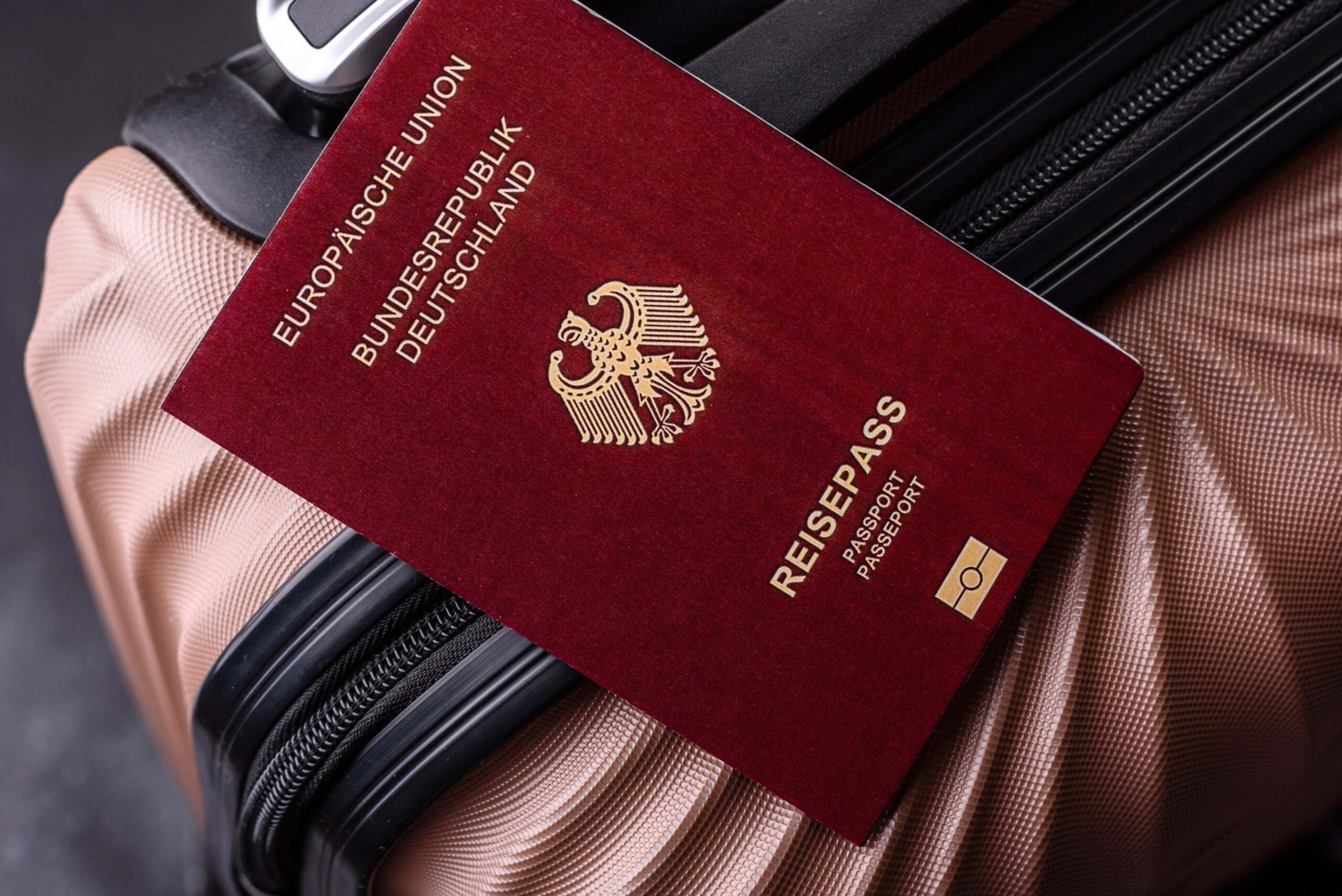
ePassports can be identified by the standardized chip symbol printed on the cover.
While chip-based reading is highly secure, not all passports worldwide support NFC. For this reason, NFC reading cannot be relied upon as a universal extraction method.
Extracting data from passports
Because the MRZ is mandatory on all machine-readable passports, it is the global baseline for automated data capture. Unlike the NFC chip, it can be read using any standard camera and OCR software. This means that given the right software, any smartphone or tablet can be used to scan passports.
Using OCR to scan MRZs
Optical character recognition (OCR) converts images of text into machine-readable characters. The MRZ is specifically designed for fast and accurate OCR: It uses a fixed font (OCR-B), standardized character spacing, and a limited character set to minimize misreads.
Today, a typical MRZ scanning workflow includes:
- Image capture: A camera captures the passport data page.
- MRZ detection: The software locates the MRZ at the bottom of the page.
- Pre-processing: The image is enhanced to improve contrast and sharpness.
- Character recognition: OCR converts the MRZ image into text.
- Parsing: The raw string is turned into structured data fields such as name, passport number, nationality, and dates.
- Check digit validation: Check digits are calculated and compared against the printed values to detect errors.
- Output: The verified data is returned as structured key-value pairs.
This process not only ensures high accuracy, but also enables fast, automated passport processing across industries – from travel to customer onboarding.
Benefits of scanning passports
Because the MRZ is standardized across all MRTDs, a passport issued by one State can be processed anywhere in the world using both visual and electronic methods.
Automated MRZ scanning leverages this standardization. It eliminates manual data entry, accelerates identity workflows, reduces operational workload, and significantly lowers the risk of transcription errors. Built-in check digits further enhance reliability by enabling the validation of critical fields.
How to scan passports with the Scanbot MRZ Scanner SDK
The Scanbot MRZ Scanner SDK enables fast and reliable passport scanning directly within mobile and web applications. It is available for iOS, Android, cross-platform frameworks, and web environments.
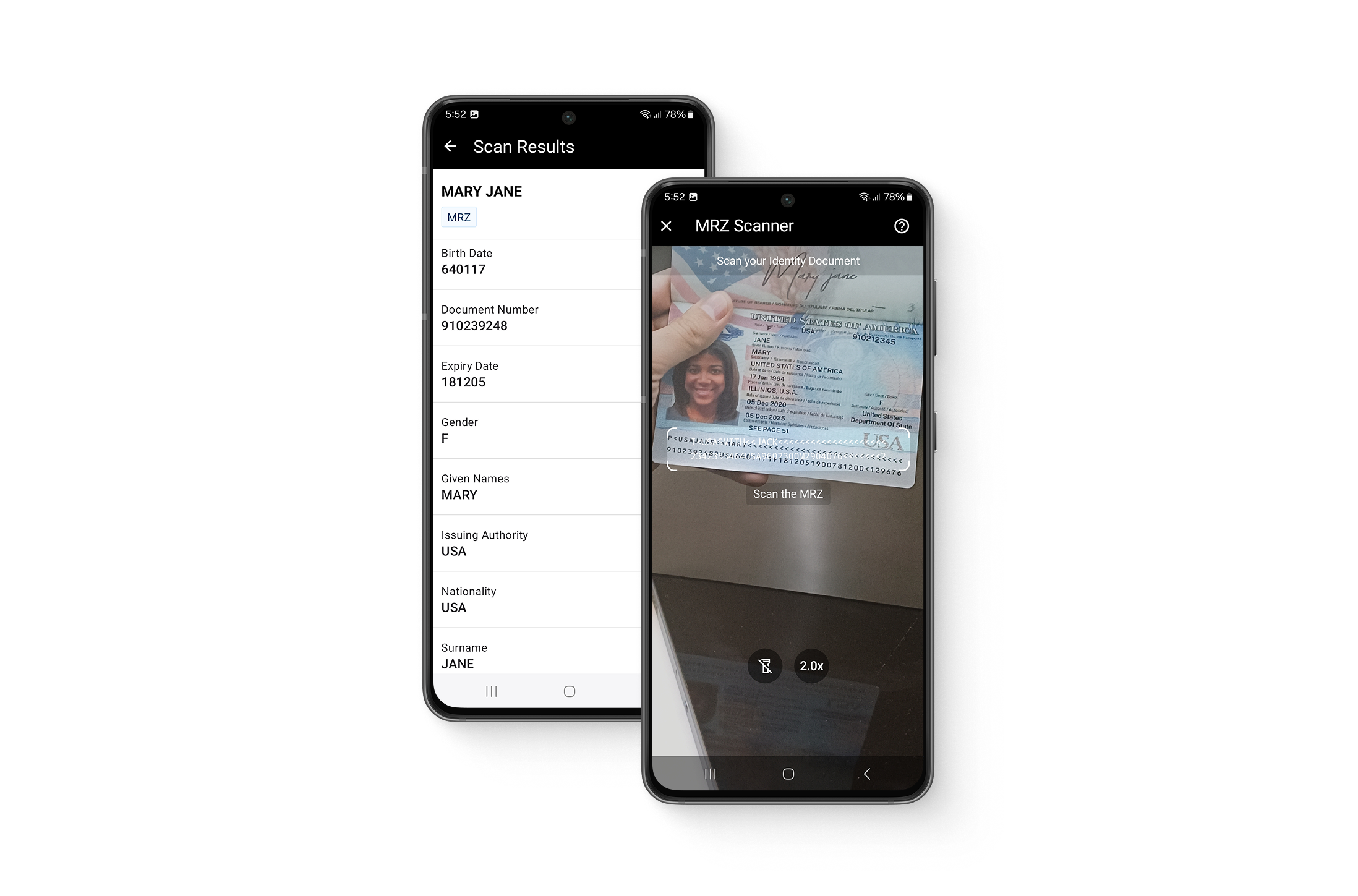
The SDK automatically detects MRZs, extracts all standardized data fields, validates check digits, and returns structured key-value results for seamless backend integration. All processing is performed locally on the device, without a need for third-party servers or an internet connection.
Start testing today
With the Scanbot SDK’s ready-to-use UI components, you can set up a fully functional MRZ scanner app with just a few lines of code – even in a single, self-contained HTML file, thanks to the Scanbot Web MRZ Scanner SDK.
<!DOCTYPE html>
<html lang="en">

<head>
    <meta charset="UTF-8">
    <meta name="viewport" content="width=device-width, initial-scale=1.0, maximum-scale=1.0, user-scalable=0" />
    <title>Web MRZ Scanner</title>
</head>

<body style="margin: 0">
    <button id="scan-mrz">Scan MRZ</button>
    <p id="mapped"></p>
    <script type="module">
        import "https://cdn.jsdelivr.net/npm/scanbot-web-sdk@7.2.0/bundle/ScanbotSDK.ui2.min.js";
        const sdk = await ScanbotSDK.initialize({
            enginePath:
                "https://cdn.jsdelivr.net/npm/scanbot-web-sdk@7.2.0/bundle/bin/complete/"
        });
        document
            .getElementById("scan-mrz")
            .addEventListener("click", async () => {
                const config = new ScanbotSDK.UI.Config.MrzScannerScreenConfiguration();
                const result = await ScanbotSDK.UI.createMrzScanner(config);

                const mappedParagraph = document.getElementById("mapped");
                mappedParagraph.innerText = "";

                if (!result) {
                    mappedParagraph.innerText = "No result. Please try again.";
                    return;
                }

                if (!result?.mrzDocument) {
                    mappedParagraph.innerText = "No MRZ document found. Please try again.";
                    return;
                }

                const mapped = result?.mrzDocument.fields.map(field => {
                    return `${field.type.name}:  ${field.value?.text}`
                });
Feel free to copy the code into an HTML file and open it in your browser. When moving to production, we recommend you download the SDK and host it on your server instead of using a CDN.
You can run the Scanbot SDK from your project for 60 seconds per session without a license. For more in-depth testing, generate a free trial license.
Do you want to learn more about the SDK? Our experts are always happy to chat. Simply message us at sdk@scanbot.io.
Happy scanning! 🤳
FAQ
Do I need a special device to scan MRZs on passports?
No. With scanning software like the Scanbot SDK, you can scan and extract passport data on any smartphone, directly in your app or website. The SDK uses the device camera to capture the MRZ and returns all information as structured key-value pairs.
Can I scan MRZs in low light?
Yes. The Scanbot MRZ Scanner SDK is optimized to work even in challenging conditions, including low light, glare, or angled shots. To test it out yourself, try our demo app.
How accurate is MRZ scanning?
MRZ scanning is highly accurate, thanks to the standardized OCR-B font, limited character set, and built-in check digits. It is a very reliable method of extracting passport data.
Can I scan MRZs on national ID cards as well?
Yes. The Scanbot MRZ Scanner SDK supports both two-line (TD3, TD2) and three-line (TD1, MRV-A, MRV-B) standards.