

In this tutorial, you’ll use Angular to build a QR code scanner app and turn it into an installable Progressive Web App (PWA).
To implement the scanning functionalities, you’ll use the Scanbot Web Barcode Scanner SDK.
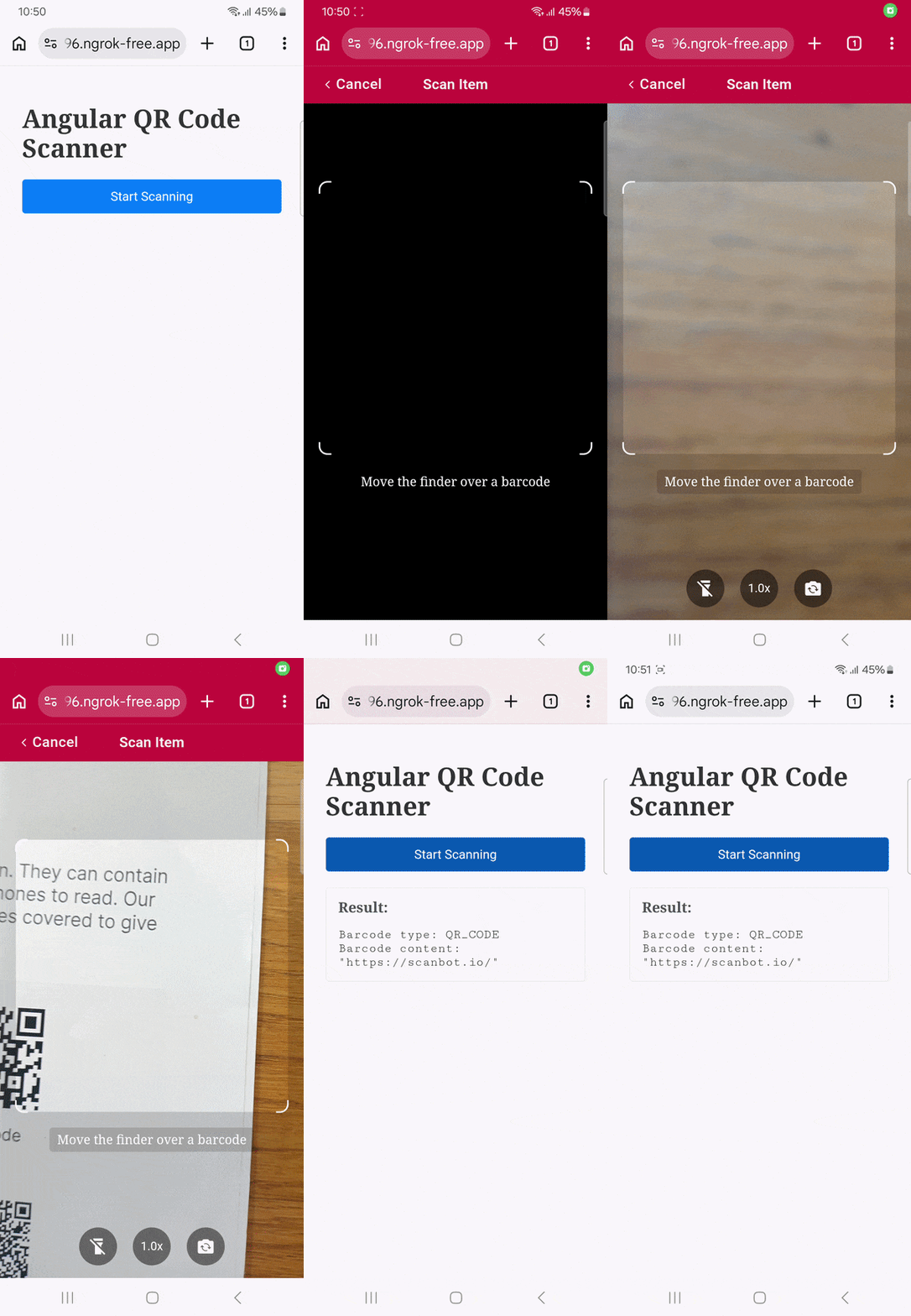
Building your app involves the following steps:
- Preparing the project
- Setting up the QR code scanner component
- Adding the component to the app
- Adding PWA support
Prerequisites
Before you begin, make sure you have the following installed:
- Node.js v18 or higher (required by Angular 19)
- Angular CLI v19 or higher (this tutorial uses class naming and template syntax introduced in v19)
- npm or yarn (this tutorial uses npm)
Step 1: Prepare the project
First, create a new Angular project. You can go with the default options presented by the Angular CLI.
ng new angular-pwa-qr-code-scannerAfter the project has been created, navigate into the project directory:
cd angular-pwa-qr-code-scannerStep 2: Set up the QR code scanner component
In this step, you’ll set up a simple component for scanning a single QR code using the SDK’s built-in barcode scanning interface.
First, generate a new component:
ng generate component qr-code-scanner --standaloneOpen src/app/qr-code-scanner/qr-code-scanner.ts and replace the code with the following:
import { Component, OnInit } from '@angular/core';

declare const ScanbotSDK: any;

@Component({
  selector: 'app-qr-code-scanner',
  templateUrl: './qr-code-scanner.html',
  styleUrls: ['./qr-code-scanner.css'],
  standalone: true,
})

export class QrCodeScanner implements OnInit {
  scanResult: string = '';

  async ngOnInit() {
    // Load Scanbot SDK
    await this.loadScanbotSDK();

    await ScanbotSDK.initialize({
      enginePath:
        'https://cdn.jsdelivr.net/npm/scanbot-web-sdk@8.0.1/bundle/bin/barcode-scanner/',
      licenseKey: '', // Empty string enables 60-second trial mode per session
    });
  }

  async startScanning() {
    const config =
      new ScanbotSDK.UI.Config.BarcodeScannerScreenConfiguration();

    // Only scan QR codes to improve performance
    config.scannerConfiguration.barcodeFormats = ['QR_CODE'];

    const scanResult = await ScanbotSDK.UI.createBarcodeScanner(config);

    if (scanResult?.items?.length > 0) {
      this.scanResult =
        `Barcode type: ${scanResult.items[0].barcode.format}\n` +
        `Barcode content: "${scanResult.items[0].barcode.text}"`;
    } else {
      this.scanResult = 'Scanning aborted by the user';
    }
  }

  private loadScanbotSDK(): Promise<void> {
    return new Promise((resolve) => {
      const script = document.createElement('script');
      script.type = 'module';
      script.src =
        'https://cdn.jsdelivr.net/npm/scanbot-web-sdk@8.0.1/bundle/ScanbotSDK.ui2.min.js';
      script.onload = () => resolve();
      document.head.appendChild(script);
    });
  }
}
This component initializes the Scanbot SDK with an empty licenseKey to use it in trial mode, which works for 60 seconds per session. You can also get a free 7-day trial by submitting the trial license form.
⚠️ In this tutorial, the SDK is imported via jsDelivr. However, you should only do this for quick prototyping. In your production environment, please download the Web SDK directly (or install it via npm) and include its files in your project.
The startScanning() method opens the SDK’s barcode scanning interface with the default configuration. Restricting the recognized barcode types (config.scannerConfiguration.barcodeFormats) to just QR code means the engine won’t have to check for other symbologies, which improves performance. If you’d like to scan all supported barcode types, simply remove the line.
When the scanning process has finished, the promise resolves with a scanResult and updates the component’s scanResult property to display the scanned barcode’s symbology (barcode.format) and encoded value (barcode.text).
Step 3: Add the component to the app
Now that your barcode scanner component is set up, open src/app/qr-code-scanner/qr-code-scanner.html and replace its content with the following code:
<div class="scanner-container">
  <h1>Angular QR Code Scanner</h1>
  <button class="scan-button" (click)="startScanning()">Start Scanning</button>
  @if (scanResult) {
    <div class="result">
      <h2>Result:</h2>
      <pre>{{ scanResult }}</pre>
    </div>
  }
</div>
Add some basic styling to src/app/qr-code-scanner/qr-code-scanner.css:
.scanner-container {
  padding: 20px;
  max-width: 600px;
  margin: 0 auto;
}

h1 {
  color: #333;
  margin-bottom: 20px;
}

.scan-button {
  background-color: #007bff;
  color: white;
  border: none;
  padding: 12px 24px;
  font-size: 16px;
  border-radius: 4px;
  cursor: pointer;
  width: 100%;
  margin-bottom: 20px;
}

.scan-button:hover {
  background-color: #0056b3;
}

.scan-button:active {
  background-color: #004085;
}

.result {
  background-color: #f8f9fa;
  border: 1px solid #dee2e6;
  border-radius: 4px;
  padding: 15px;
}

.result h2 {
  margin-top: 0;
  color: #495057;
  font-size: 18px;
}

.result pre {
  margin: 0;
  white-space: pre-wrap;
  word-wrap: break-word;
  font-family: 'Courier New', monospace;
  color: #212529;
}
Now, let’s add the component to the main app. Open src/app/app.ts and update it:
import { Component } from '@angular/core';
import { RouterOutlet } from '@angular/router';

// Import the component
import { QrCodeScanner } from './qr-code-scanner/qr-code-scanner';

@Component({
  selector: 'app-root',
  standalone: true,

  // Add the component to imports
  imports: [RouterOutlet, QrCodeScanner],
  templateUrl: './app.html',
  styleUrls: ['./app.css'],
})
export class App {

  // Rename the app
  title = 'Angular QR Code Scanner';
}
Open src/app/app.html and replace its content with the following line:
<app-qr-code-scanner></app-qr-code-scanner>⚠️ This replaces the entire contents of app.html, including Angular’s default template (which contains a router outlet, placeholder content, and navigation links). If you have customized app.html or need routing to work, preserve the <router-outlet> element and add <app-qr-code-scanner> alongside it instead.
With this, you’ve finished setting up your QR code scanner app. Before you configure it as a Progressive Web App, you can run it to test its scanning functionalities.
ng serveThe app will be available at http://localhost:4200.
💡 To test your web app on your phone, you have a few options. One is to use a service like ngrok, which creates a tunnel to one of their SSL-certified domains. Its Quick Start guide will help you get up and running quickly.
You can also use ng serve in your terminal with host as a wildcard address (0.0.0.0) or your current IP address, and specify the --ssl option:
ng serve --ssl --host 0.0.0.0Angular will then serve your app on the local network with a self-signed SSL certificate for HTTPS.
Step 4: Add PWA support
To turn our app into a PWA, we use Angular’s convenient pwa package:
ng add @angular/pwaThis command automatically installs the necessary service worker package and updates the project’s configuration to enable service workers during production builds. The command also creates essential files such as a web app manifest, service worker configuration, and application icons.
Now that our QR code scanner PWA is ready, build it for production:
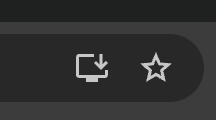
ng buildYou should see an icon for installing the PWA in your browser’s address bar when you test the production build.
To test the production build locally, you can use http-server or any other static file server:
npx http-server dist/angular-pwa-qr-code-scanner/browser -p 8080Navigate to http://localhost:8080 in your browser, and you should see the PWA install prompt.
⚠️ Service workers only register on localhost or over a secure HTTPS connection. If you try to test the PWA on a LAN IP address (e.g., http://192.168.x.x:8080) without SSL, the service worker will silently fail to register and the app will not be installable. Use ngrok or the --ssl flag with ng serve (as described above) when testing on other devices.
Conclusion
🎉 Congratulations! You’ve successfully built a QR code scanning PWA using Angular!
This tutorial showcases just one of the many scanner configurations the Scanbot SDK has to offer – take a look at the RTU UI documentation and API references to learn more.
Integration guides are also available for the following Web upframeworks:
Should you have questions about this tutorial or run into any issues, we’re happy to help! Just shoot us an email via tutorial-support@scanbot.io.
Happy scanning! 🤳
What is Angular used for?
Angular is a TypeScript-based framework for building web applications. It’s particularly well-suited for large, complex apps that benefit from strong conventions and structure. It includes built-in solutions for routing, forms, HTTP, and dependency injection, so teams don’t have to assemble these pieces themselves.
Should I use Angular or React?
Whether you should use Angular or React for developing your web app depends on your project and team. Angular is a complete, opinionated framework. It makes more decisions for you, which reduces choice fatigue on larger teams but can feel heavyweight for smaller projects. React is a focused UI library that gives you more flexibility in how you structure the rest of your app, at the cost of having to choose and integrate more tools yourself.
Should I use standalone components in Angular?
For new projects, the answer is a definite yes. Standalone components were stabilized in Angular 15 and became the default in Angular 17. They simplify the module system by letting components declare their own dependencies directly, rather than going through NgModule. Angular’s own documentation now recommends standalone components as the default approach.
What is a Progressive Web App?
A Progressive Web App (PWA) is a web application that can be installed on a user’s device and behaves similarly to a native app. PWAs work across desktop and mobile from a single codebase and can support features like offline access, push notifications, and home screen installation. They achieve this through the web app manifest (which tells the browser how to present the app when installed) and a service worker (which controls caching and network behavior).
How do I install a Progressive Web App?
A Progressive Web App (PWA) is a web application that can be installed on a user’s device and behaves similarly to a native app. PWAs work across desktop and mobile from a single codebase and can support features like offline access, push notifications, and home screen installation. They achieve this through the web app manifest (which tells the browser how to present the app when installed) and a service worker (which controls caching and network behavior).
What is a PWA worker?
A PWA worker (correct term: service worker) is a script that runs in the background, separately from the main browser thread. It acts as a programmable proxy between your app and the network, intercepting requests, serving cached responses, and enabling your app to work offline. Service workers are what make PWA features like offline support and reliable loading possible.
