

The Java-based barcode scanning library zxing and its Android wrapper zxing-android-embedded have been in maintenance mode for a while, leading many developers to look for alternatives. Most free options on Android now rely on Google’s ML Kit for barcode recognition and decoding, but the data privacy implications of using it are a dealbreaker for many.
In this guide, you’ll learn how to migrate the features built into zxing-android-embedded to their Scanbot Android Barcode Scanner SDK equivalents. A simple example implementation of ZXing makes it easy to follow along even without an existing app.
Before we get started, let’s have a closer look at the current ZXing ecosystem on Android.
Introduction: The state of ZXing on Android in 2026
ZXing (short for “Zebra Crossing”) has been one of the most widely used open-source barcode scanning libraries in the Android ecosystem for well over a decade. Unfortunately, the ZXing ecosystem has fragmented over the years and the libraries suitable for Android development are no longer being developed further. Therefore, it’s crucial to understand the role of ZXing in Android development today.
Over the years, ZXing grew from a single library to a family of related projects with diverging maintenance histories. There’s the original Java library zxing, the self-contained Android integration wrapper zxing-android-embedded, the separately evolved C++ port zxing-cpp, a JavaScript port, a .NET port, and various community wrappers built on top of those. They share a common ancestor and broadly the same barcode format support, but their trajectories have gone in different directions.
For Android developers, the original Java library zxing and the Android integration wrapper zxing-android-embedded are the most relevant.
The original zxing is in maintenance mode and will only include bug fixes moving forward, without any active development or future roadmap.
The zxing-android-embedded library is also in maintenance mode, but remains functional on modern Android versions. Its main area of concern is its use of the Camera1 API, which has been deprecated since Android 5.0, though Google hasn’t removed it yet and also hasn’t announced a timeline to do so. For projects already using it, this represents a long-term risk to monitor rather than an immediate problem.
For many developers, the maintenance trajectory of ZXing on Android will prompt the question of whether they should migrate to an actively developed alternative altogether.
With ML Kit, Google offers a capable and free option for Android developers. However, its standard distribution depends on Google Play Services, making it unsuitable for AOSP-based devices and various industrial or enterprise hardware that ships without them. In addition, organizations in regulated industries such as healthcare, finance, or government prohibit Google SDK dependencies outright due to data governance or privacy policies. There are also broader vendor lock-in concerns, as Google’s track record of deprecating developer products gives some teams pause before building a hard dependency on another Google-controlled SDK.
On the commercial side, we created the Scanbot Barcode Scanner SDK to provide a developer-friendly solution for a wide range of platforms that consistently delivers high-quality results, even in challenging circumstances. Our native Android Barcode Scanner SDK makes it straightforward to implement barcode scanning in your Android application and lets you choose between implementing the SDK’s built-in Ready-to-Use UI Components (which we’ll use in this guide) or tailoring the scanning experience to your exact needs with Custom UI Components. The free trial mode means you can test the solution thoroughly first without commitment.
Migrating from zxing-android-embedded to the Scanbot Android Barcode Scanner SDK
In this guide, you’ll learn how you can migrate an Android app that uses zxing-android-embedded to the Scanbot Android Barcode Scanner SDK and what you need to look out for in the process.
It covers the following aspects:
- Replacing the dependency
- Granting camera access
- Initializing the SDK
- Scanning a single barcode
- Scanning multiple barcodes
- Setting the recognized barcode symbologies
- Switching cameras
- Controlling the flashlight
- Customizing the user guidance
- Customizing the viewfinder
After following this guide, you’ll have a fully functional Android app for scanning one or multiple barcodes, complete with an intuitive user interface.
The ZXing implementation used in this guide
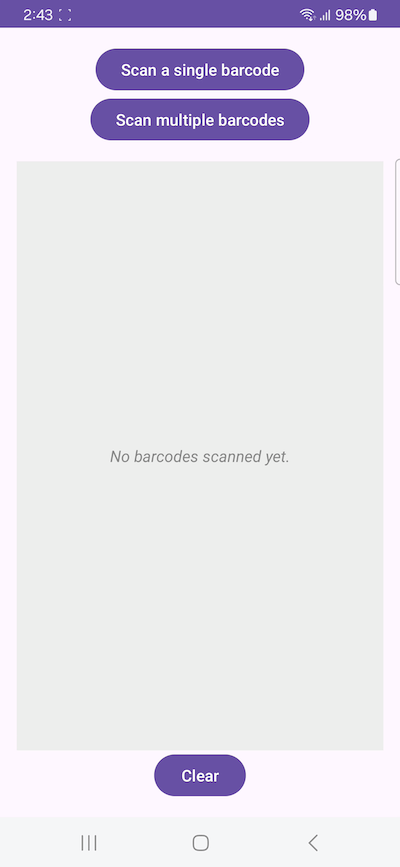
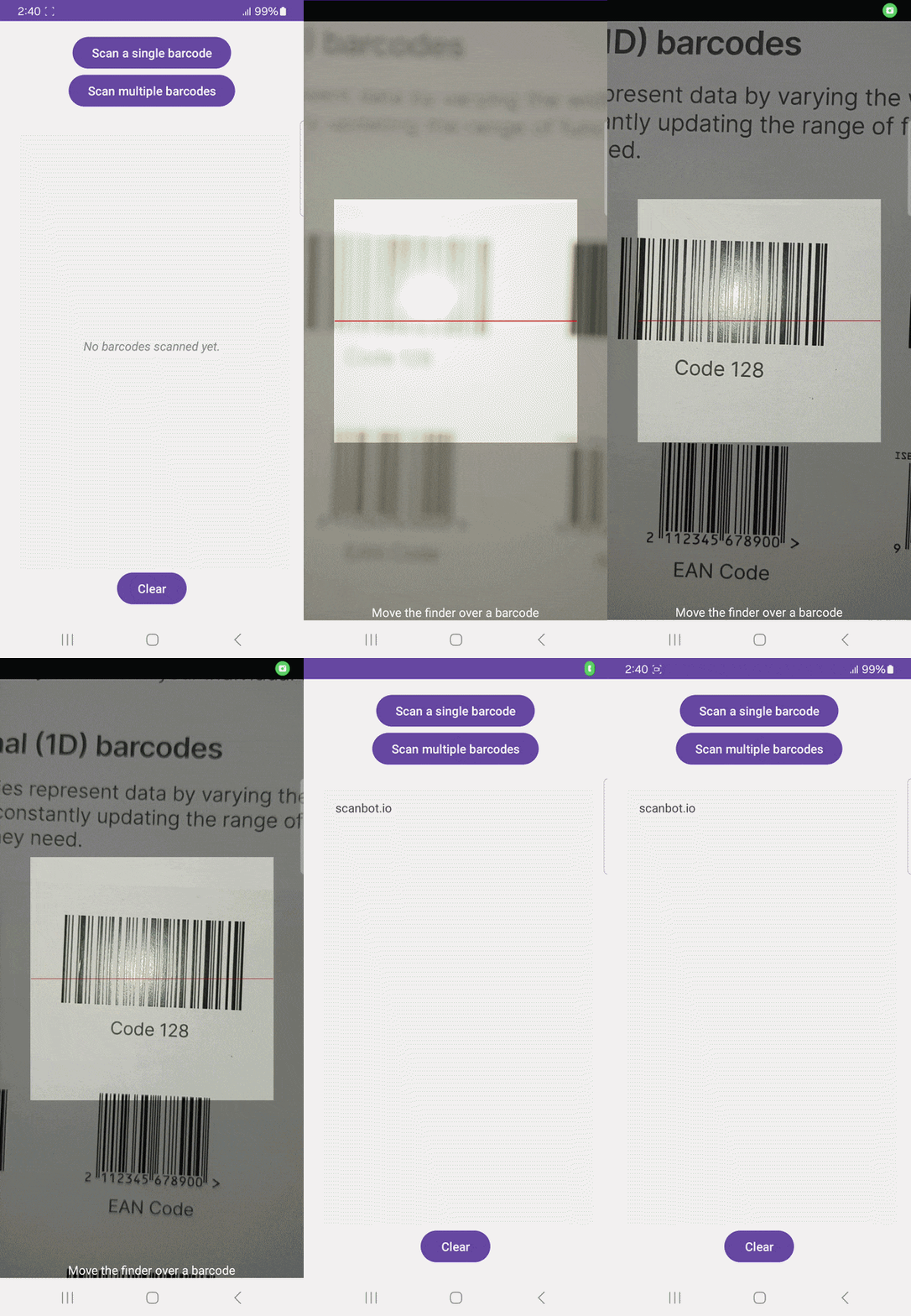
Your existing implementation of ZXing will be different from the next reader’s, so this guide uses a simple Android app that uses the library for single-barcode scanning via ScanContract (a pre-built Activity Result API wrapper) and for multi-barcode scanning via DecoratedBarcodeView (a more customizable UI View component). The reader can choose between the two scanning modes via corresponding buttons on the main screen, which also contains a list of scanned barcode values.
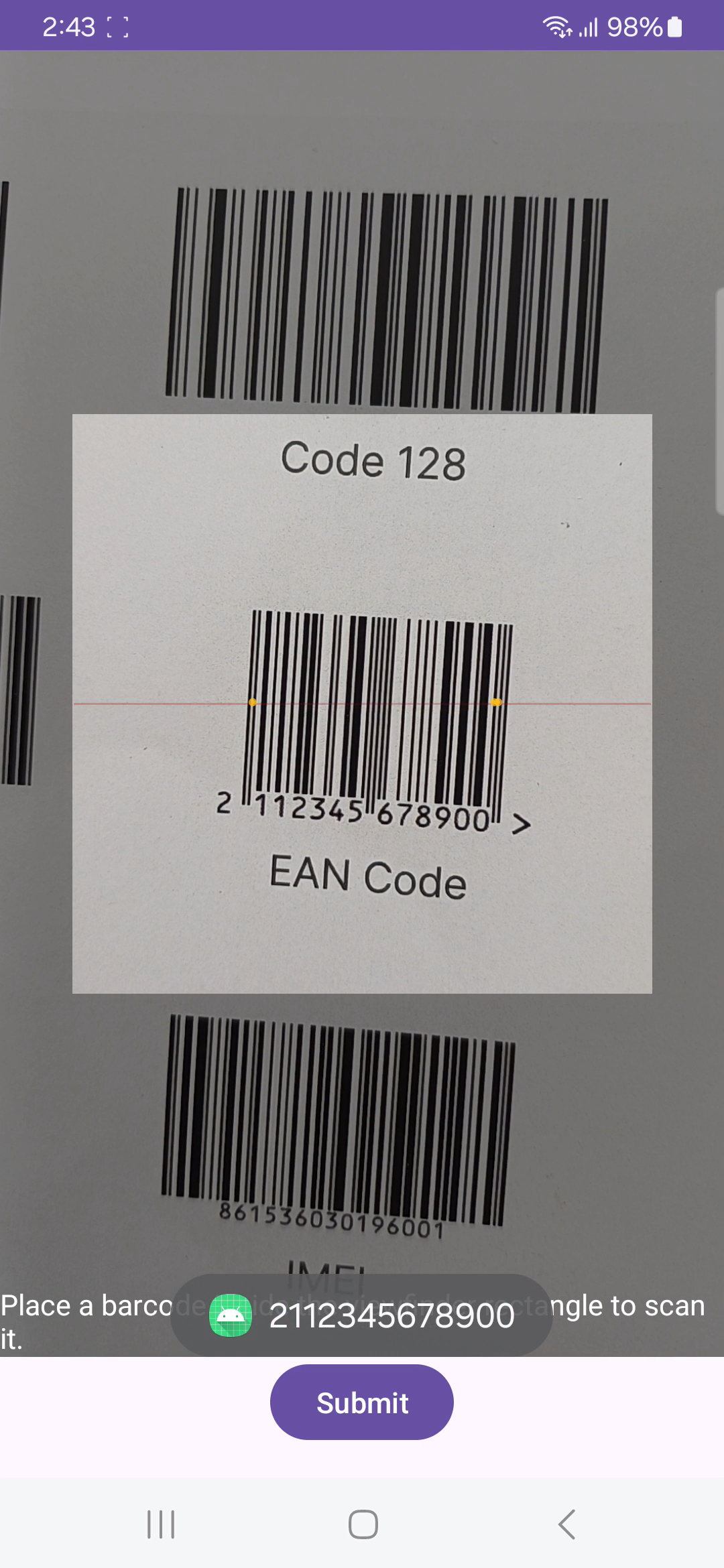
In single-scanning mode, which uses the built-in UI of zxing-android-embedded, the user returns to the main screen as soon as a barcode is scanned. Its value will be added to the results list.
In multi-scanning mode, the user can scan as many barcodes as they want before tapping on “Submit” and returning to the main screen, where the values of all scanned barcodes will be added to the results list. As soon as a barcode is scanned, a toast with the result will also be briefly displayed to confirm the scan.
If you would like to follow along using this example app, you can find the necessary code below.
Additions to app/build.gradle.kt
// ...
implementation("com.journeyapps:zxing-android-embedded:4.3.0")
// ...
Additions to AndroidManifest.xml
<!-- ... -->
    <application
        android:hardwareAccelerated="true"
        <!-- ... -->
        <activity android:name=".MultiScanActivity" />
        <activity
            android:name="com.journeyapps.barcodescanner.CaptureActivity"
            android:screenOrientation="fullSensor"
            tools:replace="screenOrientation" />
    </application>

</manifest>
MainActivity.kt
package com.example.zxingbarcodescanner

import android.content.Intent
import android.os.Bundle
import android.view.View
import android.widget.Button
import android.widget.TextView
import androidx.activity.result.contract.ActivityResultContracts
import androidx.appcompat.app.AppCompatActivity
import androidx.recyclerview.widget.LinearLayoutManager
import androidx.recyclerview.widget.RecyclerView
import com.journeyapps.barcodescanner.ScanContract
import com.journeyapps.barcodescanner.ScanOptions

class MainActivity : AppCompatActivity() {

    private lateinit var adapter: BarcodeAdapter
    private lateinit var rvResults: RecyclerView
    private lateinit var tvEmpty: TextView

    private val barcodeLauncher = registerForActivityResult(ScanContract()) { result ->
        if (result.contents != null) {
            adapter.addItem(result.contents)
            updateEmptyState()
        }
    }

    private val multiScanLauncher = registerForActivityResult(
        ActivityResultContracts.StartActivityForResult()
    ) { result ->
        if (result.resultCode == RESULT_OK) {
            val scannedBarcodes = result.data
                ?.getStringArrayListExtra(MultiScanActivity.EXTRA_RESULTS)
                ?: return@registerForActivityResult
            if (scannedBarcodes.isEmpty()) return@registerForActivityResult
            adapter.addItems(scannedBarcodes)
            updateEmptyState()
        }
    }

    override fun onCreate(savedInstanceState: Bundle?) {
        super.onCreate(savedInstanceState)
        setContentView(R.layout.activity_main)

        tvEmpty = findViewById(R.id.tvEmpty)
        rvResults = findViewById(R.id.rvResults)

        adapter = BarcodeAdapter()
        rvResults.apply {
            layoutManager = LinearLayoutManager(this@MainActivity)
            adapter = this@MainActivity.adapter
        }

        findViewById<Button>(R.id.btnScan).setOnClickListener {
            barcodeLauncher.launch(ScanOptions().apply {
                setDesiredBarcodeFormats(listOf("CODE_128", "PDF_417", "AZTEC", "DATA_MATRIX"))
                setCameraId(0)
                setTorchEnabled(true)
                setPrompt("Move the finder over a barcode")
            })
        }

        findViewById<Button>(R.id.btnScanMultiple).setOnClickListener {
            multiScanLauncher.launch(Intent(this, MultiScanActivity::class.java))
        }

        findViewById<Button>(R.id.btnClear).setOnClickListener {
            adapter.clear()
            updateEmptyState()
        }

        updateEmptyState()
    }

    private fun updateEmptyState() {
        if (adapter.isEmpty()) {
            rvResults.visibility = View.GONE
            tvEmpty.visibility = View.VISIBLE
        } else {
            rvResults.visibility = View.VISIBLE
            tvEmpty.visibility = View.GONE
        }
    }
}
MultiScanActivity.kt (for scanning multiple barcodes)
package com.example.zxingbarcodescanner

import android.content.Intent
import android.os.Bundle
import android.widget.Button
import android.widget.Toast
import androidx.appcompat.app.AppCompatActivity
import com.journeyapps.barcodescanner.BarcodeCallback
import com.journeyapps.barcodescanner.BarcodeResult
import com.journeyapps.barcodescanner.DecoratedBarcodeView

class MultiScanActivity : AppCompatActivity() {

    companion object {
        const val EXTRA_RESULTS = "extra_results"
    }

    private lateinit var barcodeView: DecoratedBarcodeView
    private val results = mutableListOf<String>()

    private val callback = object : BarcodeCallback {
        override fun barcodeResult(result: BarcodeResult) {
            val value = result.text ?: return
            if (!results.contains(value)) {
                results.add(value)
                Toast.makeText(this@MultiScanActivity, value, Toast.LENGTH_SHORT).show()
            }
        }
    }

    override fun onCreate(savedInstanceState: Bundle?) {
        super.onCreate(savedInstanceState)
        setContentView(R.layout.activity_multi_scan)

        barcodeView = findViewById(R.id.barcodeView)
        barcodeView.decodeContinuous(callback)

        findViewById<Button>(R.id.btnSubmit).setOnClickListener {
            val intent = Intent().putStringArrayListExtra(EXTRA_RESULTS, ArrayList(results))
            setResult(RESULT_OK, intent)
            finish()
        }
    }

    override fun onResume() {
        super.onResume()
        barcodeView.resume()
    }

    override fun onPause() {
        super.onPause()
        barcodeView.pause()
    }
}
BarcodeAdapter.kt (for connecting the list of scanned barcode values to the RecyclerView)
package com.example.zxingbarcodescanner

import android.view.LayoutInflater
import android.view.ViewGroup
import android.widget.TextView
import androidx.recyclerview.widget.RecyclerView

class BarcodeAdapter : RecyclerView.Adapter<BarcodeAdapter.ViewHolder>() {

    private val items = mutableListOf<String>()

    class ViewHolder(val textView: TextView) : RecyclerView.ViewHolder(textView)

    override fun onCreateViewHolder(parent: ViewGroup, viewType: Int) = ViewHolder(
        LayoutInflater.from(parent.context)
            .inflate(R.layout.item_barcode, parent, false) as TextView
    )

    override fun onBindViewHolder(holder: ViewHolder, position: Int) {
        holder.textView.text = items[position]
    }

    override fun getItemCount() = items.size

    fun addItem(item: String) {
        items.add(item)
        notifyItemInserted(items.size - 1)
    }

    fun addItems(newItems: List<String>) {
        val start = items.size
        items.addAll(newItems)
        notifyItemRangeInserted(start, newItems.size)
    }

    fun clear() {
        val size = items.size
        items.clear()
        notifyItemRangeRemoved(0, size)
    }

    fun isEmpty() = items.isEmpty()
}
activity_main.xml
<?xml version="1.0" encoding="utf-8"?>
<androidx.constraintlayout.widget.ConstraintLayout
    xmlns:android="http://schemas.android.com/apk/res/android"
    xmlns:app="http://schemas.android.com/apk/res-auto"
    android:layout_width="match_parent"
    android:layout_height="match_parent"
    android:padding="16dp">

    <Button
        android:id="@+id/btnScan"
        android:layout_width="wrap_content"
        android:layout_height="wrap_content"
        android:text="Scan a single barcode"
        app:layout_constraintBottom_toTopOf="@id/btnScanMultiple"
        app:layout_constraintEnd_toEndOf="parent"
        app:layout_constraintStart_toStartOf="parent"
        app:layout_constraintTop_toTopOf="parent" />

    <Button
        android:id="@+id/btnScanMultiple"
        android:layout_width="wrap_content"
        android:layout_height="wrap_content"
        android:text="Scan multiple barcodes"
        app:layout_constraintEnd_toEndOf="parent"
        app:layout_constraintStart_toStartOf="parent"
        app:layout_constraintTop_toBottomOf="@id/btnScan" />

    <TextView
        android:id="@+id/tvEmpty"
        android:layout_width="0dp"
        android:layout_height="0dp"
        android:text="No barcodes scanned yet."
        android:gravity="center"
        android:background="#EEEEEE"
        android:textColor="#888888"
        android:textStyle="italic"
        android:layout_marginTop="16dp"
        app:layout_constraintBottom_toTopOf="@id/btnClear"
        app:layout_constraintEnd_toEndOf="parent"
        app:layout_constraintStart_toStartOf="parent"
        app:layout_constraintTop_toBottomOf="@id/btnScanMultiple" />

    <androidx.recyclerview.widget.RecyclerView
        android:id="@+id/rvResults"
        android:layout_width="0dp"
        android:layout_height="0dp"
        android:padding="16dp"
        android:clipToPadding="false"
        android:background="#EEEEEE"
        android:visibility="gone"
        android:layout_marginTop="16dp"
        app:layout_constraintBottom_toTopOf="@id/btnClear"
        app:layout_constraintEnd_toEndOf="parent"
        app:layout_constraintStart_toStartOf="parent"
        app:layout_constraintTop_toBottomOf="@id/btnScanMultiple" />

    <Button
        android:id="@+id/btnClear"
        android:layout_width="wrap_content"
        android:layout_height="wrap_content"
        android:text="Clear"
        app:layout_constraintBottom_toBottomOf="parent"
        app:layout_constraintEnd_toEndOf="parent"
        app:layout_constraintStart_toStartOf="parent" />

</androidx.constraintlayout.widget.ConstraintLayout>
item_barcode.xml (for each barcode scan result on the main screen)
<?xml version="1.0" encoding="utf-8"?>
<TextView
    xmlns:android="http://schemas.android.com/apk/res/android"
    android:id="@+id/tvBarcode"
    android:layout_width="match_parent"
    android:layout_height="wrap_content"
    android:padding="8dp" />
activity_multi_scan.xml (for DecoratedBarcodeView)
<?xml version="1.0" encoding="utf-8"?>
<androidx.constraintlayout.widget.ConstraintLayout
    xmlns:android="http://schemas.android.com/apk/res/android"
    xmlns:app="http://schemas.android.com/apk/res-auto"
    android:layout_width="match_parent"
    android:layout_height="match_parent">

    <com.journeyapps.barcodescanner.DecoratedBarcodeView
        android:id="@+id/barcodeView"
        android:layout_width="0dp"
        android:layout_height="0dp"
        app:layout_constraintBottom_toTopOf="@id/btnSubmit"
        app:layout_constraintEnd_toEndOf="parent"
        app:layout_constraintStart_toStartOf="parent"
        app:layout_constraintTop_toTopOf="parent" />

    <Button
        android:id="@+id/btnSubmit"
        android:layout_width="wrap_content"
        android:layout_height="wrap_content"
        android:layout_margin="16dp"
        android:text="Submit"
        app:layout_constraintBottom_toBottomOf="parent"
        app:layout_constraintEnd_toEndOf="parent"
        app:layout_constraintStart_toStartOf="parent" />

</androidx.constraintlayout.widget.ConstraintLayout>
⚠️ Since zxing-android-embedded and the Scanbot Android Barcode Scanner SDK use different architectural approaches, migrating from the former to the latter isn’t as simple as replacing chunks of code. Therefore, you should create a new Android Studio project using the Empty Views Activity layout to build your Scanbot SDK app. You’ll see that implementing barcode scanning with the Scanbot SDK requires much less boilerplate.
Project-level configuration
Before you can migrate the barcode scanning features, you need to make some changes to your project. Specifically, you’ll have to add the Scanbot SDK dependencies, implement an explicit camera access request, and initialize the SDK.
1. Replacing the dependency
In your ZXing project’s app/build.gradle.kts, you’ll have the following dependency.
implementation("com.journeyapps:zxing-android-embedded:4.3.0")Replace it with the dependencies for the Scanbot Barcode Scanner SDK and its Ready-to-Use UI Components:
implementation("io.scanbot:scanbot-barcode-scanner-sdk:8.1.0")
implementation("io.scanbot:rtu-ui-v2-barcode:8.1.0")
💡 This guide uses v8.1.0 of the Scanbot Android Barcode Scanner SDK. You can find the most recent version in the SDK’s changelog.
You’ll also need to add the SDK’s Maven repositories in settings.gradle.kts:
dependencyResolutionManagement {
    repositoriesMode.set(RepositoriesMode.FAIL_ON_PROJECT_REPOS)
    repositories {
        google()
        mavenCentral()

        // Add the repositories here:
        maven(url = "https://nexus.scanbot.io/nexus/content/repositories/releases/")
        maven(url = "https://nexus.scanbot.io/nexus/content/repositories/snapshots/")
    }
}
Now you can sync the project to fetch the packages.
2. Granting camera access
The zxing-android-embedded library declares and requests the camera permission automatically via manifest merger. While automatic permission handling is convenient, it means you have no control over when and how the permission is requested. Typically, you’ll want to show a rationale to the user before requesting the permission, handle the case where the user denies the permission, and direct them to app settings.
With zxing-android-embedded handling it silently under the hood, you’d have to work around the library to achieve that. This is fine for a demo app or internal tool, but can be a friction point in a consumer-facing app where you care about the permission request UX.
For the Scanbot SDK, we’re going to request camera access explicitly. Just add the necessary permissions in AndroidManifest.xml:
<?xml version="1.0" encoding="utf-8"?>
<manifest xmlns:android="http://schemas.android.com/apk/res/android"
    xmlns:tools="http://schemas.android.com/tools">

    <!-- Add the permissions here: -->
    <uses-permission android:name="android.permission.CAMERA" />
    <uses-feature android:name="android.hardware.camera" />

    <application
    <!-- ... -->
3. Initializing the SDK
Since zxing-android-embedded is a collection of classes you instantiate and use directly, it doesn’t need to be initialized. In contrast, the Scanbot SDK uses a powerful core engine for recognizing and decoding barcodes that needs to be loaded before launching the scanning interface.
For Android, the recommended approach is to do this in your Application implementation. This ensures the SDK is correctly initialized even when the app’s process is restored after being terminated in the background.
First, create an Application subclass by right-clicking on the folder app/kotlin+java/com.example.scanbotsdkbarcodescanner (or your respective package name), select New > Kotlin Class/File, and name it (e.g., “ExampleApplication”).
In the resulting ExampleApplication.kt, first add the necessary imports:
import android.app.Application
import io.scanbot.sdk.barcode_scanner.ScanbotBarcodeScannerSDKInitializer
You then need to make ExampleApplication extend the Application class by adding : Application() and put the code for initializing the SDK inside it:
class ExampleApplication : Application() {

    override fun onCreate() {
        super.onCreate()

        ScanbotBarcodeScannerSDKInitializer()
            // Optional: uncomment the next line if you have a license key.
            // .license(this, LICENSE_KEY)
            .initialize(this)
    }
}
💡 Although this code snippet includes a commented line for putting a license key, you can still use the Scanbot SDK for 60 seconds per session without one. This is more than enough for the purposes of this guide, but if you like, you can generate a free trial license key. Just make sure to change your applicationId in app/build.gradle.kts to something unique and use that for generating the license.
Finally, you’ll need to register the ExampleApplication class in AndroidManifest.xml:
<application
   <!-- Register the class here: -->
   android:name=".ExampleApplication"
   <!-- ... -->
Scanning mode migration
For most barcode scanning apps, scanning a single barcode and scanning several in one go are the most important use cases. This section demonstrates how to set up both.
4. Implementing single-barcode scanning
With zxing-android-embedded, you can use ScanContract for single-barcode scanning. It doesn’t give you as many customization options as DecoratedBarcodeView (which we’ll use for scanning multiple barcodes), but it’s straightforward to implement.
This is what it looks like in our example app’s MainActivity.kt:
private val barcodeLauncher = registerForActivityResult(ScanContract()) { result ->
    if (result.contents != null) {
        adapter.addItem(result.contents)
        updateEmptyState()
    }
}
We can then let the user launch the scanner by tapping a button:
findViewById<Button>(R.id.btnScan).setOnClickListener {
    barcodeLauncher.launch(ScanOptions().apply {
        // Configuration options go here
    })
}
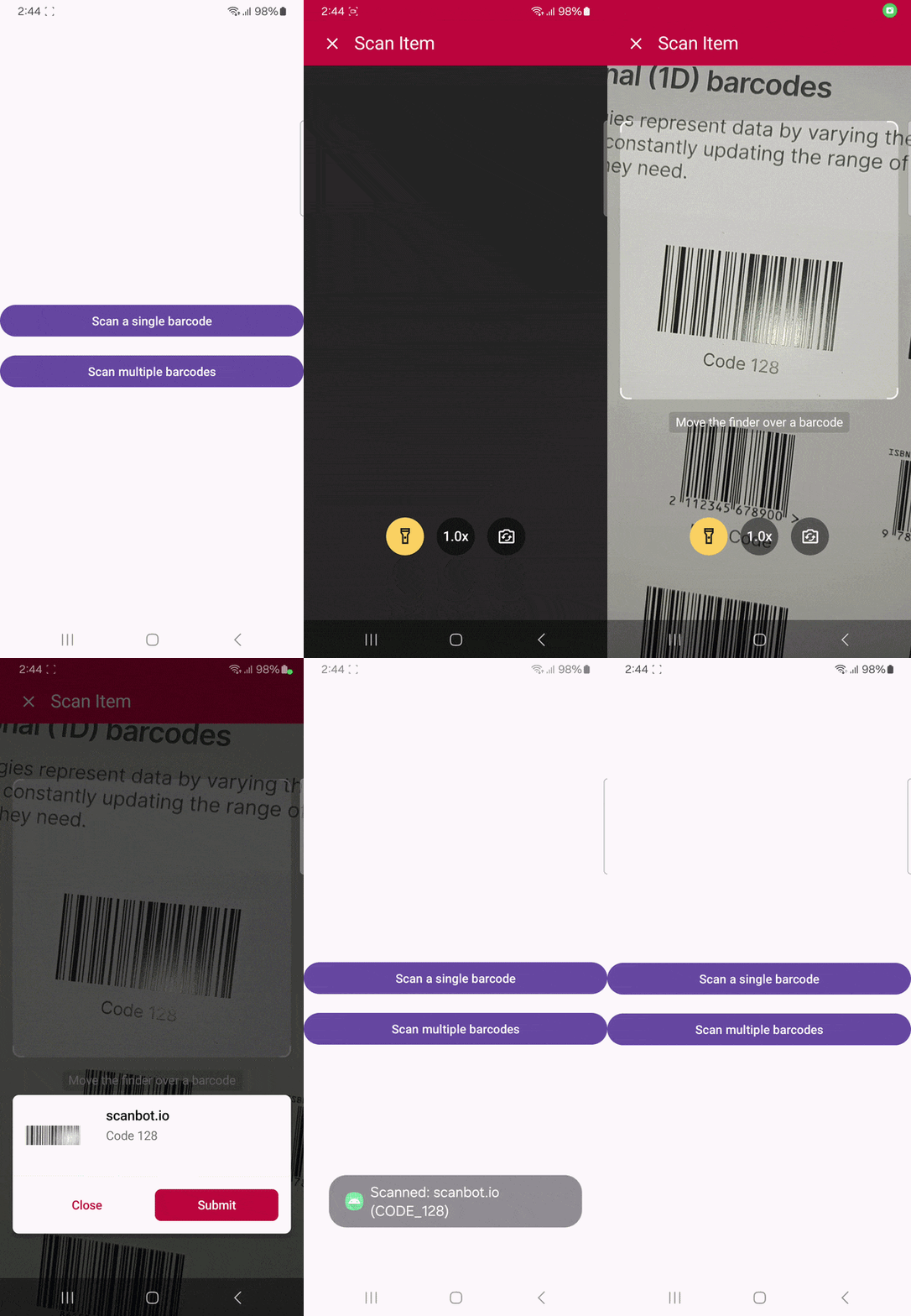
With the Scanbot SDK, we can register a one-time activity result callback that takes the barcode scanner’s configuration (so it works with both the single- and multi-barcode-scanning mode) and starts the scanner via an ActivityResultContract. To demonstrate how the result can be processed further, we’re displaying the barcode’s value and symbology in a toast.
private val barcodeResultLauncher: ActivityResultLauncher<BarcodeScannerScreenConfiguration> =
    registerForActivityResultOk(BarcodeScannerActivity.ResultContract()) { resultEntity ->
        val barcodeItem = resultEntity.items.first()
        Toast.makeText(
            this,
            "Scanned: ${barcodeItem.barcode.text} (${barcodeItem.barcode.format})",
            Toast.LENGTH_LONG
        ).show()
    }
Like with the ZXing example, we’re letting the user launch the scanner by tapping a button. It creates a configuration object and assigns the SDK’s single-scanning mode with the built-in confirmation dialogue, which shows you the scanned barcode result before closing the scanning screen and returning the result.
findViewById<Button>(R.id.btn_scan_single_barcode).setOnClickListener {
    val config = BarcodeScannerScreenConfiguration().apply {
        this.useCase = SingleScanningMode().apply {
            this.confirmationSheetEnabled = true
        }
    }
    barcodeResultLauncher.launch(config)
}
5. Implementing multi-barcode scanning
Since zxing-android-embedded lacks a built-in multi-barcode scanning mode, implementing one requires a custom Activity with DecoratedBarcodeView. The following MultiScanActivity.kt represents a straightforward approach:
package com.example.zxingbarcodescanner

import android.content.Intent
import android.os.Bundle
import android.widget.Button
import android.widget.Toast
import androidx.appcompat.app.AppCompatActivity
import com.journeyapps.barcodescanner.BarcodeCallback
import com.journeyapps.barcodescanner.BarcodeResult
import com.journeyapps.barcodescanner.DecoratedBarcodeView

class MultiScanActivity : AppCompatActivity() {

    companion object {
        const val EXTRA_RESULTS = "extra_results"
    }

    private lateinit var barcodeView: DecoratedBarcodeView
    private val results = mutableListOf<String>()

    private val callback = object : BarcodeCallback {
        override fun barcodeResult(result: BarcodeResult) {
            val value = result.text ?: return
            if (!results.contains(value)) {
                results.add(value)
                Toast.makeText(this@MultiScanActivity, value, Toast.LENGTH_SHORT).show()
            }
        }
    }

    override fun onCreate(savedInstanceState: Bundle?) {
        super.onCreate(savedInstanceState)
        setContentView(R.layout.activity_multi_scan)

        barcodeView = findViewById(R.id.barcodeView)
        barcodeView.decodeContinuous(callback)

        findViewById<Button>(R.id.btnSubmit).setOnClickListener {
            val intent = Intent().putStringArrayListExtra(EXTRA_RESULTS, ArrayList(results))
            setResult(RESULT_OK, intent)
            finish()
        }
    }

    override fun onResume() {
        super.onResume()
        barcodeView.resume()
    }

    override fun onPause() {
        super.onPause()
        barcodeView.pause()
    }
}
In MainActivity.kt, you can then start the Activity like this:
private val multiScanLauncher = registerForActivityResult(
    ActivityResultContracts.StartActivityForResult()
) { result ->
    if (result.resultCode == RESULT_OK) {
        val scannedBarcodes = result.data
            ?.getStringArrayListExtra(MultiScanActivity.EXTRA_RESULTS)
            ?: return@registerForActivityResult
        if (scannedBarcodes.isEmpty()) return@registerForActivityResult
        adapter.addItems(scannedBarcodes)
        updateEmptyState()
    }
}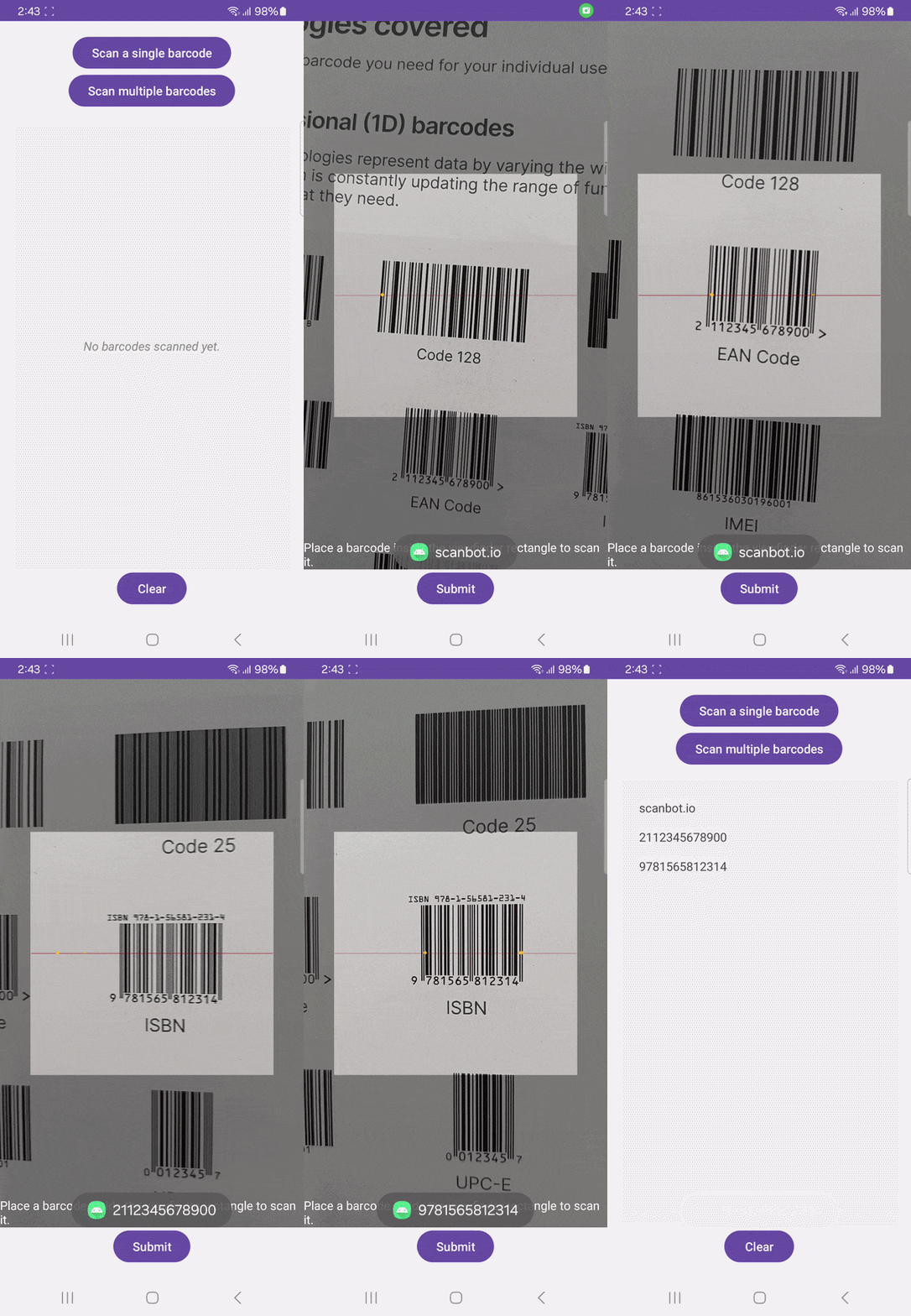
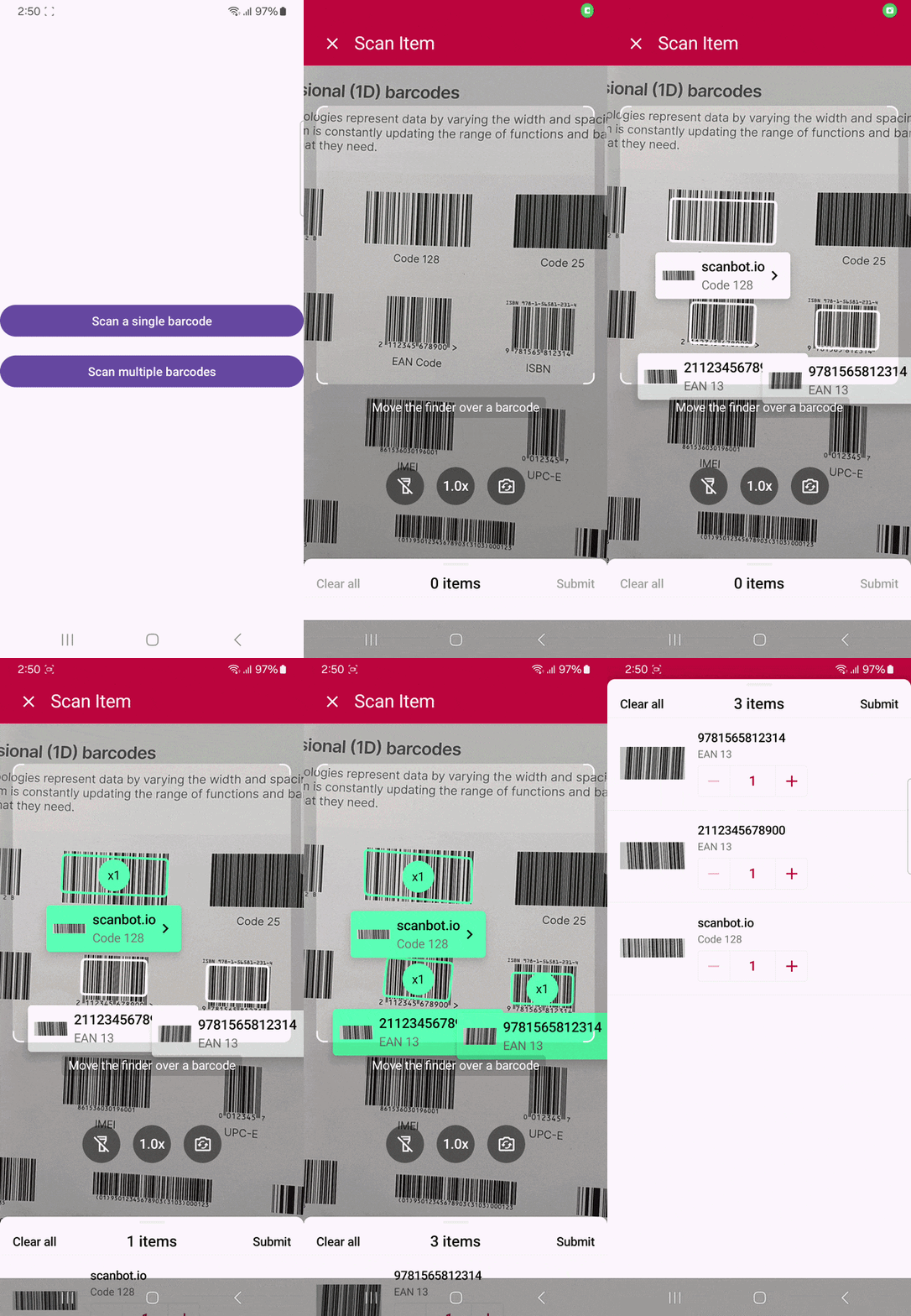
The Scanbot SDK comes with a highly customizable multi-scanning mode. In this example, the optional AR Overlay is enabled and automaticSelectionEnabled is set to false. This means that for each recognized barcode, the value is displayed on screen with an overlay that the user needs to tap to add it to a results sheet, which is enabled by default. Of course, you can freely configure this behavior.
findViewById<Button>(R.id.btn_scan_barcodes).setOnClickListener {
    val config = BarcodeScannerScreenConfiguration().apply {
        this.useCase = MultipleScanningMode().apply {
            this.arOverlay.visible = true
            this.arOverlay.automaticSelectionEnabled = false
        }
    }
    barcodeResultLauncher.launch(config)
}
Customization
When using ScanContract with zxing-android-embedded, ScanOptions lets you configure the barcode scanner’s behavior in more detail. For the Scanbot SDK, BarcodeScannerScreenConfiguration fulfills a similar role.
6. Setting the recognized barcode symbologies
If you only need to read certain barcode types, it makes sense to restrict scanning to those. This prevents unintended scans and improves the scanner’s performance, as it doesn’t need to check each supported symbology.
With zxing-android-embedded, you use setDesiredBarcodeFormats for this:
barcodeLauncher.launch(ScanOptions().apply {
    setDesiredBarcodeFormats(listOf("CODE_128", "PDF_417", "AZTEC", "DATA_MATRIX"))
})
With the Scanbot SDK, you use barcodeFormatConfigurations:
val config = BarcodeScannerScreenConfiguration().apply {
    this.scannerConfiguration.barcodeFormatConfigurations = listOf(
        BarcodeFormatCommonConfiguration(
            formats = listOf(
                BarcodeFormat.CODE_128,
                BarcodeFormat.PDF_417,
                BarcodeFormat.AZTEC,
                BarcodeFormat.DATA_MATRIX
            )
        )
    )
}
barcodeResultLauncher.launch(config)
7. Switching cameras
In most cases, the device’s rear camera is the one you want your barcode scanner to use by default, since it points away from the user and usually has a higher resolution than the front camera. Giving users the option to switch cameras via a UI element is also recommended.
If you want to ensure your ZXing scanner launches with the rear camera, you can use setCameraId. On most Android devices, 0 represents the rear camera and 1 the front camera. Setting a negative value means you don’t have a preference for which camera the scanner launches with.
barcodeLauncher.launch(ScanOptions().apply {
    setCameraId(0)
})
⚠️ 0 for the rear camera and 1 for the front camera are conventions rather than a guarantee. On devices with multiple rear cameras or unusual hardware configurations, you’ll need to enumerate cameras using the CameraManager API to be sure.
The Scanbot SDK uses CameraModule.BACK and CameraModule.FRONT instead. Its Ready-to-Use UI also includes a camera switch button by default.
val config = BarcodeScannerScreenConfiguration().apply {
  this.cameraConfiguration.cameraModule = CameraModule.BACK
}
barcodeResultLauncher.launch(config)
8. Controlling the flashlight
Depending on the environment in which barcodes need to be scanned, you might want to enable the flashlight by default. With zxing-android-embedded, you can use setTorchEnabled for this.
barcodeLauncher.launch(ScanOptions().apply {
    setTorchEnabled(true)
})
The Scanbot SDK uses cameraConfiguration.flashEnabled, which you set to true. Just like with the camera switch, its Ready-to-Use UI includes a button for toggling the flashlight.
val config = BarcodeScannerScreenConfiguration().apply {
  this.cameraConfiguration.flashEnabled = true
}
barcodeResultLauncher.launch(config)
9. Customizing the user guidance
Showing a prompt on the scanning screen helps convey to the user that the scanner is ready and they can start pointing the camera at barcodes. To change the text, you can use setPrompt with zxing-android-embedded.
barcodeLauncher.launch(ScanOptions().apply {
    setPrompt("Move the finder over a barcode")
})
The Scanbot SDK lets you customize the prompt via the userGuidance class. You can also change the UI element’s color or turn it off entirely.
val config = BarcodeScannerScreenConfiguration().apply {
  this.userGuidance.title.text = "Move the finder over a barcode"
}
barcodeResultLauncher.launch(config)
10. Customizing the viewfinder
In barcode scanning, a viewfinder is a UI element that highlights part of the scanning screen to encourage centering the camera on the barcode to be scanned. Ideally, scanning should be restricted to that area to avoid accidental scans.
The zxing-android-embedded library uses a square viewfinder by default, which is a good fit for most scanning use cases. However, if you prefer a rectangular viewfinder instead, changing its dimensions isn’t exactly straightforward. One option is to extend ViewfinderView.
With the Scanbot SDK, customizing the viewfinder is easy thanks to the viewFinder class. AspectRatio(1.0, 1.0) results in the default square viewfinder, but you can approximate the shape of many 1D barcodes by using AspectRatio(1.5, 1.0) instead. You can also customize several other aspects, such as the color and border width.
val config = BarcodeScannerScreenConfiguration().apply {
  this.viewFinder.aspectRatio = AspectRatio(1.0, 1.0)
}
barcodeResultLauncher.launch(config)
Putting it all together
If you’ve followed this guide, your MainActivity.kt will now look something like this:
package com.example.scanbotsdkbarcodescanner

import android.os.Bundle
import androidx.activity.enableEdgeToEdge
import androidx.appcompat.app.AppCompatActivity
import androidx.core.view.ViewCompat
import androidx.core.view.WindowInsetsCompat
import android.widget.Button
import android.widget.Toast
import androidx.activity.result.ActivityResultLauncher
import io.scanbot.sdk.barcode.BarcodeFormat
import io.scanbot.sdk.barcode.BarcodeFormatCommonConfiguration
import io.scanbot.sdk.geometry.AspectRatio
import io.scanbot.sdk.ui_v2.barcode.BarcodeScannerActivity
import io.scanbot.sdk.ui_v2.common.activity.registerForActivityResultOk
import io.scanbot.sdk.ui_v2.barcode.configuration.*
import io.scanbot.sdk.ui_v2.common.CameraModule

class MainActivity : AppCompatActivity() {

    private val barcodeResultLauncher: ActivityResultLauncher<BarcodeScannerScreenConfiguration> =
        registerForActivityResultOk(BarcodeScannerActivity.ResultContract()) { resultEntity ->
            val barcodeItem = resultEntity.items.first()
            Toast.makeText(
                this,
                "Scanned: ${barcodeItem.barcode.text} (${barcodeItem.barcode.format})",
                Toast.LENGTH_LONG
            ).show()
        }

    override fun onCreate(savedInstanceState: Bundle?) {
        super.onCreate(savedInstanceState)
        enableEdgeToEdge()
        setContentView(R.layout.activity_main)
        ViewCompat.setOnApplyWindowInsetsListener(findViewById(R.id.main)) { v, insets ->
            val systemBars = insets.getInsets(WindowInsetsCompat.Type.systemBars())
            v.setPadding(systemBars.left, systemBars.top, systemBars.right, systemBars.bottom)
            insets
        }
        findViewById<Button>(R.id.btn_scan_single_barcode).setOnClickListener {
            val config = BarcodeScannerScreenConfiguration().apply {

                this.scannerConfiguration.barcodeFormatConfigurations = listOf(
                    BarcodeFormatCommonConfiguration(
                        formats = listOf(
                            BarcodeFormat.CODE_128,
                            BarcodeFormat.PDF_417,
                            BarcodeFormat.AZTEC,
                            BarcodeFormat.DATA_MATRIX
                        )
                    )
                )
                this.cameraConfiguration.cameraModule = CameraModule.BACK
                this.cameraConfiguration.flashEnabled = true
                this.userGuidance.title.text = "Move the finder over a barcode"
                this.viewFinder.aspectRatio = AspectRatio(1.0, 1.0)

                this.useCase = SingleScanningMode().apply {
                    this.confirmationSheetEnabled = true
                }
            }
            barcodeResultLauncher.launch(config)
        }
        findViewById<Button>(R.id.btn_scan_multiple_barcodes).setOnClickListener {
            val config = BarcodeScannerScreenConfiguration().apply {
                this.useCase = MultipleScanningMode().apply {
                    this.arOverlay.visible = true
                    this.arOverlay.automaticSelectionEnabled = false
                }
            }
            barcodeResultLauncher.launch(config)
        }
    }
}
Note that the configurations for cameraModule, userGuidance, and aspectRatio use defaults for demonstration purposes and can also be omitted.
For the main screen, you can go with this simple activity_main.xml:
<?xml version="1.0" encoding="utf-8"?>
<androidx.constraintlayout.widget.ConstraintLayout xmlns:android="http://schemas.android.com/apk/res/android"
    xmlns:app="http://schemas.android.com/apk/res-auto"
    xmlns:tools="http://schemas.android.com/tools"
    android:id="@+id/main"
    android:layout_width="match_parent"
    android:layout_height="match_parent"
    android:padding="16dp"
    tools:context=".MainActivity">

    <Button
        android:id="@+id/btn_scan_single_barcode"
        android:layout_width="0dp"
        android:layout_height="wrap_content"
        android:text="Scan a single barcode"
        app:layout_constraintTop_toTopOf="parent"
        app:layout_constraintBottom_toBottomOf="parent"
        app:layout_constraintStart_toStartOf="parent"
        app:layout_constraintEnd_toEndOf="parent" />

    <Button
        android:id="@+id/btn_scan_multiple_barcodes"
        android:layout_width="0dp"
        android:layout_height="wrap_content"
        android:text="Scan multiple barcodes"
        android:layout_marginTop="16dp"
        app:layout_constraintTop_toBottomOf="@id/btn_scan_single_barcode"
        app:layout_constraintStart_toStartOf="parent"
        app:layout_constraintEnd_toEndOf="parent" />

</androidx.constraintlayout.widget.ConstraintLayout>
Compared to the ZXing example, you don’t need MultiScanActivity.kt, BarcodeAdapter.kt, item_barcode.xml, and activity_multi_scan.xml, so this simplifies your codebase quite bit.
Conclusion
Congratulations! You’ve successfully migrated a zxing-android-embedded implementation to the Scanbot Android Barcode Scanner SDK.
To learn more about the SDK’s other features, head over to the documentation. You can also test them immediately on your device by downloading the free demo app from Google Play.
In addition to Android, the Scanbot SDK also supports iOS, Web, Linux, and Windows, with dedicated SDKs for cross-platform frameworks like React Native, Flutter, and .NET MAUI.
Should you have questions about this guide or run into any issues, we’re happy to help. Just shoot us an email via tutorial-support@scanbot.io.
Happy coding!
FAQ
What is the difference between various open-source barcode libraries for Android?
Among ZXing, ZBar, and ML Kit, ZXing stands out as the most mature and widely used Java-based library, supporting a broad range of 1D and 2D formats. ZBar offers cross-platform C-based scanning, but lags in format variety, maintenance, and Android-specific optimizations compared to ZXing. ML Kit excels in speed, but isn’t fully open-source, requires Google Play Services, and supports fewer formats.
How is zxing-android-embedded different from ZXing?
The zxing-android-embedded library was derived from the core ZXing project to simplify its integration into Android applications by providing pre-built UI components and Intent-based APIs. In contrast, the original ZXing offers a more general-purpose, low-level Java library that requires additional setup for Android-specific features like permissions, camera handling, and UI overlays.
What are best practices for optimizing Android barcode recognition performance?
You can improve barcode recognition on Android by configuring the scanner to detect only expected barcode formats to reduce processing overhead, capturing images at moderate resolutions like 1280×720 or lower while ensuring the barcode occupies a significant portion of the frame for accuracy, and defining a region of interest to limit scanning to relevant areas, e.g., via a viewfinder component.
What are the limitations of ZXing?
ZXing’s main limitations are a lack of active development leading to unresolved bugs and compatibility issues, poor performance with damaged, poorly lit, small, or rotated barcodes, device inconsistencies (especially on newer models), and complex integration that can extend development time and introduce errors.
Is ZXing from Google?
The original ZXing Java library was developed for use in a short-lived Print Ads project at Google in 2007. It was initially planned to be part of Android 1.0, but didn’t make the cut and was turned into an open-source project instead. Since then, it has been community-maintained.


