

In this tutorial, you’ll learn how to build an Android app for scanning documents using .NET MAUI and Google’s ML Kit.
To integrate the scanning functionalities, we’ll use Net.Google.MLKit.DocumentScanner, a wrapper around Google’s ML Kit that streamlines its integration into .NET MAUI projects.
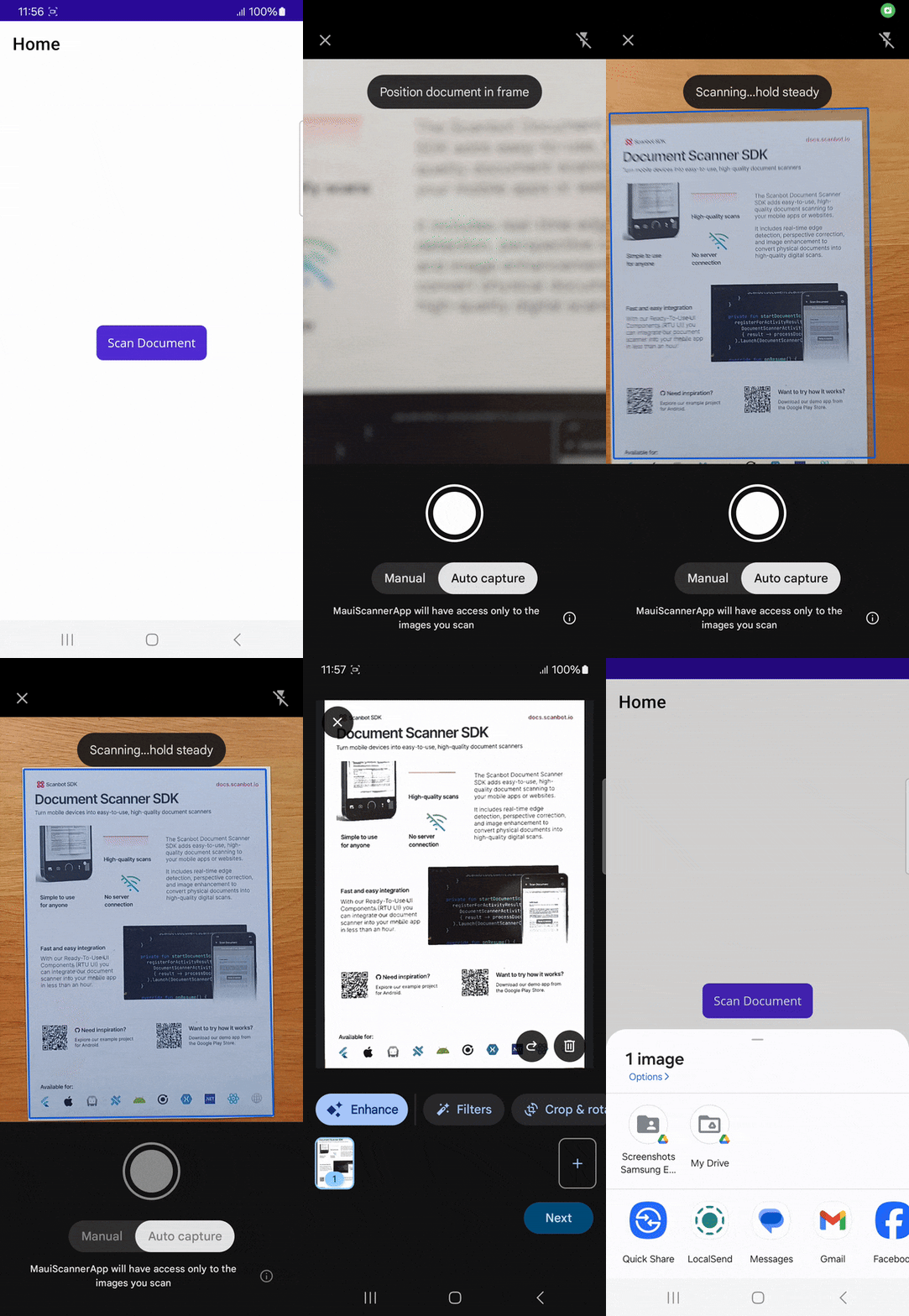
Building the app requires the following steps:
- Setting up the project
- Adding the necessary packages
- Creating the DocumentScanResult class
- Creating the IDocumentScannerService interface
- Registering the service
- Bridge MAUI and ML Kit
- Create the app UI and logic
Prerequisites
We’ll use VS Code with the .NET MAUI extension in this example, so make sure to install it if you haven’t already. You can also use one of the alternative options for developing .NET MAUI apps, e.g., JetBrains Rider or Visual Studio for Windows.
You’ll also need:
- .NET SDK 9 with the latest workloads
- Android SDK and Java SDK version 17+
If this is your first time developing a .NET MAUI application on your machine, execute the following command:
sudo dotnet workload install mauiStep 1: Set up the project
Create a new .NET MAUI project called “MauiScannerApp“, either using the VS Code extension …
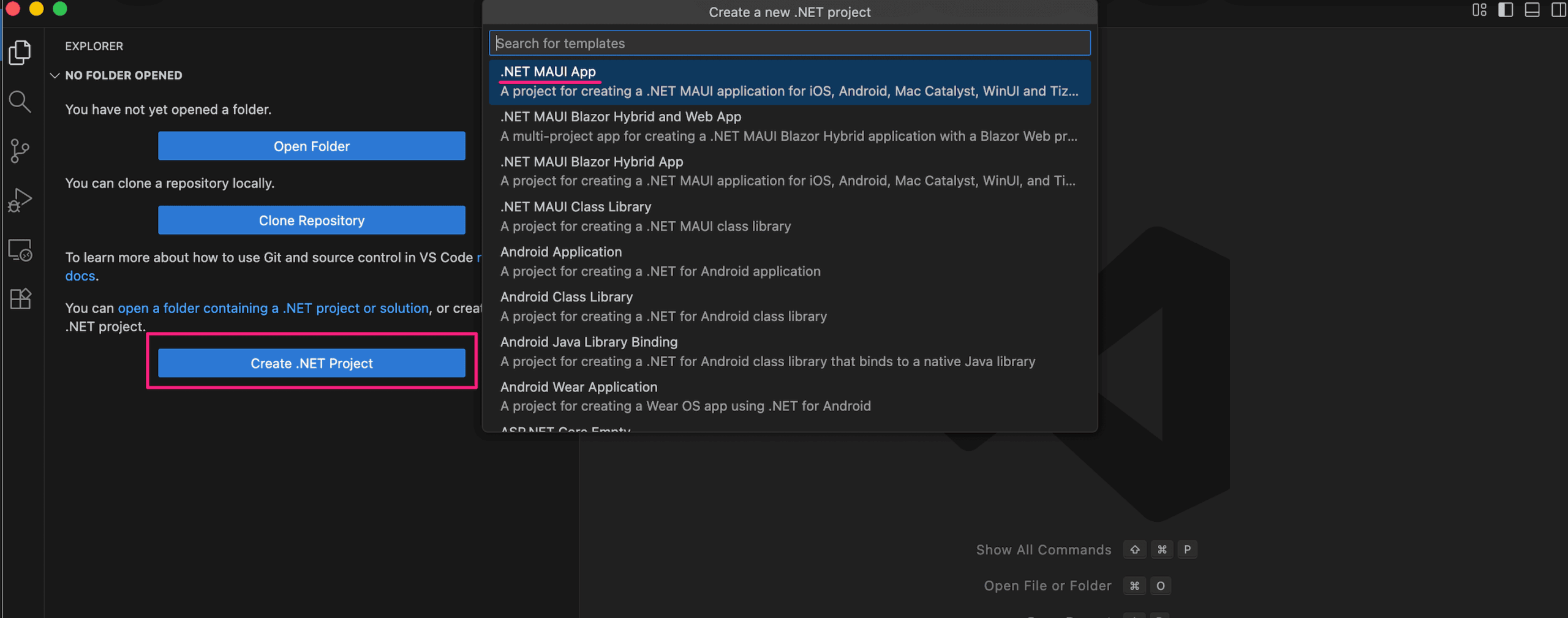
… or the CLI:
dotnet new maui -n MauiScannerAppThen navigate into the project directory.
cd MauiScannerAppStep 2: Add the necessary packages
Open MauiScannerApp.csproj and replace the existing <ItemGroup> elements below </PropertyGroup> with the following:
    <ItemGroup>
        <!-- App Icon -->
        <MauiIcon Include="Resources\AppIcon\appicon.svg" ForegroundFile="Resources\AppIcon\appiconfg.svg" Color="#512BD4" />

        <!-- Splash Screen -->
        <MauiSplashScreen Include="Resources\Splash\splash.svg" Color="#512BD4" BaseSize="128,128" />

        <!-- Images -->
        <MauiImage Include="Resources\Images\*" />
        <MauiImage Update="Resources\Images\dotnet_bot.png" Resize="True" BaseSize="300,185" />

        <!-- Custom Fonts -->
        <MauiFont Include="Resources\Fonts\*" />

        <!-- Raw Assets (also remove the "Resources\Raw" prefix) -->
        <MauiAsset Include="Resources\Raw\**" LogicalName="%(RecursiveDir)%(Filename)%(Extension)" />
    </ItemGroup>

    <ItemGroup>
        <PackageReference Include="Microsoft.Maui.Controls" Version="$(MauiVersion)" />
        <PackageReference Include="Microsoft.Maui.Controls.Compatibility" Version="$(MauiVersion)" />
        <PackageReference Include="Microsoft.Extensions.Logging.Debug" Version="9.0.8" />
    </ItemGroup>

     <ItemGroup Condition="'$(TargetFramework)' == 'net9.0-android'">
        <PackageReference Include="Net.Google.MLKit.DocumentScanner" Version="16.0.0" />
        <PackageReference Include="Xamarin.AndroidX.AppCompat" Version="1.7.1.1" />
        <PackageReference Include="Xamarin.AndroidX.Collection" Version="1.5.0.3" />
        <PackageReference Include="Xamarin.AndroidX.Fragment" Version="1.8.8.1" />
        <PackageReference Include="Xamarin.AndroidX.SavedState" Version="1.3.1.1" />
        <PackageReference Include="Xamarin.AndroidX.SavedState.SavedState.Ktx" Version="1.3.1.1" />
        <PackageReference Include="Xamarin.AndroidX.Lifecycle.Common" Version="2.9.2.1" />
        <PackageReference Include="Xamarin.AndroidX.Lifecycle.Runtime" Version="2.9.2.1" />
        <PackageReference Include="Xamarin.AndroidX.Lifecycle.ViewModel" Version="2.9.2.1" />
        <PackageReference Include="Xamarin.AndroidX.Lifecycle.LiveData.Core" Version="2.9.2.1" />
    </ItemGroup>
Since the ML Kit Document Scanner version we’re using requires Android API level 23 or higher, ensure this line in the same file reflects this:
<SupportedOSPlatformVersion Condition="$([MSBuild]::GetTargetPlatformIdentifier('$(TargetFramework)')) == 'android'">23.0</SupportedOSPlatformVersion>Now run the following command to add the packages to your project:
dotnet restoreStep 3: Create the DocumentScanResult class
Next, you’ll need to define a DocumentScanResult data class that acts as a container to hold the information returned after a document scan operation is complete.
In your project directory, create a new file DocumentScanResult.cs and paste the following the code:
namespace MauiScannerApp
{
    public class DocumentScanResult
    {
        public List<Uri> Images { get; set; }
        public int PageCount { get; set; }
    }
}
Step 4: Create the IDocumentScannerService interface
Now you’ll define an interface that serves as an abstraction layer for requesting a document scan.
Still in your project directory, create a new file IDocumentScannerService.cs with the following content:
namespace MauiScannerApp
{
    public interface IDocumentScannerService
    {
        Task<DocumentScanResult> OpenDocumentScannerAsync();
    }
}
Step 5: Register the service
Next, open MauiProgram.cs and add the following method after the CreateMauiApp() method:
    public static MauiAppBuilder RegisterServices(this MauiAppBuilder mauiAppBuilder)
    {
#if ANDROID
        mauiAppBuilder.Services.AddSingleton<IDocumentScannerService, MauiMLKitDocument.Platforms.Android.DocumentScannerService>();
#endif
        return mauiAppBuilder;
    }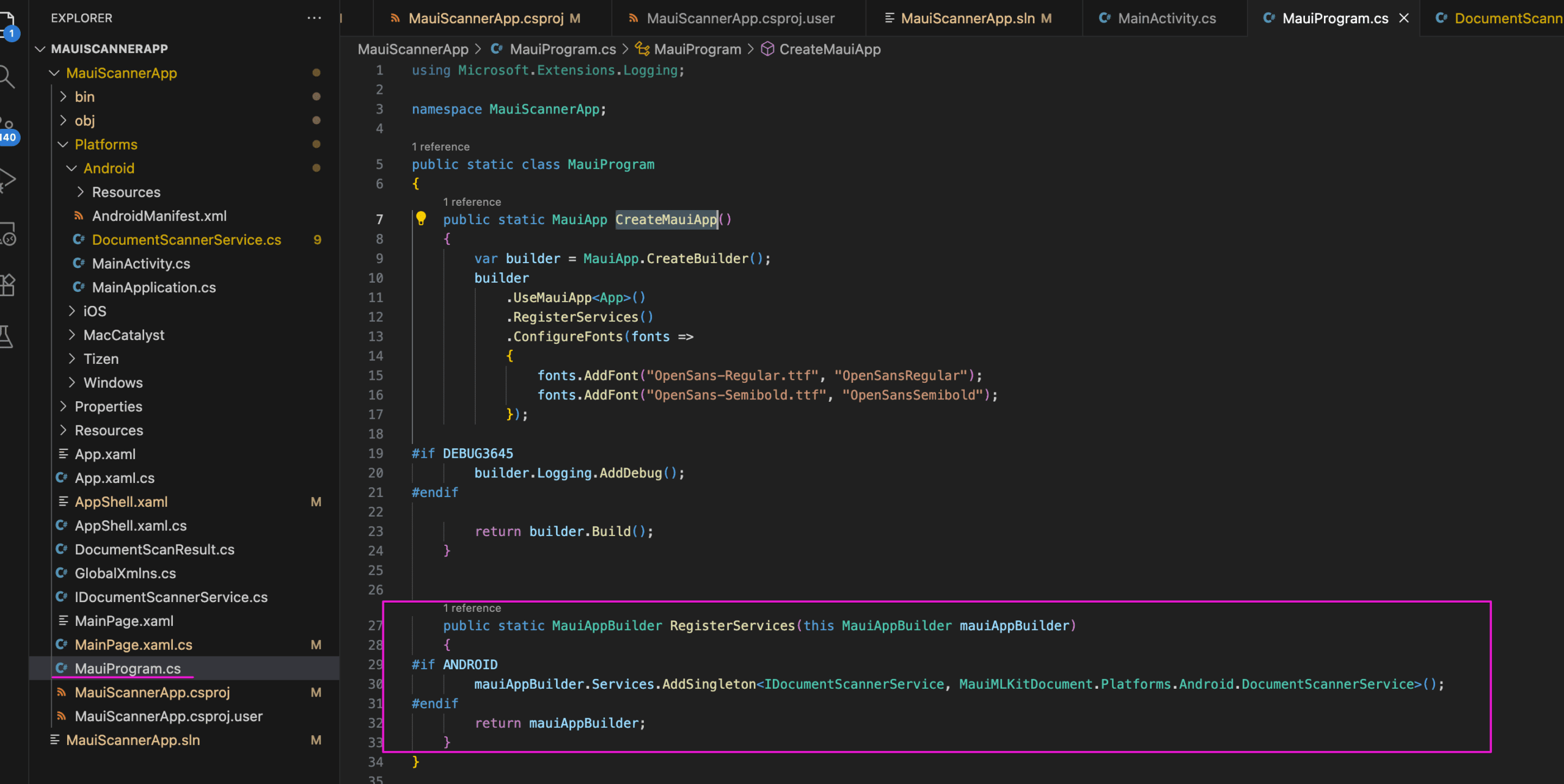
This registers our new service (IDocumentScannerService) with the app’s built-in Dependency Injection (DI) container. This is done using the RegisterServices extension method on the MAUI app builder, making the service available for use throughout the application.
Also, ensure that RegisterServices() is invoked in CreateMauiApp():
    public static MauiApp CreateMauiApp()
    {
        var builder = MauiApp.CreateBuilder();
        builder
            .UseMauiApp<App>()
            .RegisterServices()  // Check for this line
            .ConfigureFonts(fonts =>
            {
                fonts.AddFont("OpenSans-Regular.ttf", "OpenSansRegular");
                fonts.AddFont("OpenSans-Semibold.ttf", "OpenSansSemibold");
            });

#if DEBUG
        builder.Logging.AddDebug();
#endif

        return builder.Build();
    }
Step 6: Bridge MAUI and ML Kit
In this step, you’ll work with the Android platform code.
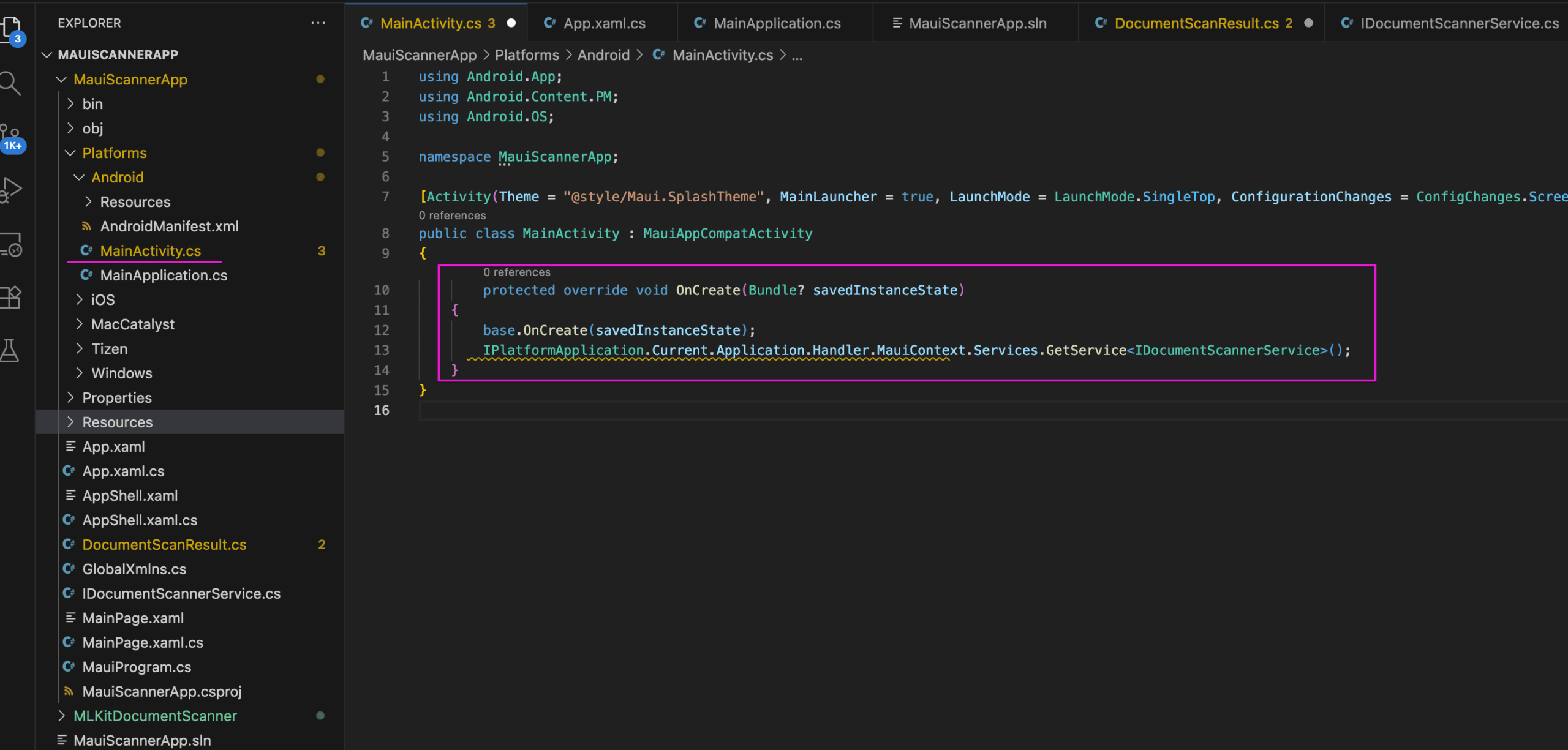
First, retrieve IDocumentScannerService by opening Platforms/Android/MainActivity.cs and placing the following code inside the MainActivity class:
protected override void OnCreate(Bundle? savedInstanceState)
    {
        base.OnCreate(savedInstanceState);
        IPlatformApplication.Current.Application.Handler.MauiContext.Services.GetService<IDocumentScannerService>();
    }
Next, you’ll need to bridge the native Android code with the .NET MAUI layer to interact with the Net.Google.MLKit.DocumentScanner library.
Create a new file Platforms/Android/DocumentScannerService.cs and paste the following code:
using Android.App;
using AndroidX.Activity.Result;
using AndroidX.Activity.Result.Contract;
using MauiScannerApp;
using Net.Google.MLKit.Vision.DocumentScanner;
using Droid = Android;

namespace MauiMLKitDocument.Platforms.Android
{
    public class DocumentScannerService : Java.Lang.Object, IDocumentScannerService, Droid.Gms.Tasks.IOnSuccessListener, Droid.Gms.Tasks.IOnFailureListener, IActivityResultCallback
    {
        private TaskCompletionSource<DocumentScanResult> _taskCompletionSource;

        private ActivityResultLauncher scannerLauncher;

        public DocumentScannerService()
        {
            if (Platform.CurrentActivity is AndroidX.Activity.ComponentActivity activity)
            {
                scannerLauncher = activity.RegisterForActivityResult(new ActivityResultContracts.StartIntentSenderForResult(), this);
            }
        }

        public async Task<DocumentScanResult> OpenDocumentScannerAsync()
        {
            _taskCompletionSource = new TaskCompletionSource<DocumentScanResult>();
            var options = new GmsDocumentScannerOptions.Builder()
              .SetGalleryImportAllowed(false)
              .SetPageLimit(40)
              .SetResultFormats(GmsDocumentScannerOptions.ResultFormatJpeg)
              .SetScannerMode(GmsDocumentScannerOptions.ScannerModeFull)
              .Build();

            var scanner = GmsDocumentScanning.GetClient(options);
            var intentSender = scanner.GetStartScanIntent(Platform.CurrentActivity);
            intentSender.AddOnSuccessListener(this);
            intentSender.AddOnFailureListener(this);

            return await _taskCompletionSource.Task;
        }

        public void OnSuccess(Java.Lang.Object result)
        {
            if (result is Droid.Content.IntentSender intent)
            {
                scannerLauncher.Launch(new IntentSenderRequest.Builder(intent).Build());
            }
        }

        public void OnFailure(Java.Lang.Exception e)
        {
        }

        public void OnActivityResult(Java.Lang.Object? result)
        {
            if (result is ActivityResult Aresult)
            {
                if (Aresult.ResultCode == (int)Result.Ok)
                {
                    var scanResult = GmsDocumentScanningResult.FromActivityResultIntent(Aresult.Data);
                    if (scanResult != null)
                    {
                        var pages = scanResult.Pages;
                        var images = new List<Uri>();
                        foreach (var page in pages)
                        {
                            images.Add(ConvertToSystemUri(page.ImageUri));
                        }
                        _taskCompletionSource.TrySetResult(new DocumentScanResult
                        {
                            Images = images,
                        });
                    }
                    else
                    {
                        _taskCompletionSource.TrySetResult(null);
                    }
                }
                else
                {
                    _taskCompletionSource.TrySetResult(null);
                }
            }
        }

        public System.Uri ConvertToSystemUri(Droid.Net.Uri androidUri)
        {
            if (androidUri == null)
                throw new ArgumentNullException(nameof(androidUri));

            // Convert Android.Net.Uri to string
            string uriString = androidUri.ToString();

            // Convert to System.Uri
            return new System.Uri(uriString);
        }
    }
}
Step 7: Create the app UI and logic
To set up a simple user interface, open MainPage.xaml and replace its content with the following:
<ContentPage xmlns="http://schemas.microsoft.com/dotnet/2021/maui"
             xmlns:x="http://schemas.microsoft.com/winfx/2009/xaml"
             x:Class="MauiScannerApp.MainPage">
    <VerticalStackLayout
        VerticalOptions="Center"
        HorizontalOptions="Center"
        Padding="30,0"
        Spacing="25">
        <Button
            x:Name="CounterBtn"
            Text="Scan Document"
            SemanticProperties.Hint="Scans a document using the device camera"
            Clicked="OnButtonClicked"
            HorizontalOptions="Center" />
    </VerticalStackLayout>
</ContentPage>
To handle the app logic, open MainPage.xaml.cs and replace the code with the following:
namespace MauiScannerApp;

public partial class MainPage : ContentPage
{
    public MainPage()
    {
        InitializeComponent();
    }

    public async Task ShareImagesAsync(List<Uri> imageUris)
    {
        if (imageUris == null || imageUris.Count == 0)
            throw new ArgumentException("No images provided.");

        // Check if files exist
        var imagePaths = imageUris
            .Select(uri => uri.LocalPath)
            .Where(File.Exists)
            .ToList();

        if (imagePaths.Count == 0)
            throw new FileNotFoundException("No valid image files found.");

        // Share single or multiple images
        if (imagePaths.Count == 1)
        {
            await Share.Default.RequestAsync(new ShareFileRequest
            {
                Title = "Share Scanned Image",
                File = new ShareFile(imagePaths[0])
            });
        }
        else
        {
            await Share.Default.RequestAsync(new ShareMultipleFilesRequest
            {
                Title = "Share Scanned Images",
                Files = imagePaths.Select(path => new ShareFile(path)).ToList()
            });
        }
    }

    private async void OnButtonClicked(object sender, EventArgs e)
    {
        try
        {
            var service = Handler.MauiContext.Services.GetService<IDocumentScannerService>();
            var result = await service.OpenDocumentScannerAsync();
            if (result != null && result.Images != null && result.Images.Count > 0)
            {
                await ShareImagesAsync(result.Images);
            }
            else
            {
                await DisplayAlert("Warning", "No images were scanned.", "OK");
            }
        }
        catch (Exception ex)
        {
            await DisplayAlert("Error", $"Scanning failed: {ex.Message}", "OK");
        }
    }
}
Your app is now ready to be tested.
To run the app on your Android device, use the following command:
dotnet build . -f net9.0-android -t:Run💡 If you have multiple devices connected, you can specify which one to run your app on using the -p:AndroidDeviceId=:<Your-Device-UDID> option.
To get all device IDs, run adb devices.
Conclusion
This concludes our tutorial on how to set up a simple document scanning app using .NET MAUI and ML Kit.
Free solutions like this one can be great for prototyping and personal projects. However, they have their drawbacks.
Since Net.Google.MLKit.DocumentScanner is a wrapper for Google’s ML Kit, its functionality depends entirely on this third-party library. Companies relying on ML Kit for their scanning needs won’t be able to submit feature requests nor count on help when things don’t work as expected.
We developed the Scanbot Document Scanner SDK to help companies overcome these hurdles. Our goal was to provide a developer-friendly solution for a wide range of platforms that consistently delivers high-quality results, even in challenging circumstances – enterprise-grade support included.
💡 For an in-depth comparison between the two libraries, please refer to our Scanbot Document Scanner SDK vs ML Kit page.
In the following tutorial, we’ll show you how to set up a powerful cross-platform document scanner using .NET MAUI and the Scanbot SDK.
Building a .NET MAUI document scanner app with the Scanbot SDK
To set up our app, we’ll follow these steps:
- Preparing the project
- Installing the SDK
- Initializing the SDK
- Implementing the scanning feature
- Implementing the PDF export feature
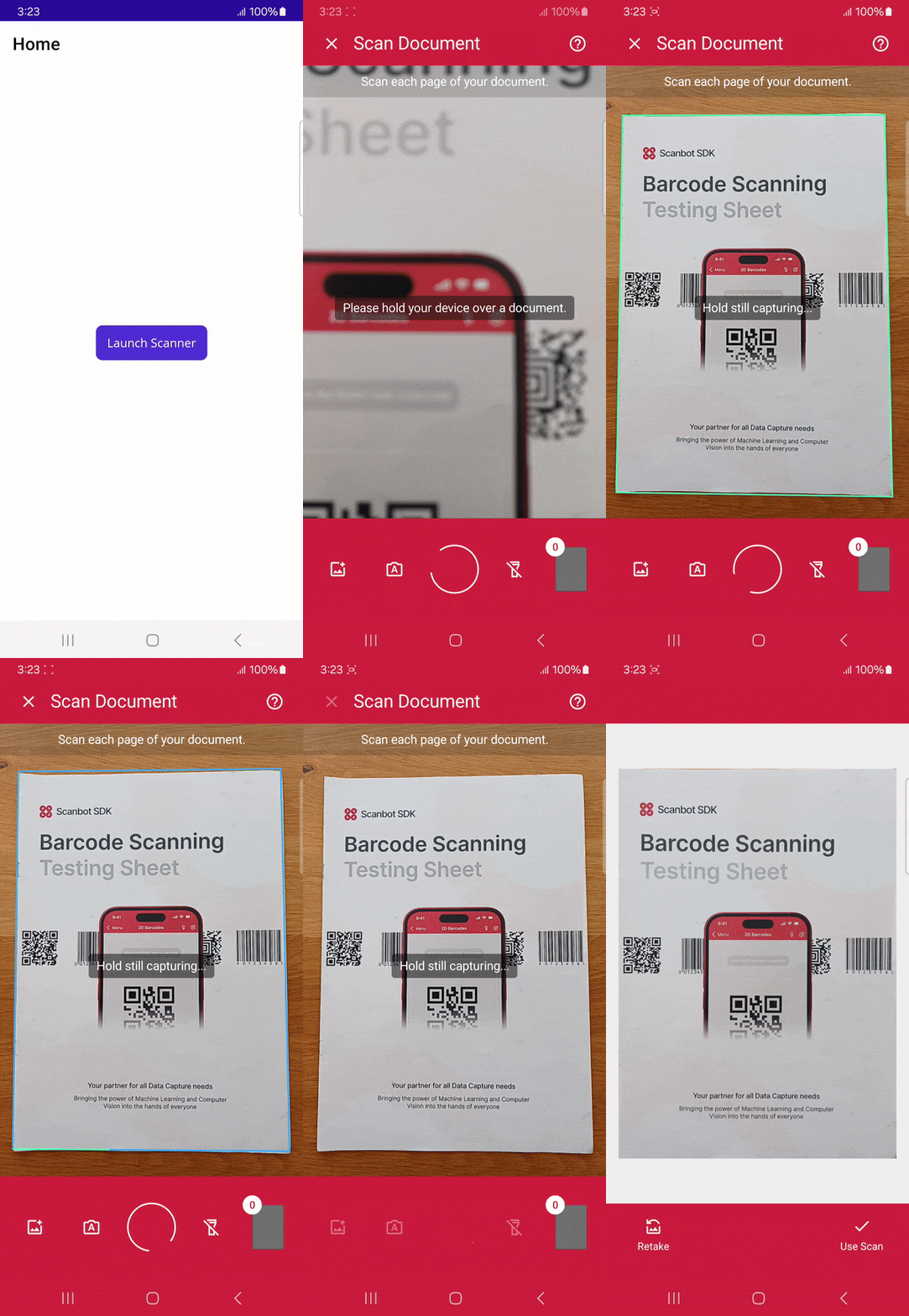
Thanks to the SDK’s Ready-to-Use UI Components, we’ll have an intuitive user interface out of the box.
Prerequisites
Before starting app development with .NET MAUI, you need to set up your local development environment. You’ll also need a real device for testing to get the most out of the Scanbot SDK.
Developer tools
There are several options for developing .NET MAUI applications:
- Visual Studio for Windows (v17.3 or higher)
- Visual Studio Code on Mac (using the .NET MAUI extension)
- JetBrains Rider (v2023.1 or higher)
You’ll also need:
- .NET SDK 9 with the latest workloads (Note: The Scanbot SDK also supports .NET SDK 8)
- For iOS development: macOS with latest Xcode and Command Line Tools
- For Android development: Android SDK and Java SDK version 17+
If you prefer the command line over IDEs, you can also build and launch projects from the .NET CLI.
Mobile devices
- Rear-facing camera with autofocus
- Supported CPUs and Architectures:
- Android:
armeabi-v7a,arm64-v8a,x86,x86_64 - iOS:
arm64,x86_64
- Android:
Mobile platforms
- Android 5.0 (API Level 21) or higher
- iOS 13 or higher
Step 1: Prepare the project
First, let’s create our .NET MAUI app using the .NET CLI, which will walk us through the setup process. If you’re working on a Mac, you can also use IDE tools like JetBrains Rider for a better experience.
In a directory of your choice, run the following command:
dotnet new maui -n MauiDocScannerDemoThen navigate into the project directory.
cd MauiDocScannerDemo💡 By default, the .NET MAUI template includes support for multiple platforms beyond mobile. However, the ScanbotSDK.MAUI package only supports iOS and Android.
Step 2: Install the SDK
In this tutorial, we’re using ScanbotSDK.MAUI version 7.1.0. To check for the latest version, please refer to the SDK’s changelog.
To install the Scanbot SDK and the Microsoft.Maui.Essentials package (for sharing our generated PDF files), first add the following code to MauiDocScannerDemo.csproj:
<ItemGroup>
    <PackageReference Include="ScanbotSDK.MAUI" Version="7.1.0" />
    <PackageReference Include="Microsoft.Maui.Essentials" Version="9.0.82" />
</ItemGroup>
Then run:
dotnet restore💡 If there are package conflicts, add the appropriate <PackageReference> tags to the project and make sure <PackageReference> has NoWarn="NU1605" added to it to suppress the related build error for that particular package.
Since we need access to the device camera to scan the documents, let’s add the necessary camera permissions for Android and iOS.
For Android, add the following to Platforms/Android/AndroidManifest.xml inside the <manifest> element:
<uses-permission android:name="android.permission.CAMERA" />
<uses-feature android:name="android.hardware.camera" />
For iOS, we need to include a description for the camera permission in Platforms/iOS/Info.plist, anywhere inside the <dict> element:
<key>NSCameraUsageDescription</key>
<string>Grant camera access to scan documents.</string>
Now that the project is set up, we can start integrating the document scanning functionalities.
Step 3: Initialize the SDK
Before using any feature of the Scanbot SDK, we need to initialize it. Ideally, initialization should be done as soon as the app is launched, e.g., in MauiProgram.cs:
using ScanbotSDK.MAUI;
using ScanbotSDK.MAUI.Common;
using ScanbotSDK.MAUI.Core.Document;

namespace MauiDocScannerDemo;
public static partial class MauiProgram
{
    private const string LicenseKey = "";

    public static MauiApp CreateMauiApp()
    {
        var builder = MauiApp.CreateBuilder();
        builder
            .UseMauiApp<App>()
            .ConfigureFonts(fonts =>
            {
                fonts.AddFont("OpenSans-Regular.ttf", "OpenSansRegular");
                fonts.AddFont("OpenSans-Semibold.ttf", "OpenSansSemibold");
            });

        SBSDKInitializer.Initialize(builder, LicenseKey, new SBSDKConfiguration
        {
            EnableLogging = true,
            StorageImageFormat = CameraImageFormat.Jpg,
            StorageImageQuality = 80,
            EngineMode = DocumentScannerEngineMode.Ml,
        });

        return builder.Build();
    }
}
💡 Without a license key, our SDK only runs for 60 seconds per session. This is more than enough for the purposes of our tutorial, but if you like, you can generate a license key using the bundle and application identifiers.
Step 4: Implement the scanning feature
The SDK’s RTU UI Components make it easy to deploy a document scanner in your app.
In MainPage.xaml (or a new page, if you prefer that), add a button to start the scanning process. The layout would be as follows:
<?xml version="1.0" encoding="utf-8"?>
<ContentPage
    xmlns="http://schemas.microsoft.com/dotnet/2021/maui"
    xmlns:x="http://schemas.microsoft.com/winfx/2009/xaml"
    x:Class="MauiDocScannerDemo.MainPage" >

    <Grid>
        <Button
            Text="Launch Scanner"
            Clicked="OnLaunchScannerTapped"
            HorizontalOptions="Center"
            VerticalOptions="Center" />
    </Grid>
</ContentPage>
Now we need to define OnLaunchScannerTapped in MainPage.xaml.cs, which will start the document scanner.
using ScanbotSDK.MAUI;
using ScanbotSDK.MAUI.Document;

namespace MauiDocScannerDemo;

public partial class MainPage
{
    public MainPage()
    {
        InitializeComponent();
    }

    private async void OnLaunchScannerTapped(object sender, EventArgs e)
    {
       // Check license status and return early if the license is not valid
        if (!ScanbotSDKMain.IsLicenseValid)
        {
            // License invalid
            return;
        }

        // Create the document configuration object and
        // start the document scanner with the default configuration
        var configuration = new DocumentScanningFlow();

        // Launch the document scanner RTU UI
        var scannerOutput = await ScanbotSDKMain.Rtu.DocumentScanner.LaunchAsync(configuration);

        // Handle the result if the result status is Ok
        if (scannerOutput.Status == OperationResult.Ok)
        {
            // handle the ScannedDocument object result.
            var scannedDocument = scannerOutput.Result;

            // Check more APIs available in the ScannedDocument e.g., Pages, DocumentImage, Filters, Polygons, OriginalImage, ImageUris, etc.
            var documentImage = scannedDocument.Pages.First().DocumentImage;
        }
    }
}
💡 In this tutorial, we use a default configuration object. It will start the document scanner UI with the default settings: in multi-page scanning mode with an acknowledge screen after scanning each page. You can customize the UI and behavior of the document scanner by modifying the configuration object. For further details, please refer to the RTU UI documentation.
If you want, you can now run the app to try out the scanner without the PDF export feature.
Step 5: Implement the PDF export feature
In the final step, we’ll add the code to generate a PDF file from the scanned documents and share the file.
For this, we’ll need to modify the OnLaunchScannerTapped method so it first launches the document scanner, then processes the scanned documents to generate a PDF, and finally prompts the user to share the file (using the feature from the Microsoft.Maui.Essentials package).
using ScanbotSDK.MAUI;
using ScanbotSDK.MAUI.Document;

namespace MauiDocScannerDemo;

public partial class MainPage
{
    public MainPage()
    {
        InitializeComponent();
    }

    private async void OnLaunchScannerTapped(object sender, EventArgs e)
    {
       // Check license status and return early if the license is not valid
        if (!ScanbotSDKMain.IsLicenseValid)
        {
            // License invalid
            return;
        }

        // Create the document configuration object and
        // start the document scanner with the default configuration
        var configuration = new DocumentScanningFlow();

        // Launch the document scanner RTU UI
        var scannerOutput = await ScanbotSDKMain.Rtu.DocumentScanner.LaunchAsync(configuration);

        // Handle the result if the result status is Ok
        if (scannerOutput.Status == OperationResult.Ok)
        {
            // handle the ScannedDocument object result.
            var scannedDocument = scannerOutput.Result;

            // Create a PDF file Uri from the provided ScannedDocument object
            // and share the created PDF file.
            var uri = await scannedDocument.CreatePdfAsync(new PdfConfiguration());

            // Share the pdf document
            await ShareFileAsync(uri.LocalPath);
        }
    }

    public async Task ShareFileAsync(string localFilePath)
    {
        if (File.Exists(localFilePath))
        {
            await Share.RequestAsync(new ShareFileRequest
            {
                Title = "Pdf Document",
                File = new ShareFile(localFilePath, "application/pdf")
            });
        }
    }
}
Now you can share a scanned document as a PDF file for further use. For example, you can send it via email or save it to a cloud storage.
To run the app on your Android or iOS device, use the following commands:
For Android:
dotnet build . -f net9.0-android -t:RunFor iOS:
dotnet build . -f net9.0-ios -t:Run -r ios-arm64💡 If you have multiple devices connected, you can specify which one to run your app on using the -p:AndroidDeviceId=:<Your-Device-UDID> option for Android and the -p:_DeviceName=:<Your-Device-UDID> option for iOS.
To get all device IDs, run adb devices (Android) and xcrun xctrace list devices (iOS).
Conclusion
And that’s it! You’ve successfully integrated a fully functional document scanner into your .NET MAUI app 🎉
If this tutorial has piqued your interest in integrating scanning functionalities into your app, make sure to take a look at the other features in the SDK’s documentation – or run our example project for a more hands-on experience.
Should you have questions about this tutorial or run into any issues, we’re happy to help! Just shoot us an email via tutorial-support@scanbot.io.
Happy scanning! 🤳
