In this tutorial, you’ll learn how to build a cross-platform mobile app for scanning documents using Capacitor and Google’s ML Kit.
To integrate the scanning functionalities, you’ll use @capgo/capacitor-document-scanner, a wrapper around Google’s ML Kit that streamlines its integration into Capacitor projects.
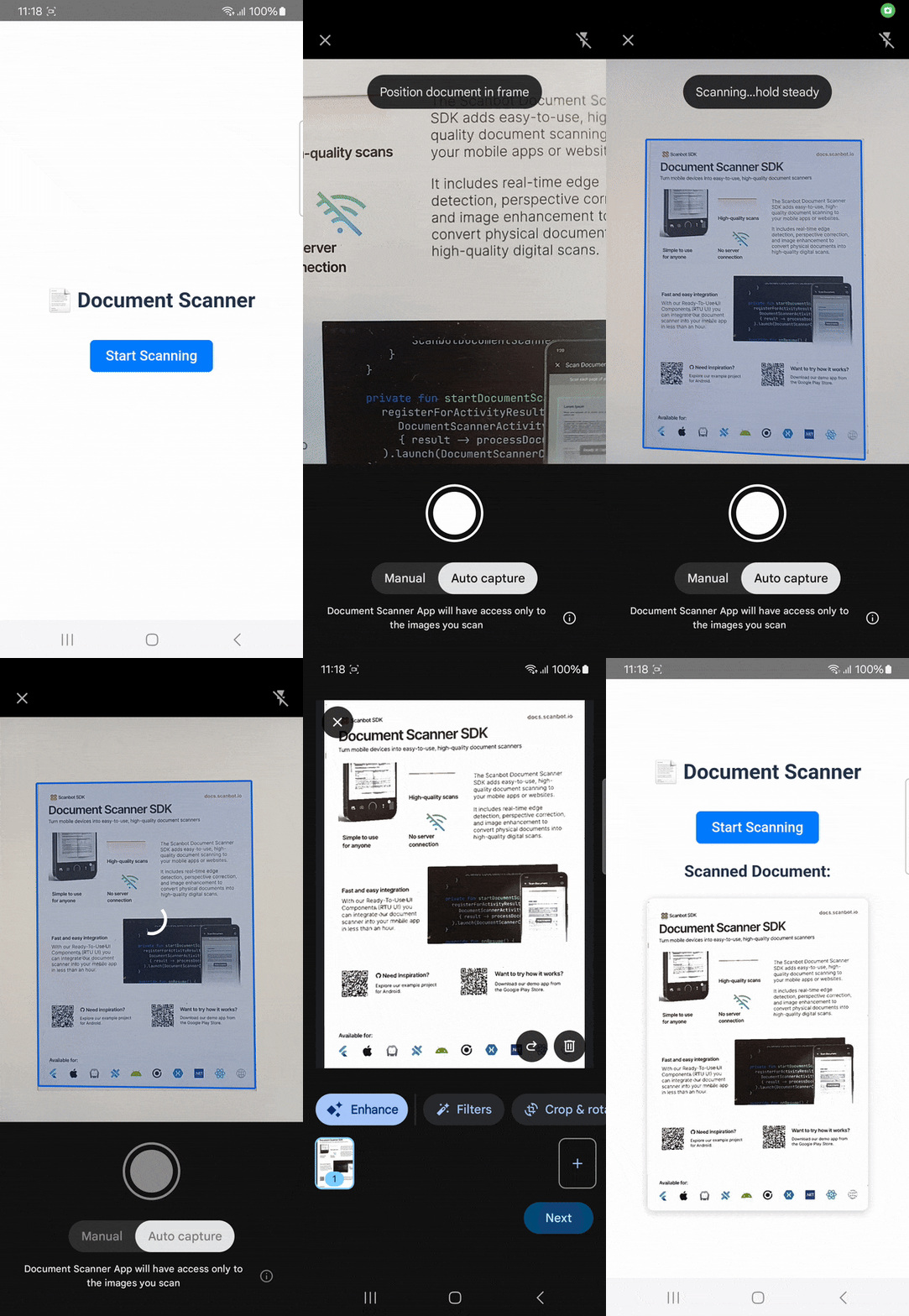
Building the app requires the following steps:
- Setting up the project
- Installing the document scanner plugin
- Setting up Android & iOS permissions
- Implementing the document scanning feature
Prerequisites
Before getting started, make sure your environment is ready.
Core requirements:
- Node.js version 20.19 or higher
For Android development:
- Android Studio Jellyfish (2024.2.1) or higher
- Android SDK (API 22 or higher), Platforms and Developer Tools
For iOS development:
- macOS with Xcode 16 or higher
- Homebrew
- CocoaPods (
brew install cocoapods) - Xcode Command Line Tools (
xcode-select --install)
Since scanning documents requires camera access, we recommend testing the app on a physical device.
Developing Capacitor applications can be done via the CLI or using the VS Code extension. You also have the option to use Capacitor with different frameworks. In this tutorial, we’ll use CLI commands and Capacitor with React. However, feel free to follow along using whatever option suits you best.
Step 1: Set up the project
First, create a new React project using Vite.
npm create vite@latest document-scanner-app -- --template reactThen navigate into your project directory.
cd document-scanner-appNext, install the Capacitor core JavaScript runtime and Command Line Interface:
npm install @capacitor/core @capacitor/cliAnd initialize the Capacitor configuration:
npx cap initEnter your app’s name (e.g., “Document Scanner App”) and App package ID (e.g., “com.documentscanner.app”) when prompted.
Now, add Android and iOS as platforms:
npm install @capacitor/android @capacitor/ios
npx cap add android
npx cap add ios
Step 2: Install the document scanner plugin
Now you can install the @capgo/capacitor-document-scanner package via npm.
npm install @capgo/capacitor-document-scannerStep 3: Set up Android & iOS permissions
To configure camera access for Android, open android/app/src/main/AndroidManifest.xml and add this line to the <manifest> tag:
<uses-permission android:name="android.permission.CAMERA" />For iOS, open ios/App/Podfile and set the deployment target to at least 15.5 (this prevents CocoaPods version issues).
platform :ios, '15.5'Then open ios/App/App/Info.plist and add the camera permission description inside the <dict> block.
<key>NSCameraUsageDescription</key>
<string>Grant camera access to scan documents</string>
Step 4: Implement the document scanning feature
Create a new file src/components/DocumentScannerView.jsx and paste the following code to set up a document scanner component:
import React, { useState } from 'react'
import { Capacitor } from '@capacitor/core'
import { DocumentScanner } from '@capgo/capacitor-document-scanner'

export default function DocumentScannerView() {
  const [imageSrc, setImageSrc] = useState(null)
  const [scanning, setScanning] = useState(false)

  const scanDocument = async () => {
    try {
      setScanning(true)
      const { scannedImages, status } = await DocumentScanner.scanDocument()

      if (status === 'cancel') {
        alert('Scan cancelled.')
        return
      }

      if (scannedImages.length > 0) {
        const firstImage = Capacitor.convertFileSrc(scannedImages[0])
        setImageSrc(firstImage)
      }
    } catch (err) {
      console.error(err)
      alert('Error while scanning: ' + err.message)
    } finally {
      setScanning(false)
    }
  }

  return (
    <div style={{ textAlign: 'center', padding: 20 }}>
      <h2>📄 Document Scanner</h2>
      {!scanning && (
        <button
          onClick={scanDocument}
          style={{
            background: '#007bff',
            color: 'white',
            padding: '10px 20px',
            border: 'none',
            borderRadius: '6px',
            cursor: 'pointer',
            marginTop: 10,
          }}
        >
          Start Scanning
        </button>
      )}
      {scanning && <p>📷 Scanning in progress...</p>}

      {imageSrc && (
        <div style={{ marginTop: 20 }}>
          <h3>Scanned Document:</h3>
          <img
            src={imageSrc}
            alt="Scanned Document"
            style={{ width: '100%', maxWidth: 400, borderRadius: '8px', boxShadow: '0 2px 10px rgba(0,0,0,0.2)' }}
          />
        </div>
      )}
    </div>
  )
}
This component uses React’s useState hook to manage two pieces of component state: imageSrc stores the URL of the last scanned image for display, and scanning is a boolean flag that tracks when the native scanner is active. The core functionality is in the scanDocument function, which is triggered by a button click; this async function calls the DocumentScanner.scanDocument() method, and if successful, it processes the resulting image file path using Capacitor.convertFileSrc to make it renderable in the web view before updating imageSrc.
Now, import and use the component in your App.jsx file by replacing its contents with the following code:
import './App.css'
import DocumentScannerView from './components/DocumentScannerView'

function App() {
  return <DocumentScannerView />
}

export default App
Now build your app and sync the native projects.
npm run build
npx cap sync
Finally, run the app on Android and iOS using the following commands:
Android:
npx cap run androidiOS:
npx cap run iosCommon issues & fixes
| Issue | Cause | Fix |
|---|---|---|
Camera permission not granted | Missing permissions in AndroidManifest.xml or Info.plist | Refer to step 3 of this tutorial. |
Signing for "App" requires a development team | Xcode requires every iOS app to be signed | Open Xcode → App target → Signing & Capabilities → Select your Apple ID or development team |
Plugin not found | Capacitor sync missing | Run npx cap sync after installing new plugins |
Failed Registering Bundle Identifier | The chosen app identifier (e.g. com.documentscanner.app) is already taken on Apple’s developer registry | Open Xcode → App target → General → change Bundle Identifier to a unique string (e.g. com.yourname.documentscanner) |
Conclusion
This concludes our tutorial on how to set up a simple document scanning app using Capacitor and ML Kit.
Free solutions like this one can be great for prototyping and personal projects. However, they have their drawbacks.
Since this plugin is a wrapper for Google’s ML Kit, its functionality depends entirely on this third-party library. Companies relying on ML Kit for their scanning needs won’t be able to submit feature requests nor count on help when things don’t work as expected.
We developed the Scanbot Document Scanner SDK to help companies overcome these hurdles. Our goal was to provide a developer-friendly solution for a wide range of platforms that consistently delivers high-quality results, even in challenging circumstances – enterprise-grade support included.
💡 For an in-depth comparison between the two libraries, please refer to our Scanbot Document Scanner SDK vs ML Kit page.
In the following tutorial, we’ll show you how to set up a powerful cross-platform document scanner using Capacitor, Ionic, and the Scanbot SDK.
Building an Ionic Capacitor document scanner app with the Scanbot SDK
To set up our app, we’ll follow these steps:
- Preparing the project
- Installing the SDK
- Initializing the SDK
- Implementing the scanning feature
- Implementing the PDF export feature
Thanks to the SDK’s Ready-to-Use UI Components, we’ll have an intuitive user interface out of the box.

Developing Capacitor applications can be done via the CLI or using the VS Code extension. In this tutorial, we’ll use CLI commands. However, feel free to follow along using whatever option suits you best.
Capacitor can be used with different frameworks. In this tutorial, we will use Capacitor with Ionic and Angular. Again, these choices depend on your needs and prior knowledge.
Since we’ll use Ionic in this tutorial, you also need to install the Ionic CLI if you haven’t already:
npm install -g @ionic/cliStep 1: Prepare the project
1. Create a new Capacitor project
To start creating your Capacitor app with Ionic using the CLI, run the following command in the terminal, which will create a blank project with some recommended Capacitor dependencies:
ionic start CapacitorTutorial blank --capacitor --type angular-standalone --package-id io.scanbot.tutorial.capacitor⚠️ When using your own license, make sure that the package ID is the same as the application/bundle ID associated with it.
2. Generate the native projects
Now, let’s add the Android and iOS platforms to our project.
Navigate into the project directory.
cd CapacitorTutorialThen add Android and iOS as platforms.
npm i @capacitor/android @capacitor/iosAnd run the following commands to create the native Android and iOS projects:
npx cap add android
npx cap add ios
Step 2: Install file-viewer and the Document Scanner SDK
First, install file-viewer, the Capacitor plugin that we’ll use to open and preview our generated PDF files:
npm i @capacitor/file-viewerNext, install the Capacitor Document Scanner SDK:
npm i capacitor-plugin-scanbot-sdk💡 This will install the latest Scanbot SDK version. You can find more information about each version in the changelog.
Now that the npm package has been installed, we need to make some changes to the native projects.
For Android, we need to add the camera permission and feature in android/app/src/main/AndroidManifest.xml:
<uses-permission android:name="android.permission.CAMERA" />
<uses-feature android:name="android.hardware.camera" />
For iOS, we need to include a description for the camera permission in ios/App/App/Info.plist anywhere inside the <dict> element:
<key>NSCameraUsageDescription</key>
<string>Camera permission is needed to scan documents</string>
Now that the project is set up, we can start integrating the document scanning functionalities.
Step 3: Initialize the SDK
Before using any feature of the Scanbot SDK, we need to initialize it. Ideally, initialization should be done as soon as the app is launched.
In this tutorial, we’re going to initialize the SDK inside a ngOnInit callback in src/app/app.component.ts. Make sure to import OnInit and ScanbotSDK.
Your app.component.ts will look like this:
import { Component, OnInit } from '@angular/core';
import { IonApp, IonRouterOutlet } from '@ionic/angular/standalone';

import { ScanbotSDK } from 'capacitor-plugin-scanbot-sdk';

@Component({
  selector: 'app-root',
  templateUrl: 'app.component.html',
  imports: [IonApp, IonRouterOutlet],
})
export class AppComponent implements OnInit {
  constructor() { }

  ngOnInit(): void {
    ScanbotSDK.initializeSDK({
      licenseKey: ""
    }).then(result => console.log(result))
      .catch(err => console.log(err));
  }
}
💡 Without a license key, our SDK only runs for 60 seconds per session. This is more than enough for the purposes of our tutorial, but if you like, you can generate a license key using the bundle and application identifiers.
Step 4: Implement the scanning feature
In your project folder, go to src/app/home/home.page.html, and add a button inside the container div that will start the scanning process.
<ion-button (click)="startDocumentScanner()">Start Document Scanner</ion-button>We need to define the startDocumentScanner function inside the HomePage class in src/app/home/home.page.ts. Make sure that ScanbotSDK, DocumentScanningFlow and startDocumentScanner are imported and IonButton is added in the component imports.
In this tutorial, we use a default configuration object. It will start the Document Scanner UI with the default settings: in multi-page scanning mode with an acknowledge screen after scanning each page. You can customize the UI and behavior of the Document Scanner by modifying the configuration object. For more information on how to do that, please refer to the SDK’s RTU UI documentation.
Your home.page.ts should look something like this:
import { Component } from '@angular/core';
import { IonHeader, IonToolbar, IonTitle, IonContent, IonButton } from '@ionic/angular/standalone';

import { ScanbotSDK } from 'capacitor-plugin-scanbot-sdk';
import { startDocumentScanner, DocumentScanningFlow } from 'capacitor-plugin-scanbot-sdk/ui_v2';

@Component({
  selector: 'app-home',
  templateUrl: 'home.page.html',
  styleUrls: ['home.page.scss'],
  imports: [IonHeader, IonToolbar, IonTitle, IonContent, IonButton],
})
export class HomePage {
  constructor() { }

  async startDocumentScanner() {
    try {
      /** Check license status and return early if the license is not valid */
      if (!(await ScanbotSDK.getLicenseInfo()).isLicenseValid) {
        return;
      }
      /**
       * Create the document configuration object and
       * start the document scanner with the configuration
       */
      const configuration = new DocumentScanningFlow();
      const documentResult = await startDocumentScanner(configuration);
      /**
       * Handle the result if the result status is OK
       */
      if (documentResult.status === 'OK') {
        /* Print out the documentImageURI for each page */
        documentResult.data.pages.forEach((page) => console.log(page.documentImageURI));
      }
    } catch (e: any) {
      console.log("An error has occurred while running Document Scanner", e.message);
    }
  }
}
Step 5: Implement the PDF export feature
Now, we will generate a PDF file from the scanned document.
Make sure to add FileViewer and PdfConfiguration to the imports in home.page.ts:
import { ScanbotSDK, PdfConfiguration } from 'capacitor-plugin-scanbot-sdk';
import { FileViewer } from '@capacitor/file-viewer';
To enable users to scan documents and generate a PDF, we need to modify the startDocumentScanner method. This method will first launch the document scanner, then process the scanned document to generate a PDF file, and finally open it.
async startDocumentScanner() {
  try {
    /** Check license status and return early if the license is not valid */
    if (!(await ScanbotSDK.getLicenseInfo()).isLicenseValid) {
      return;
    }
    /**
      * Create the document configuration object and
      * start the document scanner with the configuration
      */
    const configuration = new DocumentScanningFlow();
    const documentResult = await startDocumentScanner(configuration);
    /**
      * Handle the result if the result status is OK
      */
    if (documentResult.status === 'OK') {
      /* Print out the documentImageURI for each page */
      documentResult.data.pages.forEach((page) => console.log(page.documentImageURI));

      /* Create a PDF configuration object */
      const pdfConfiguration = new PdfConfiguration();

      /* Create a PDF file from the provided document UUID and the configuration object */
      const createPDFResult = await ScanbotSDK.Document.createPDF({
        documentID: documentResult.data.uuid,
        pdfConfiguration: pdfConfiguration
      });

      /* Open the created PDF file */
      await FileViewer.openDocumentFromLocalPath({
        path: createPDFResult.pdfFileUri
      });
    }
  } catch (e: any) {
    console.log("An error has occurred while running Document Scanner", e.message);
  }
}
Now you can open a scanned document as a PDF file and share it. For example, you can send it via email or save it to a cloud storage.
In the terminal, run these commands to build and sync the native projects:
npm run build
npx cap sync
To run the app on Android and iOS, use the following commands:
For Android:
npx cap run androidFor iOS:
To run the app on a real iOS device, you need to adjust the “Provisioning” and “Signing” settings. Open ios/App/App.xcworkspace with Xcode, adjust the settings, and run the project from Xcode or with this command:
npx cap run iosConclusion
And that’s it! You’ve successfully integrated a fully functional document scanner into your app 🎉
If this tutorial has piqued your interest in integrating document scanning functionalities into your Capacitor app, make sure to take a look at the other neat features in the Capacitor Document Scanner SDK’s documentation – or run our example project for a more hands-on experience.
Should you have questions about this tutorial or run into any issues, we’re happy to help! Just shoot us an email via tutorial-support@scanbot.io.
Happy scanning! 🤳