In this tutorial, you’ll learn how to create a barcode scanner using Jetpack Compose, CameraX, and ML Kit Analyzer, an integration component that bridges Google’s ML Kit Vision APIs with Android’s camera pipeline.
Compared to the traditional XML + View system for building UIs on Android, Jetpack Compose offers a a more maintainable way to build UIs that results in less code, better readability, and centralized state management.
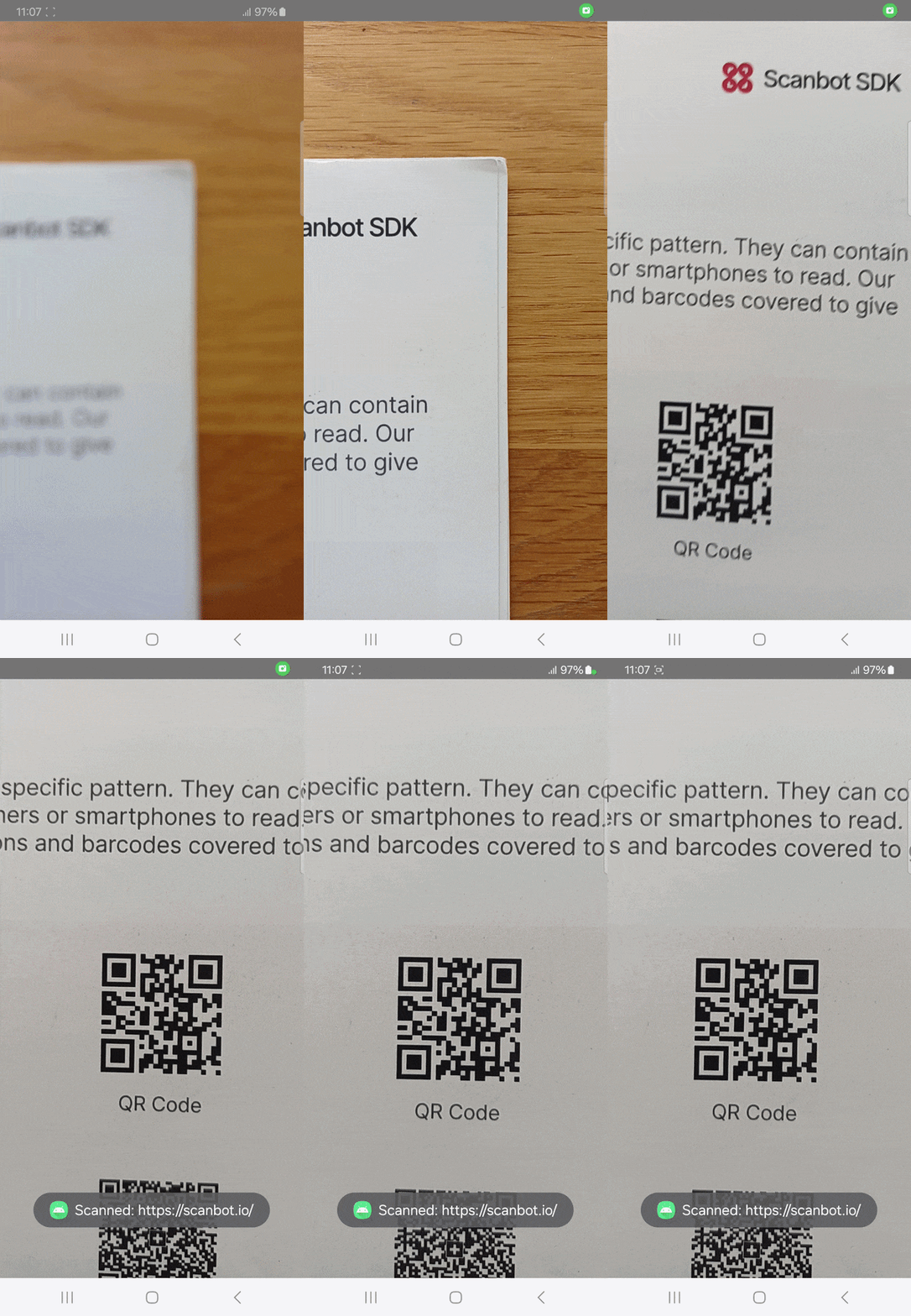
To achieve this, you’ll follow these steps:
- Preparing the project
- Implementing the barcode scanner with Jetpack Compose
- Testing your barcode scanning app
All you need is the latest version of Android Studio and you’re good to go.
Step 1: Prepare the project
Create a new Empty Activity (look for the Jetpack Compose logo) and name the project (e.g., “Jetpack Compose Barcode Scanner”).
When your project is ready, open app/build.gradle.kts and add the dependencies for CameraX, the ML Kit barcode scanner, and Jetpack Compose.
dependencies {

    // CameraX
    implementation("androidx.camera:camera-core:1.4.2")
    implementation("androidx.camera:camera-camera2:1.4.2")
    implementation("androidx.camera:camera-lifecycle:1.4.2")
    implementation("androidx.camera:camera-view:1.4.2")
    implementation("androidx.camera:camera-mlkit-vision:1.4.2") // fixes androidx.camera.mlkit.*

    // ML Kit barcode scanning
    implementation("com.google.mlkit:barcode-scanning:17.3.0")

    // Jetpack Compose
    implementation(platform("androidx.compose:compose-bom:2025.02.00"))
    implementation("androidx.compose.ui:ui")                    // fixes androidx.compose.ui.*
    implementation("androidx.compose.foundation:foundation")    // fixes androidx.compose.foundation.*
    implementation("androidx.compose.material3:material3")      // fixes androidx.compose.material3.*
    implementation("androidx.activity:activity-compose:1.10.1") // fixes androidx.activity.compose.*
    implementation("androidx.lifecycle:lifecycle-runtime-compose:2.8.7") // fixes LocalLifecycleOwner
Then sync the project.
Since you’ll need to access the device camera to scan barcodes, add the corresponding permission to AndroidManifest.xml.
<uses-permission android:name="android.permission.CAMERA" />
<uses-feature android:name="android.hardware.camera" />
Step 2: Implement the barcode scanner with Jetpack Compose
Now open MainActivity.kt and set up the barcode scanner with CameraX and ML Kit using composables, the core building blocks of user interfaces in Jetpack Compose. They are regular Kotlin functions annotated with @Composable.
1. Define the main activity
class MainActivity : ComponentActivity() {
    override fun onCreate(savedInstanceState: Bundle?) {
        super.onCreate(savedInstanceState)
        setContent {
            BarcodeScannerScreen()
        }
    }
}
As the entry point of your Android application, this activity overrides onCreate, which is called when the app starts. Instead of loading an XML layout, the activity calls setContent, which initializes Jetpack Compose and renders the BarcodeScannerScreen composable, which you’ll create next, as the root of the user interface.
2. Set up the BarcodeScannerScreen composable
@Composable
fun BarcodeScannerScreen() {
    val context = LocalContext.current
    var hasCameraPermission by remember {
        mutableStateOf(
            ContextCompat.checkSelfPermission(context, Manifest.permission.CAMERA)
                == PackageManager.PERMISSION_GRANTED
        )
    }

    val permissionLauncher = rememberLauncherForActivityResult(
        contract = ActivityResultContracts.RequestPermission()
    ) { granted ->
        hasCameraPermission = granted
    }

    LaunchedEffect(Unit) {
        if (!hasCameraPermission) {
            permissionLauncher.launch(Manifest.permission.CAMERA)
        }
    }

    if (hasCameraPermission) {
        CameraPreview()
    } else {
        Box(modifier = Modifier.fillMaxSize(), contentAlignment = Alignment.Center) {
            Text("Camera permission is required to scan barcodes.")
        }
    }
}
This composable represents the main screen of the app and handles camera permission logic.
It first checks whether camera permission is already granted and stores that result in Compose state. If permission is missing, it launches the Android permission dialog using the Activity Result API. Once permission is granted, the CameraPreview composable is displayed, which you’ll create next.
3. Set up the CameraPreview composable
@Composable
fun CameraPreview() {
    val context = LocalContext.current

    // Track the last scanned value to avoid firing the Toast repeatedly for the same code
    var lastScannedValue by remember { mutableStateOf<String?>(null) }

    val cameraController = remember {
        val barcodeScanner = BarcodeScanning.getClient()

        LifecycleCameraController(context).also { controller ->
            controller.setImageAnalysisAnalyzer(
                ContextCompat.getMainExecutor(context),
                MlKitAnalyzer(
                    listOf(barcodeScanner),
                    COORDINATE_SYSTEM_VIEW_REFERENCED,
                    ContextCompat.getMainExecutor(context)
                ) { result ->
                    val barcodes = result?.getValue(barcodeScanner)
                    val firstBarcode = barcodes?.firstOrNull()?.rawValue

                    if (firstBarcode != null && firstBarcode != lastScannedValue) {
                        lastScannedValue = firstBarcode
                        Toast.makeText(context, "Scanned: $firstBarcode", Toast.LENGTH_SHORT).show()
                    }
                }
            )
        }
    }

    val lifecycleOwner = androidx.lifecycle.compose.LocalLifecycleOwner.current

    AndroidView(
        modifier = Modifier.fillMaxSize(),
        factory = { ctx ->
            PreviewView(ctx).also { previewView ->
                previewView.controller = cameraController
                cameraController.bindToLifecycle(lifecycleOwner)
            }
        }
    )
}
This composable is responsible for displaying the camera preview and performing barcode scanning.
It creates a LifecycleCameraController from CameraX and attaches an ML Kit Analyzer that processes each camera frame to detect barcodes. When a barcode is found, the code checks whether it differs from the previously detected value to avoid repeated notifications. If it is new, a Toast message displays the scanned value.
The camera preview itself is shown using AndroidView, which embeds a traditional Android PreviewView inside the Compose UI and binds the camera controller to the composable’s lifecycle.
Step 3: Test your barcode scanning app
To summarize, your Jetpack Compose-based barcode scanner app works like this:
- The app starts in
MainActivity. - Compose renders
BarcodeScannerScreen. - The app checks or requests camera permission.
- Once permission is granted,
CameraPreviewloads. - CameraX streams camera frames.
- ML Kit analyzes the frames for barcodes.
- When a barcode is detected, its value is shown in a Toast message.
With all of this implemented, your final MainActivity.kt will look like this:
package com.example.jetpackcomposebarcodescanner

import android.Manifest
import android.content.pm.PackageManager
import android.os.Bundle
import android.widget.Toast
import androidx.activity.ComponentActivity
import androidx.activity.compose.rememberLauncherForActivityResult
import androidx.activity.compose.setContent
import androidx.activity.result.contract.ActivityResultContracts
import androidx.camera.mlkit.vision.MlKitAnalyzer
import androidx.camera.core.ImageAnalysis.COORDINATE_SYSTEM_VIEW_REFERENCED
import androidx.camera.view.LifecycleCameraController
import androidx.camera.view.PreviewView
import androidx.compose.foundation.layout.Box
import androidx.compose.foundation.layout.fillMaxSize
import androidx.compose.material3.Text
import androidx.compose.runtime.*
import androidx.compose.ui.Alignment
import androidx.compose.ui.Modifier
import androidx.compose.ui.platform.LocalContext
import androidx.compose.ui.viewinterop.AndroidView
import androidx.core.content.ContextCompat
import com.google.mlkit.vision.barcode.BarcodeScanning

class MainActivity : ComponentActivity() {
    override fun onCreate(savedInstanceState: Bundle?) {
        super.onCreate(savedInstanceState)
        setContent {
            BarcodeScannerScreen()
        }
    }
}

@Composable
fun BarcodeScannerScreen() {
    val context = LocalContext.current
    var hasCameraPermission by remember {
        mutableStateOf(
            ContextCompat.checkSelfPermission(context, Manifest.permission.CAMERA)
                    == PackageManager.PERMISSION_GRANTED
        )
    }

    val permissionLauncher = rememberLauncherForActivityResult(
        contract = ActivityResultContracts.RequestPermission()
    ) { granted ->
        hasCameraPermission = granted
    }

    LaunchedEffect(Unit) {
        if (!hasCameraPermission) {
            permissionLauncher.launch(Manifest.permission.CAMERA)
        }
    }

    if (hasCameraPermission) {
        CameraPreview()
    } else {
        Box(modifier = Modifier.fillMaxSize(), contentAlignment = Alignment.Center) {
            Text("Camera permission is required to scan barcodes.")
        }
    }
}

@Composable
fun CameraPreview() {
    val context = LocalContext.current

    var lastScannedValue by remember { mutableStateOf<String?>(null) }

    val cameraController = remember {
        val barcodeScanner = BarcodeScanning.getClient()

        LifecycleCameraController(context).also { controller ->
            controller.setImageAnalysisAnalyzer(
                ContextCompat.getMainExecutor(context),
                MlKitAnalyzer(
                    listOf(barcodeScanner),
                    COORDINATE_SYSTEM_VIEW_REFERENCED,
                    ContextCompat.getMainExecutor(context)
                ) { result ->
                    val barcodes = result?.getValue(barcodeScanner)
                    val firstBarcode = barcodes?.firstOrNull()?.rawValue

                    if (firstBarcode != null && firstBarcode != lastScannedValue) {
                        lastScannedValue = firstBarcode
                        Toast.makeText(context, "Scanned: $firstBarcode", Toast.LENGTH_SHORT).show()
                    }
                }
            )
        }
    }

    val lifecycleOwner = androidx.lifecycle.compose.LocalLifecycleOwner.current

    AndroidView(
        modifier = Modifier.fillMaxSize(),
        factory = { ctx ->
            PreviewView(ctx).also { previewView ->
                previewView.controller = cameraController
                cameraController.bindToLifecycle(lifecycleOwner)
            }
        }
    )
}
Now go ahead and run your app to scan some barcodes.
Conclusion
This concludes the tutorial on how to set up a barcode scanning app for Android with Jetpack Compose, CameraX and ML Kit Analyzer.
Free solutions like this one can be great for prototyping and personal projects. However, Google doesn’t offer enterprise support for ML Kit, so companies relying on it for their scanning needs won’t be able to submit feature requests nor count on help when things don’t work as expected.
We developed the Scanbot Barcode Scanner SDK to help companies overcome these hurdles. Our goal was to provide a developer-friendly solution for a wide range of platforms that consistently delivers high-quality results, even in challenging circumstances – enterprise-grade support included.
💡 For an in-depth comparison between the two libraries, please refer to our Scanbot Barcode Scanner SDK vs ML Kit page.
In the following tutorial, we’ll show you how to set up a barcode scanning app with Jetpack Compose using the Scanbot Android Barcode Scanner SDK.
Building a Jetpack Compose barcode scanner app with the Scanbot SDK
To set up your app, you’ll follow these steps:
- Prepare the project
- Initialize the SDK
- Set up the main screen
- Implement the scanning modes
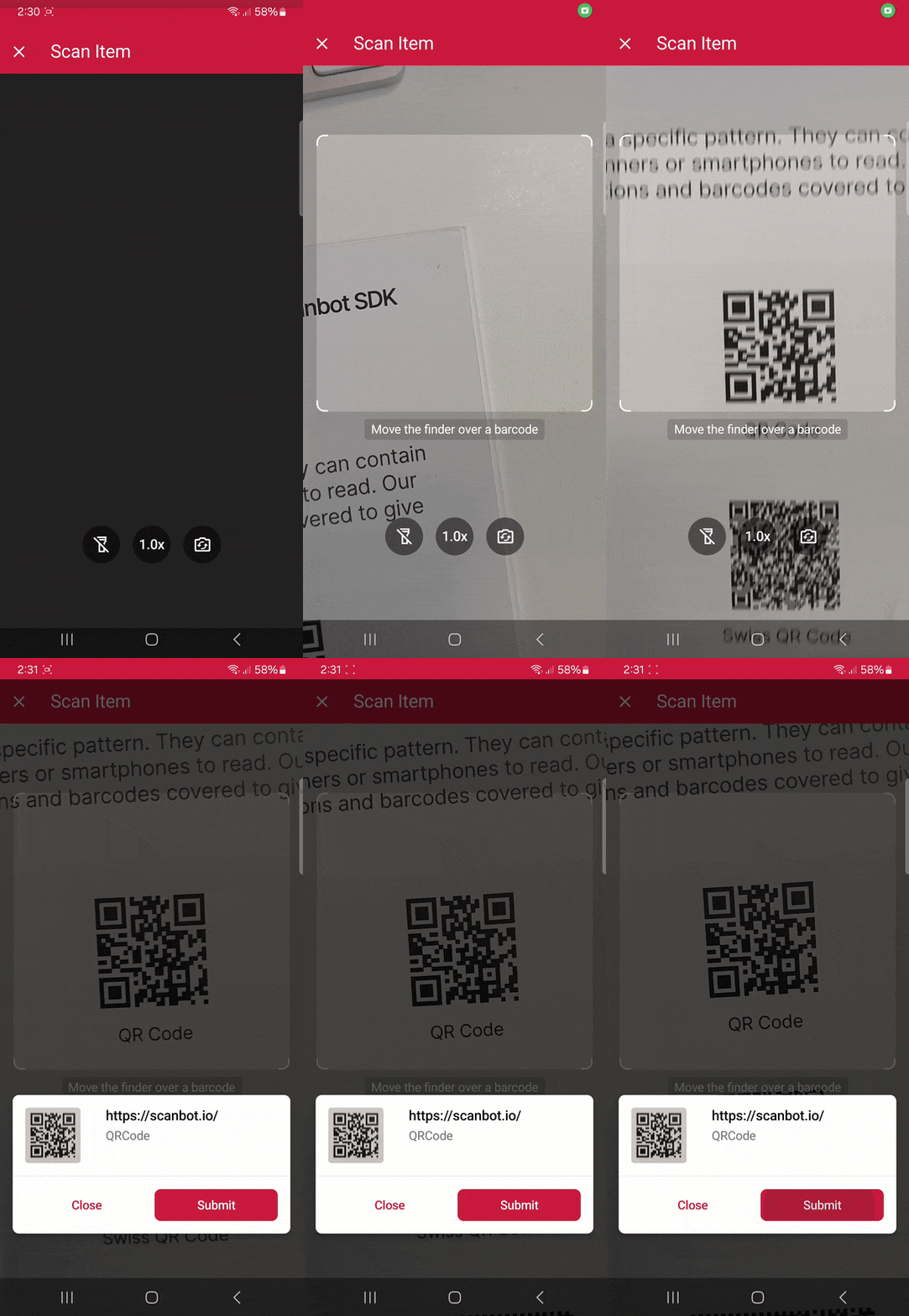
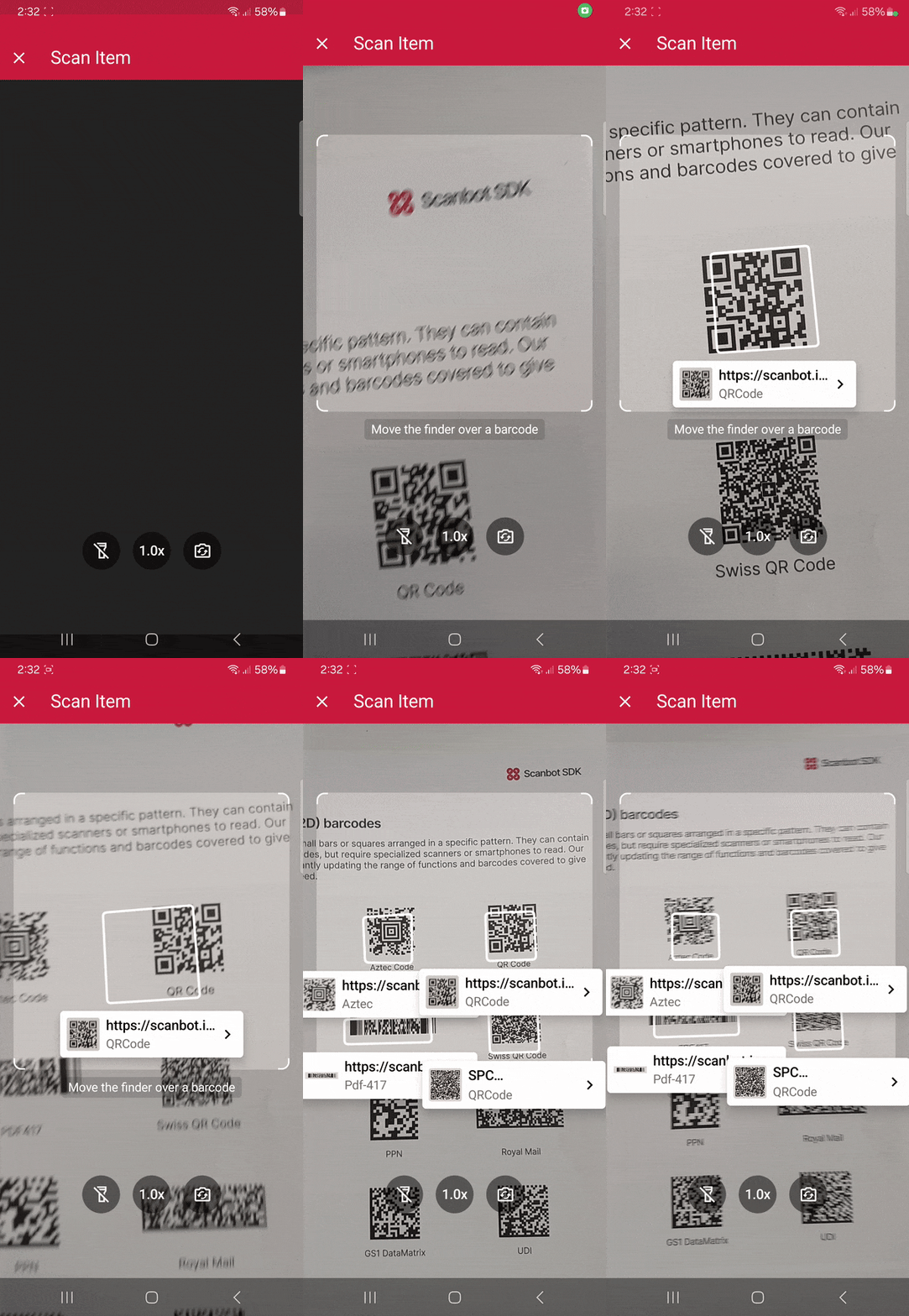
Thanks to the SDK’s Ready-to-Use UI Components, we’ll have an intuitive user interface out of the box.
Step 1: Preparing the project
Open Android Studio, create a new Empty Activity project (look for the Jetpack Compose logo), and name it (e.g., “Compose Barcode Scanner”).
When your project is ready, go to settings.gradle.kts and add the Maven repositories for our SDK:
dependencyResolutionManagement {
    repositoriesMode.set(RepositoriesMode.FAIL_ON_PROJECT_REPOS)
    repositories {
        google()
        mavenCentral()

        // Add the repositories here:
        maven(url = "https://nexus.scanbot.io/nexus/content/repositories/releases/")
        maven(url = "https://nexus.scanbot.io/nexus/content/repositories/snapshots/")
    }
}
Now go to app/build.gradle.kts and add the dependencies for the Scanbot SDK and the RTU UI:
dependencies {
    implementation("io.scanbot:scanbot-barcode-scanner-sdk:8.1.0")
    implementation("io.scanbot:rtu-ui-v2-barcode:8.1.0")
Sync the project.
💡 We’re using version 8.1.0 of the Scanbot Barcode Scanner SDK in this tutorial. You can find the latest version in the changelog.
Since we need to access the device camera to scan barcodes, let’s also add the necessary permissions in AndroidManifest.xml:
<?xml version="1.0" encoding="utf-8"?>
<manifest xmlns:android="http://schemas.android.com/apk/res/android"
    xmlns:tools="http://schemas.android.com/tools">

    <uses-permission android:name="android.permission.CAMERA" />
    <uses-feature android:name="android.hardware.camera" />

    <application
    ...
Step 2: Initializing the SDK
Before we can use the Scanbot Barcode Scanner SDK, we need to initialize it. The recommended approach is to do it in your Application implementation. This ensures the SDK is correctly initialized even when the app’s process is restored after being terminated in the background.
First, we need to create an Application subclass by right-clicking on the folder app/kotlin+java/com.example.composebarcodescanner, selecting New > Kotlin Class/File, and naming it (e.g. “ExampleApplication”).
In the resulting ExampleApplication.kt, let’s first add the necessary imports:
import android.app.Application
import io.scanbot.sdk.barcode_scanner.ScanbotBarcodeScannerSDKInitializer
Then we make ExampleApplication extend the Application class by adding : Application() and put the code for initializing the SDK inside it:
class ExampleApplication : Application() {

    override fun onCreate() {
        super.onCreate()

        ScanbotBarcodeScannerSDKInitializer()
            // Optional: uncomment the next line if you have a license key.
            // .license(this, LICENSE_KEY)
            .initialize(this)
    }
}
💡 Without a license key, our SDK only runs for 60 seconds per session. This is more than enough for the purposes of our tutorial, but if you like, you can generate a license key. Just make sure to change your applicationId in app/build.gradle.kts to io.scanbot.androidbarcodescanner and use that ID for generating the license.
Finally, we need to register the Example Application class in AndroidManifest.xml:
<application
   android:name=".ExampleApplication"
   ...
Step 3: Setting up the main screen
Now we’re going to build a rudimentary UI so we can quickly access the different scanning modes in our finished app.
For this tutorial, we’re going to go with a simple three-button layout.
Since the Compose template has already put a composable into MainActivity.kt, we’ll just replace the contents of MainActivity.kt with the following code, which includes the three buttons and the corresponding listeners:
package com.example.composebarcodescanner // replace package name if necessary

import android.os.Bundle
import androidx.activity.ComponentActivity
import androidx.activity.compose.setContent
import androidx.activity.enableEdgeToEdge
import androidx.compose.foundation.layout.Column
import androidx.compose.foundation.layout.fillMaxSize
import androidx.compose.foundation.layout.fillMaxWidth
import androidx.compose.foundation.layout.padding
import androidx.compose.material3.Scaffold
import androidx.compose.material3.Text
import androidx.compose.material3.TextButton
import androidx.compose.runtime.Composable
import androidx.compose.ui.Modifier
import androidx.compose.ui.tooling.preview.Preview
import com.example.composebarcodescanner.ui.theme.ComposeBarcodeScannerTheme // replace package name if necessary

class MainActivity : ComponentActivity() {
    override fun onCreate(savedInstanceState: Bundle?) {
        super.onCreate(savedInstanceState)
        enableEdgeToEdge()
        setContent {
            ComposeBarcodeScannerTheme {
                Scaffold(modifier = Modifier.fillMaxSize()) { innerPadding ->
                    BarcodeScannerModes(
                        modifier = Modifier.padding(innerPadding),
                        openSingleBarcodeScanning = {
                            // TODO: We will implement this later
                        },
                        openMultiBarcodeScanning = {
                            // TODO: We will implement this later
                        },
                        openArOverlay = {
                            // TODO: We will implement this later
                        },
                    )
                }
            }
        }
    }
}

@Composable
fun BarcodeScannerModes(
    modifier: Modifier = Modifier,
    openSingleBarcodeScanning: () -> Unit = { },
    openMultiBarcodeScanning: () -> Unit = { },
    openArOverlay: () -> Unit = { }
) {
    Column(modifier = modifier) {
        TextButton(onClick = openSingleBarcodeScanning, modifier = Modifier.fillMaxWidth()) {
            Text("Single-barcode scanning")
        }
        TextButton(onClick = openMultiBarcodeScanning, modifier = Modifier.fillMaxWidth()) {
            Text("Multi-barcode scanning")
        }
        TextButton(onClick = openArOverlay, modifier = Modifier.fillMaxWidth()) {
            Text("AR overlay")
        }
    }
}

@Preview(showBackground = true)
@Composable
fun BarcodeScannerModesPreview() {
    ComposeBarcodeScannerTheme {
        BarcodeScannerModes()
    }
}
Step 4: Implementing the scanning modes
Now we’ll connect each button with one of our RTU UI’s scanning modes, starting with single-barcode scanning.
Let’s first add the necessary imports to MainActivity.kt:
import android.widget.Toast
import androidx.compose.runtime.CompositionLocalProvider
import androidx.compose.runtime.getValue
import androidx.compose.runtime.mutableStateOf
import androidx.compose.runtime.remember
import androidx.compose.runtime.setValue
import io.scanbot.sdk.ui_v2.barcode.BarcodeScannerView
import io.scanbot.sdk.barcode.BarcodeFormatCommonConfiguration
import io.scanbot.sdk.barcode.BarcodeFormats
import io.scanbot.sdk.ui_v2.barcode.configuration.BarcodeNativeConfiguration
import io.scanbot.sdk.ui_v2.barcode.configuration.BarcodeScannerScreenConfiguration
import io.scanbot.sdk.ui_v2.barcode.configuration.CollapsedVisibleHeight
import io.scanbot.sdk.ui_v2.barcode.configuration.LocalBarcodeNativeConfiguration
import io.scanbot.sdk.ui_v2.barcode.configuration.MultipleBarcodesScanningMode
import io.scanbot.sdk.ui_v2.barcode.configuration.MultipleScanningMode
import io.scanbot.sdk.ui_v2.barcode.configuration.SheetMode
import io.scanbot.sdk.ui_v2.barcode.configuration.SingleScanningMode
import io.scanbot.sdk.ui_v2.common.ScanbotColor
To use the RTU UI, we need to set up a configuration object for the barcode scanner. We’ll do this in the MainActivity class. For simplicity, we will implement the mutable state for the configuration object and the barcode scanner view in the MainActivity class, and if it is present, we will switch to the corresponding view. Therefore, we introduce a conditional statement in the MainActivity class to either display a list of scanning modes or the barcode scanner view.
// Replace the contents of ComposeBarcodeScannerTheme with the following:
ComposeBarcodeScannerTheme {
    var configuration by remember { mutableStateOf<BarcodeScannerScreenConfiguration?>(null) }
    if (configuration == null) {
        Scaffold(modifier = Modifier.fillMaxSize()) { innerPadding ->
            BarcodeScannerModes(
                modifier = Modifier.padding(innerPadding),
                openSingleBarcodeScanning = {
                    // TODO: We will implement this later
                },
                openMultiBarcodeScanning = {
                    // TODO: We will implement this later
                },
                openArOverlay = {
                    // TODO: We will implement this later
                },
            )
        }
    } else {
        configuration?.let {
            // We need to wrap BarcodeScannerView into CompositionLocalProvider to be able
            // to reset the scanning session after the successful scan
            CompositionLocalProvider(
                LocalBarcodeNativeConfiguration provides BarcodeNativeConfiguration(
                    enableContinuousScanning = true
                )
            ) {
                BarcodeScannerView(
                    configuration = it,
                    onBarcodeScanned = { result ->
                        // Reset the configuration to null to return to the main screen.
                        configuration = null
                    },
                    onBarcodeScannerClosed = {
                        // Reset the configuration to null to return to the main screen.
                        configuration = null
                    }
                )
            }
        }
    }
}
Let’s implement a common result presentation for all scanning modes. We will display the barcode value in a toast.
Replace the onBarcodeScanned parameter of the BarcodeScannerView with the following code:
onBarcodeScanned = { result ->
    // Barcode Scanner result callback:
    // Get the first scanned barcode from the result object...
    val barcodeItem = result.items.first()
    // ... and process the result as needed. For example, display as a Toast:
    Toast.makeText(
        this,
        "Scanned: ${barcodeItem.barcode.text} (${barcodeItem.barcode.format})",
        Toast.LENGTH_LONG
    ).show()

    // Reset the configuration to null to return to the main screen.
    configuration = null
},
Single-barcode scanning
Now we’ll implement the openSingleBarcodeScanning function as the parameter we send to the BarcodeScannerModes composable.
Add the following code to the MainActivity class:
openSingleBarcodeScanning = {
    configuration = BarcodeScannerScreenConfiguration().apply {
        // See below...
    }
},
Now paste the configuration for the RTU UI’s single-barcode scanning mode (from the documentation) into the apply block:
openSingleBarcodeScanning = {
    configuration = BarcodeScannerScreenConfiguration().apply {
        // Configure parameters (use explicit `this.` receiver for better code completion):

        // Initialize the use case for single scanning.
        this.useCase = SingleScanningMode().apply {
            // Enable and configure the confirmation sheet.
            this.confirmationSheetEnabled = true
            this.sheetColor = ScanbotColor("#FFFFFF")

            // Hide/unhide the barcode image.
            this.barcodeImageVisible = true

            // Configure the barcode title of the confirmation sheet.
            this.barcodeTitle.visible = true
            this.barcodeTitle.color = ScanbotColor("#000000")

            // Configure the barcode subtitle of the confirmation sheet.
            this.barcodeSubtitle.visible = true
            this.barcodeSubtitle.color = ScanbotColor("#000000")

            // Configure the cancel button of the confirmation sheet.
            this.cancelButton.text = "Close"
            this.cancelButton.foreground.color = ScanbotColor("#C8193C")
            this.cancelButton.background.fillColor = ScanbotColor("#00000000")

            // Configure the submit button of the confirmation sheet.
            this.submitButton.text = "Submit"
            this.submitButton.foreground.color = ScanbotColor("#FFFFFF")
            this.submitButton.background.fillColor = ScanbotColor("#C8193C")

            // Configure other parameters, pertaining to single-scanning mode as needed.
        }

        // Set an array of accepted barcode types.
        this.scannerConfiguration.barcodeFormatConfigurations = listOf(BarcodeFormatCommonConfiguration(formats = BarcodeFormats.common))

        // Configure other parameters as needed.
    }
},
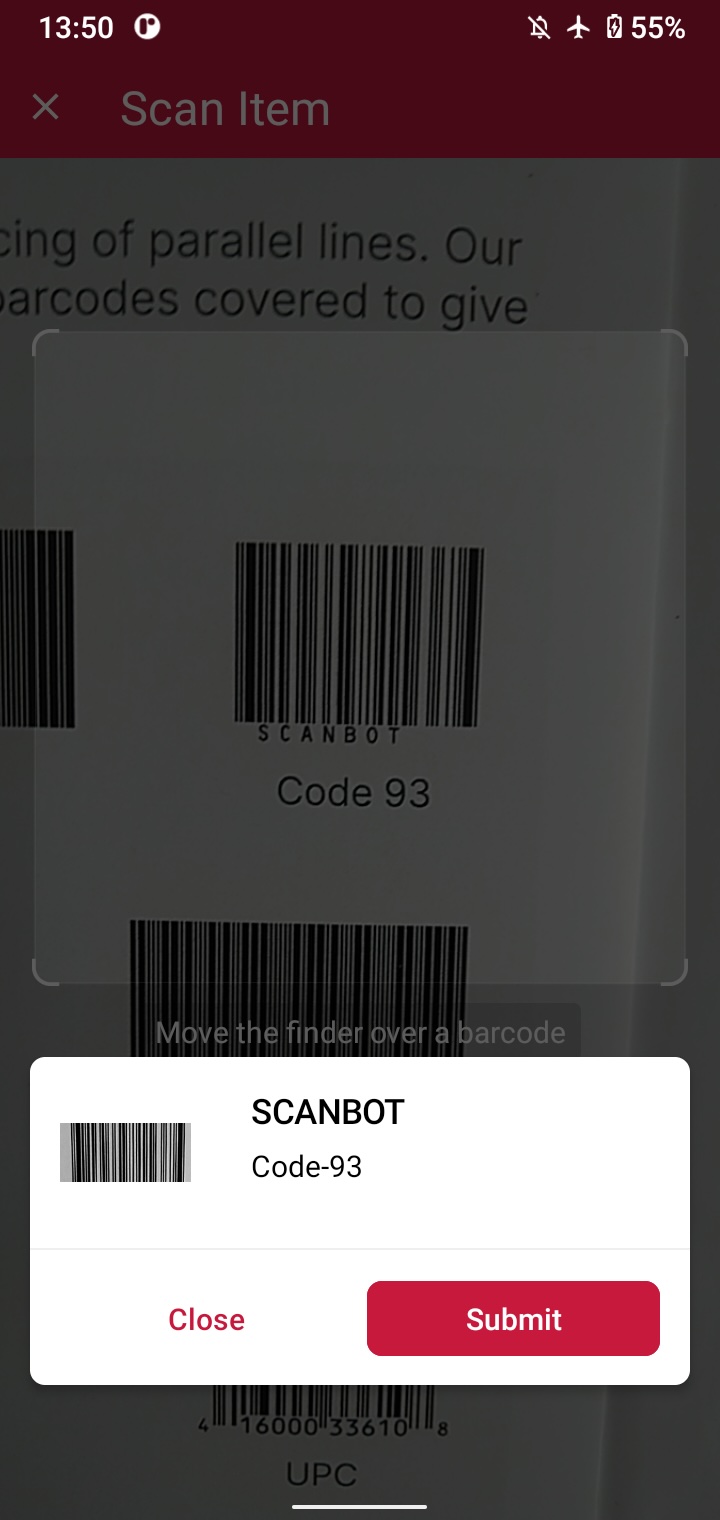
If you want, you can run the app to try out the single-barcode scanning feature before we move on to the next mode.
Multi-barcode scanning
Let’s now set up the function for multi-barcode scanning, also for the BarcodeScannerModes composable in MainActivity.kt …
openMultiBarcodeScanning = {
    configuration = BarcodeScannerScreenConfiguration().apply {
        // See below...
    }
},
… and paste the configuration for multi-scanning into the apply block:
openMultiBarcodeScanning = {
    configuration = BarcodeScannerScreenConfiguration().apply {
        // Configure parameters (use explicit `this.` receiver for better code completion):
        // Initialize the use case for multiple scanning.
        this.useCase = MultipleScanningMode().apply {
            // Set the counting mode.
            this.mode = MultipleBarcodesScanningMode.COUNTING
            // Set the sheet mode for the barcodes preview.
            this.sheet.mode = SheetMode.COLLAPSED_SHEET
            // Set the height for the collapsed sheet.
            this.sheet.collapsedVisibleHeight = CollapsedVisibleHeight.LARGE
            // Enable manual count change.
            this.sheetContent.manualCountChangeEnabled = true
            // Set the delay before same barcode counting repeat.
            this.countingRepeatDelay = 1000
            // Configure the submit button.
            this.sheetContent.submitButton.text = "Submit"
            this.sheetContent.submitButton.foreground.color = ScanbotColor("#000000")
            // Configure other parameters, pertaining to multiple-scanning mode as needed.
        }
        // Set an array of accepted barcode types.
        this.scannerConfiguration.barcodeFormatConfigurations = listOf(BarcodeFormatCommonConfiguration(formats = BarcodeFormats.common))
        // Configure other parameters as needed.
    }
},
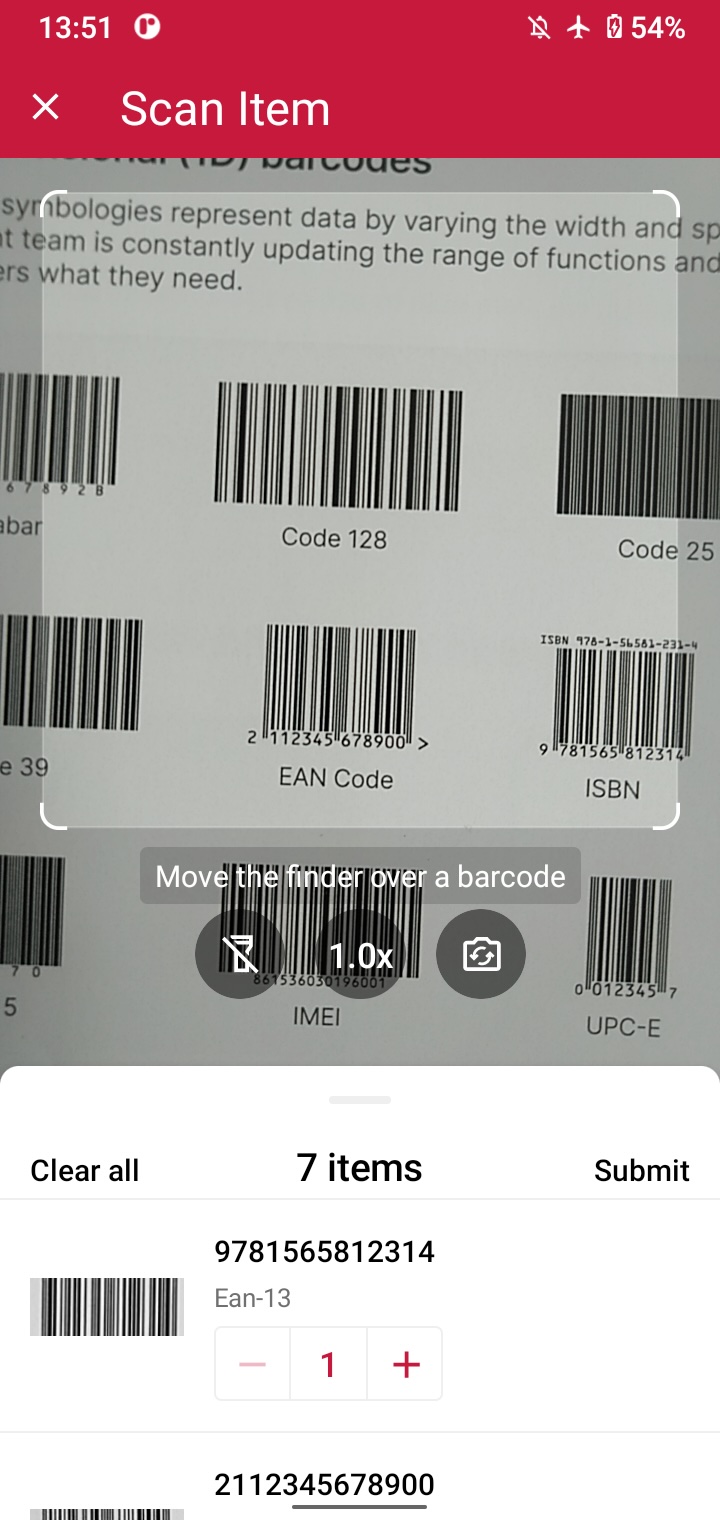
Try it out if you like and then move on to the final scanning mode.
AR overlay
By now you know the drill. In MainActivity.kt, set up the final function, this time for the AR overlay:
openArOverlay = {
    configuration = BarcodeScannerScreenConfiguration().apply {
        // See below...
    }
},
… and paste in the configuration for the AR overlay:
openArOverlay = {
    configuration = BarcodeScannerScreenConfiguration().apply {
        // Configure parameters (use explicit `this.` receiver for better code completion):

        // Configure the use case.
        this.useCase = MultipleScanningMode().apply {
            this.mode = MultipleBarcodesScanningMode.UNIQUE
            this.sheet.mode = SheetMode.COLLAPSED_SHEET
            this.sheet.collapsedVisibleHeight = CollapsedVisibleHeight.SMALL
            // Configure AR Overlay.
            this.arOverlay.visible = true
            this.arOverlay.automaticSelectionEnabled = false

            // Configure other parameters, pertaining to use case as needed.
        }

        // Set an array of accepted barcode types.
        this.scannerConfiguration.barcodeFormatConfigurations = listOf(BarcodeFormatCommonConfiguration(formats = BarcodeFormats.common))

        // Configure other parameters as needed.
    }
},
Build and run the app… and that’s it! 🎉
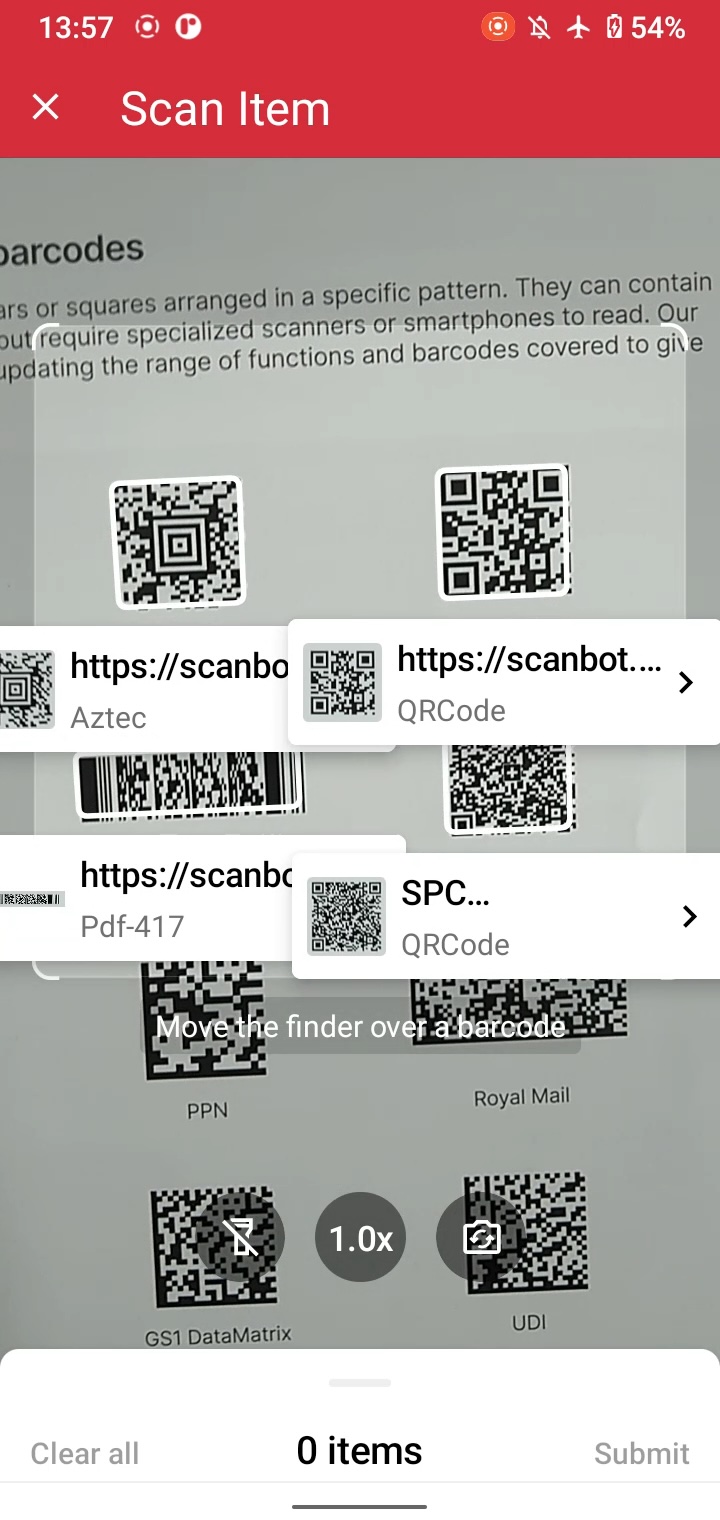
You can now scan barcodes one at a time, multiple barcodes in one go, and display their values on the screen via the AR overlay.
Conclusion
If this tutorial has piqued your interest in integrating barcode scanning functionalities into your Android app, make sure to take a look at our SDK’s other neat features in our documentation – or run our example project for a more hands-on experience.
Should you have questions about this tutorial or run into any issues, we’re happy to help! Just shoot us an email via tutorial-support@scanbot.io.
FAQ
How can I design a custom scanner UI using Jetpack Compose?
You can use the Android Barcode Scanner SDK’s Custom UI Components to create your own scanner UI using composables. To make a function composable in Jetpack Compose, simply add the @Composable annotation.
How do I create a QR code scanner in Jetpack Compose?
Most Jetpack Compose-compatible barcode scanner libraries scan QR codes and other 2D barcode types by default. You can also limit scanning to QR codes only, which prevents unintended scans and improves the scanner’s performance, as it doesn’t need to check each supported symbology. To do this with the Android Barcode Scanner SDK, adjust the configuration using: this.scannerConfiguration.barcodeFormatConfigurations = listOf(BarcodeFormatQrCodeConfiguration.default())
How do I request camera permissions for a scanner in Compose?
In Compose, you can declare camera permissions in AndroidManifest.xml by adding <uses-permission android:name="android.permission.CAMERA" /> inside the <manifest> block, as usual.
Alternatively, you can use a Compose‑friendly permission API such as rememberPermissionState to manage the camera permission lifecycle in a declarative way. Inside your scanner composable, you inspect the current permission status, and when it is granted, you display the scanner or camera preview. When it is denied, you show a message explaining that the camera permission is required along with a button that launches the system permission request so the user can grant access.
How do I scan a barcode using Python?
To scan a barcode using Python, follow these steps:
1. Install Python and OpenCV: sudo apt install -y python3-venv python3-opencv.
2. Install the Scanbot Linux Barcode Scanner SDK, preferably in a virtual environment.
3. In your Python script, initialize the SDK.
4. Create a scanner configuration and run it on an ImageRef.
5. Execute your Python script via python your_script.py /path/to/image_with_barcodes.jpg.
What are the advantages of using Jetpack Compose instead of XML?
Jetpack Compose offers a more concise, declarative, and Kotlin‑first way to build Android UIs, which reduces boilerplate and keeps layout and logic in one place. This makes the code easier to read and maintain compared to XML’s separate layout files and imperative updates.
Compose also improves development speed through powerful previews and quicker iteration, encourages reuse via small composable functions and a flexible theming system, and provides simpler APIs for animations and gestures.
Is Jetpack Compose similar to Swift UI?
Yes, Jetpack Compose has a similar approach to SwiftUI. Both are modern declarative UI frameworks designed to simplify building user interfaces by letting developers describe what the UI should look like based on state, rather than manually updating it imperatively.
You can learn more about how to build a barcode scanner using SwiftUI in our tutorial.