In this tutorial, you’ll learn how to create a barcode scanner app using CameraX, a Jetpack library for adding camera functionalities to Android apps, and Google’s ML Kit.
To build your app, you’ll follow these steps:
- Preparing the project
- Setting up the main screen
- Implementing the CameraX-based barcode scanner
All you need is the latest version of Android Studio and you’re good to go.
Step 1: Prepare the project
Create a new Empty Views Activity and name the project (e.g., “CameraX Barcode Scanner”).
When your project is ready, open app/build.gradle.kts and add the dependencies for CameraX and ML Kit (as well as backwards compatibility and Material Design components).
dependencies {
    // CameraX
    val cameraxVersion = "1.3.0"
    implementation("androidx.camera:camera-core:$cameraxVersion")
    implementation("androidx.camera:camera-camera2:$cameraxVersion")
    implementation("androidx.camera:camera-lifecycle:$cameraxVersion")
    implementation("androidx.camera:camera-view:$cameraxVersion")

    // ML Kit Barcode Scanning
    implementation("com.google.mlkit:barcode-scanning:17.2.0")

    // Other common dependencies
    implementation("androidx.appcompat:appcompat:1.6.1")
    implementation("com.google.android.material:material:1.10.0")
}
Now sync the project.
Since you’ll need to access the device camera to scan barcodes, add the corresponding permission to AndroidManifest.xml. Also add the permission for vibration to convey successful scans to the user.
<uses-feature android:name="android.hardware.camera" />
<uses-permission android:name="android.permission.CAMERA" />
<uses-permission android:name="android.permission.VIBRATE" />
Step 2: Set up the main screen
Next, implement a rudimentary UI for scanning barcodes in activity_main.xml.
The following example uses CameraX’s PreviewView component for displaying the live camera feed. It handles all the complexity of rendering camera frames efficiently. At the bottom of the screen, resultTextView shows information about the most recently scanned barcode.
<?xml version="1.0" encoding="utf-8"?>
<androidx.constraintlayout.widget.ConstraintLayout
    xmlns:android="http://schemas.android.com/apk/res/android"
    xmlns:app="http://schemas.android.com/apk/res-auto"
    android:layout_width="match_parent"
    android:layout_height="match_parent">

    <androidx.camera.view.PreviewView
        android:id="@+id/previewView"
        android:layout_width="match_parent"
        android:layout_height="match_parent" />

    <TextView
        android:id="@+id/resultTextView"
        android:layout_width="match_parent"
        android:layout_height="wrap_content"
        android:background="#CC000000"
        android:padding="16dp"
        android:textColor="@android:color/white"
        android:textSize="16sp"
        android:text="Point camera at a barcode"
        app:layout_constraintBottom_toBottomOf="parent" />

</androidx.constraintlayout.widget.ConstraintLayout>
Step 3: Implement the CameraX-based barcode scanner
Open MainActivity.kt and set up the barcode scanner using CameraX and ML Kit. You’ll have to start the camera stream, process the frames, decode a barcode when it is detected, and display its value in the UI.
Main activity with permission handling
First, set up the main activity structure and handle runtime camera permissions. When the activity starts, check if the camera permission is already granted. If yes, it start the camera immediately. If not, request permission from the user.
The onRequestPermissionsResult callback handles the user’s response, either proceeding with camera setup or closing the app if permission is denied. It also initializes the executor service for background processing and defines constants for debouncing scanned barcodes (i.e., not scanning the same barcode repeatedly).
class MainActivity : AppCompatActivity() {

    private lateinit var previewView: PreviewView
    private lateinit var resultTextView: TextView
    private lateinit var cameraExecutor: ExecutorService
    private var lastScannedBarcode: String? = null
    private var lastScanTime: Long = 0

    companion object {
        private const val REQUEST_CODE_PERMISSIONS = 10
        private val REQUIRED_PERMISSIONS = arrayOf(Manifest.permission.CAMERA)
        private const val SCAN_COOLDOWN_MS = 2000L // 2 seconds between scans
    }

    override fun onCreate(savedInstanceState: Bundle?) {
        super.onCreate(savedInstanceState)
        setContentView(R.layout.activity_main)

        previewView = findViewById(R.id.previewView)
        resultTextView = findViewById(R.id.resultTextView)

        cameraExecutor = Executors.newSingleThreadExecutor()

        if (allPermissionsGranted()) {
            startCamera()
        } else {
            ActivityCompat.requestPermissions(
                this, REQUIRED_PERMISSIONS, REQUEST_CODE_PERMISSIONS
            )
        }
    }

    private fun allPermissionsGranted() = REQUIRED_PERMISSIONS.all {
        ContextCompat.checkSelfPermission(baseContext, it) == PackageManager.PERMISSION_GRANTED
    }

    override fun onRequestPermissionsResult(
        requestCode: Int,
        permissions: Array<String>,
        grantResults: IntArray
    ) {
        super.onRequestPermissionsResult(requestCode, permissions, grantResults)
        if (requestCode == REQUEST_CODE_PERMISSIONS) {
            if (allPermissionsGranted()) {
                startCamera()
            } else {
                Toast.makeText(this, "Camera permission required", Toast.LENGTH_SHORT).show()
                finish()
            }
        }
    }

    // Camera setup as outlined in the next step goes here
}
Camera setup and binding
Next, create a function to initialize CameraX and connect it to your UI. Build two use cases: a Preview to display the camera feed on screen and an ImageAnalysis to process frames for barcode scanning. Bind both to your activity’s lifecycle so the camera automatically starts and stops with the activity. Select the back camera as your default.
private fun startCamera() {
    val cameraProviderFuture = ProcessCameraProvider.getInstance(this)

    cameraProviderFuture.addListener({
        val cameraProvider = cameraProviderFuture.get()

        // Preview use case
        val preview = Preview.Builder()
            .build()
            .also {
                it.setSurfaceProvider(previewView.surfaceProvider)
            }

        // Image analysis use case for barcode scanning
        val imageAnalyzer = ImageAnalysis.Builder()
            .setBackpressureStrategy(ImageAnalysis.STRATEGY_KEEP_ONLY_LATEST)
            .build()
            .also {
                it.setAnalyzer(cameraExecutor, BarcodeAnalyzer { barcodes ->
                    handleBarcodes(barcodes)
                })
            }

        // Select back camera
        val cameraSelector = CameraSelector.DEFAULT_BACK_CAMERA

        try {
            // Unbind all use cases before rebinding
            cameraProvider.unbindAll()

            // Bind use cases to camera
            cameraProvider.bindToLifecycle(
                this, cameraSelector, preview, imageAnalyzer
            )

        } catch (exc: Exception) {
            Log.e("CameraX", "Use case binding failed", exc)
        }

    }, ContextCompat.getMainExecutor(this))
}
Barcode analyzer implementation
Build a custom analyzer class that implements ImageAnalysis.Analyzer. In the analyze method, convert each incoming camera frame to an InputImage, then pass it to ML Kit’s BarcodeScanner.
Configure the scanner with the barcode formats you want to support (QR Code, UPC, EAN, etc.). When barcodes are detected, invoke your callback with the results. Always close the ImageProxy after processing to avoid memory leaks.
private class BarcodeAnalyzer(
    private val onBarcodeDetected: (List<Barcode>) -> Unit
) : ImageAnalysis.Analyzer {

    private val scanner = BarcodeScanning.getClient(
        BarcodeScannerOptions.Builder()
            .setBarcodeFormats(
                Barcode.FORMAT_QR_CODE,
                Barcode.FORMAT_CODE_128,
                Barcode.FORMAT_CODE_39,
                Barcode.FORMAT_EAN_13,
                Barcode.FORMAT_EAN_8,
                Barcode.FORMAT_UPC_A,
                Barcode.FORMAT_UPC_E
            )
            .build()
    )

    @androidx.camera.core.ExperimentalGetImage
    override fun analyze(imageProxy: ImageProxy) {
        val mediaImage = imageProxy.image
        if (mediaImage != null) {
            val image = InputImage.fromMediaImage(
                mediaImage,
                imageProxy.imageInfo.rotationDegrees
            )

            scanner.process(image)
                .addOnSuccessListener { barcodes ->
                    if (barcodes.isNotEmpty()) {
                        onBarcodeDetected(barcodes)
                    }
                }
                .addOnFailureListener { exception ->
                    Log.e("BarcodeAnalyzer", "Barcode scanning failed", exception)
                }
                .addOnCompleteListener {
                    imageProxy.close()
                }
        } else {
            imageProxy.close()
        }
    }
}
Barcode result handling
Create a handler function to process detected barcodes. Implement debouncing by tracking the last scanned barcode and timestamp and only processing new barcodes or re-processing the same one after a cooldown period (in this example, 2 seconds). When you process a barcode, update the UI on the main thread and provide haptic feedback with a vibration. You can also implement your custom business logic here.
private fun handleBarcodes(barcodes: List<Barcode>) {
    val currentTime = System.currentTimeMillis()

    for (barcode in barcodes) {
        val barcodeValue = barcode.rawValue ?: continue

        // Debounce: only process if it's a new barcode or enough time has passed
        if (barcodeValue != lastScannedBarcode ||
            currentTime - lastScanTime > SCAN_COOLDOWN_MS) {

            lastScannedBarcode = barcodeValue
            lastScanTime = currentTime

            // Update UI on main thread
            runOnUiThread {
                val format = getBarcodeFormat(barcode.format)
                resultTextView.text = "Format: $format\nValue: $barcodeValue"

                // Optional: vibrate or beep
                vibrateDevice()

                // Do something with the barcode
                processBarcodeValue(barcodeValue, barcode.format)
            }

            break // Only process the first barcode
        }
    }
}

private fun getBarcodeFormat(format: Int): String {
    return when (format) {
        Barcode.FORMAT_QR_CODE -> "QR Code"
        Barcode.FORMAT_CODE_128 -> "Code 128"
        Barcode.FORMAT_CODE_39 -> "Code 39"
        Barcode.FORMAT_EAN_13 -> "EAN-13"
        Barcode.FORMAT_EAN_8 -> "EAN-8"
        Barcode.FORMAT_UPC_A -> "UPC-A"
        Barcode.FORMAT_UPC_E -> "UPC-E"
        else -> "Unknown"
    }
}

private fun processBarcodeValue(value: String, format: Int) {
    // Implement your business logic here
    // For example: look up product info, open URL, etc.
    Log.d("Barcode", "Scanned: $value (format: $format)")
}

private fun vibrateDevice() {
    val vibrator = getSystemService(Context.VIBRATOR_SERVICE) as Vibrator
    if (Build.VERSION.SDK_INT >= Build.VERSION_CODES.O) {
        vibrator.vibrate(VibrationEffect.createOneShot(200, VibrationEffect.DEFAULT_AMPLITUDE))
    } else {
        @Suppress("DEPRECATION")
        vibrator.vibrate(200)
    }
}
Cleanup
Finally, override onDestroy and shut down the camera executor thread to release resources and prevent memory leaks when the user leaves the activity.
override fun onDestroy() {
    super.onDestroy()
    cameraExecutor.shutdown()
}
Your MainActivity.kt will look like this:
package com.example.cameraxbarcodescanner

import android.Manifest
import android.content.Context
import android.content.pm.PackageManager
import android.os.Build
import android.os.Bundle
import android.os.VibrationEffect
import android.os.Vibrator
import android.util.Log
import android.widget.TextView
import android.widget.Toast
import androidx.appcompat.app.AppCompatActivity
import androidx.camera.core.CameraSelector
import androidx.camera.core.ImageAnalysis
import androidx.camera.core.ImageProxy
import androidx.camera.core.Preview
import androidx.camera.lifecycle.ProcessCameraProvider
import androidx.camera.view.PreviewView
import androidx.core.app.ActivityCompat
import androidx.core.content.ContextCompat
import com.google.mlkit.vision.barcode.BarcodeScanning
import com.google.mlkit.vision.barcode.BarcodeScannerOptions
import com.google.mlkit.vision.barcode.common.Barcode
import com.google.mlkit.vision.common.InputImage
import java.util.concurrent.ExecutorService
import java.util.concurrent.Executors

class MainActivity : AppCompatActivity() {

    private lateinit var previewView: PreviewView
    private lateinit var resultTextView: TextView
    private lateinit var cameraExecutor: ExecutorService
    private var lastScannedBarcode: String? = null
    private var lastScanTime: Long = 0

    companion object {
        private const val REQUEST_CODE_PERMISSIONS = 10
        private val REQUIRED_PERMISSIONS = arrayOf(Manifest.permission.CAMERA)
        private const val SCAN_COOLDOWN_MS = 2000L
    }

    override fun onCreate(savedInstanceState: Bundle?) {
        super.onCreate(savedInstanceState)
        setContentView(R.layout.activity_main)

        previewView = findViewById(R.id.previewView)
        resultTextView = findViewById(R.id.resultTextView)

        cameraExecutor = Executors.newSingleThreadExecutor()

        if (allPermissionsGranted()) {
            startCamera()
        } else {
            ActivityCompat.requestPermissions(
                this, REQUIRED_PERMISSIONS, REQUEST_CODE_PERMISSIONS
            )
        }
    }

    private fun allPermissionsGranted() = REQUIRED_PERMISSIONS.all {
        ContextCompat.checkSelfPermission(baseContext, it) == PackageManager.PERMISSION_GRANTED
    }

    override fun onRequestPermissionsResult(
        requestCode: Int,
        permissions: Array<String>,
        grantResults: IntArray
    ) {
        super.onRequestPermissionsResult(requestCode, permissions, grantResults)
        if (requestCode == REQUEST_CODE_PERMISSIONS) {
            if (allPermissionsGranted()) {
                startCamera()
            } else {
                Toast.makeText(this, "Camera permission required", Toast.LENGTH_SHORT).show()
                finish()
            }
        }
    }

    private fun startCamera() {
        val cameraProviderFuture = ProcessCameraProvider.getInstance(this)

        cameraProviderFuture.addListener({
            val cameraProvider = cameraProviderFuture.get()

            val preview = Preview.Builder()
                .build()
                .also {
                    it.setSurfaceProvider(previewView.surfaceProvider)
                }

            val imageAnalyzer = ImageAnalysis.Builder()
                .setBackpressureStrategy(ImageAnalysis.STRATEGY_KEEP_ONLY_LATEST)
                .build()
                .also {
                    it.setAnalyzer(cameraExecutor, BarcodeAnalyzer { barcodes ->
                        handleBarcodes(barcodes)
                    })
                }

            val cameraSelector = CameraSelector.DEFAULT_BACK_CAMERA

            try {
                cameraProvider.unbindAll()

                cameraProvider.bindToLifecycle(
                    this, cameraSelector, preview, imageAnalyzer
                )

            } catch (exc: Exception) {
                Log.e("CameraX", "Use case binding failed", exc)
            }

        }, ContextCompat.getMainExecutor(this))
    }

    private class BarcodeAnalyzer(
        private val onBarcodeDetected: (List<Barcode>) -> Unit
    ) : ImageAnalysis.Analyzer {

        private val scanner = BarcodeScanning.getClient(
            BarcodeScannerOptions.Builder()
                .setBarcodeFormats(
                    Barcode.FORMAT_QR_CODE,
                    Barcode.FORMAT_CODE_128,
                    Barcode.FORMAT_CODE_39,
                    Barcode.FORMAT_EAN_13,
                    Barcode.FORMAT_EAN_8,
                    Barcode.FORMAT_UPC_A,
                    Barcode.FORMAT_UPC_E
                )
                .build()
        )

        @androidx.camera.core.ExperimentalGetImage
        override fun analyze(imageProxy: ImageProxy) {
            val mediaImage = imageProxy.image
            if (mediaImage != null) {
                val image = InputImage.fromMediaImage(
                    mediaImage,
                    imageProxy.imageInfo.rotationDegrees
                )

                scanner.process(image)
                    .addOnSuccessListener { barcodes ->
                        if (barcodes.isNotEmpty()) {
                            onBarcodeDetected(barcodes)
                        }
                    }
                    .addOnFailureListener { exception ->
                        Log.e("BarcodeAnalyzer", "Barcode scanning failed", exception)
                    }
                    .addOnCompleteListener {
                        imageProxy.close()
                    }
            } else {
                imageProxy.close()
            }
        }
    }

    private fun handleBarcodes(barcodes: List<Barcode>) {
        val currentTime = System.currentTimeMillis()

        for (barcode in barcodes) {
            val barcodeValue = barcode.rawValue ?: continue

            if (barcodeValue != lastScannedBarcode ||
                currentTime - lastScanTime > SCAN_COOLDOWN_MS) {

                lastScannedBarcode = barcodeValue
                lastScanTime = currentTime

                runOnUiThread {
                    val format = getBarcodeFormat(barcode.format)
                    resultTextView.text = "Format: $format\nValue: $barcodeValue"

                    vibrateDevice()

                    processBarcodeValue(barcodeValue, barcode.format)
                }

                break
            }
        }
    }

    private fun getBarcodeFormat(format: Int): String {
        return when (format) {
            Barcode.FORMAT_QR_CODE -> "QR Code"
            Barcode.FORMAT_CODE_128 -> "Code 128"
            Barcode.FORMAT_CODE_39 -> "Code 39"
            Barcode.FORMAT_EAN_13 -> "EAN-13"
            Barcode.FORMAT_EAN_8 -> "EAN-8"
            Barcode.FORMAT_UPC_A -> "UPC-A"
            Barcode.FORMAT_UPC_E -> "UPC-E"
            else -> "Unknown"
        }
    }

    private fun processBarcodeValue(value: String, format: Int) {
        Log.d("Barcode", "Scanned: $value (format: $format)")
    }

    private fun vibrateDevice() {
        val vibrator = getSystemService(Context.VIBRATOR_SERVICE) as Vibrator
        if (Build.VERSION.SDK_INT >= Build.VERSION_CODES.O) {
            vibrator.vibrate(VibrationEffect.createOneShot(200, VibrationEffect.DEFAULT_AMPLITUDE))
        } else {
            @Suppress("DEPRECATION")
            vibrator.vibrate(200)
        }
    }

    override fun onDestroy() {
        super.onDestroy()
        cameraExecutor.shutdown()
    }
}
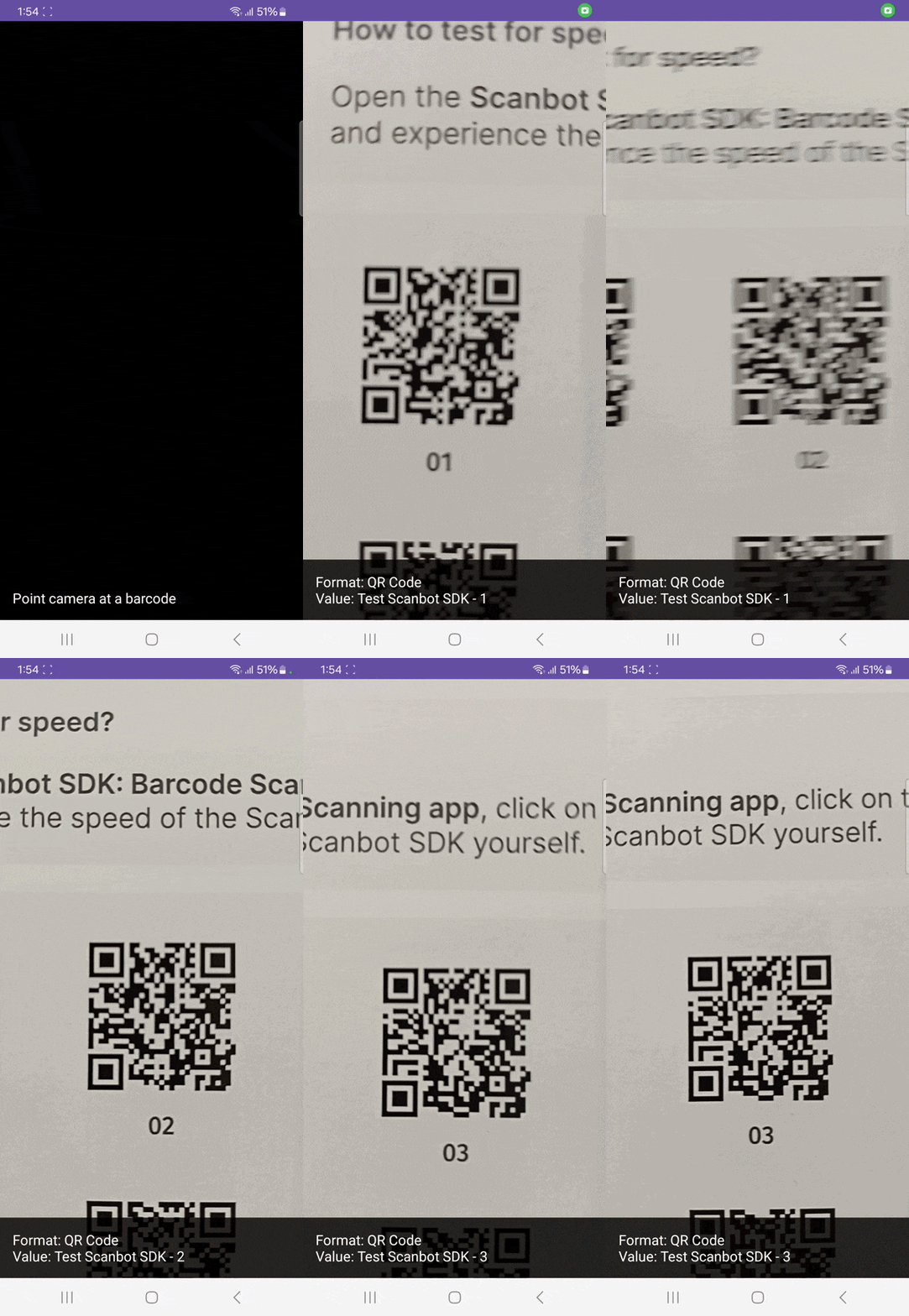
Now run your app and scan some barcodes.
Conclusion
This concludes the tutorial on how to set up a barcode scanning app for Android with CameraX and ML Kit.
Free solutions like this one can be great for prototyping and personal projects. However, Google doesn’t offer enterprise support for ML Kit, so companies relying on it for their scanning needs won’t be able to submit feature requests nor count on help when things don’t work as expected.
We developed the Scanbot Barcode Scanner SDK to help companies overcome these hurdles. Our goal was to provide a developer-friendly solution for a wide range of platforms that consistently delivers high-quality results, even in challenging circumstances – enterprise-grade support included.
In the following tutorial, we’ll show you how to set up a barcode scanning app using the Scanbot Android Barcode Scanner SDK.
Building an Android barcode scanner app with the Scanbot SDK
To set up our app, we’ll follow these steps:
- Preparing the project
- Initializing the SDK
- Setting up the main screen
- Implementing the barcode scanning feature
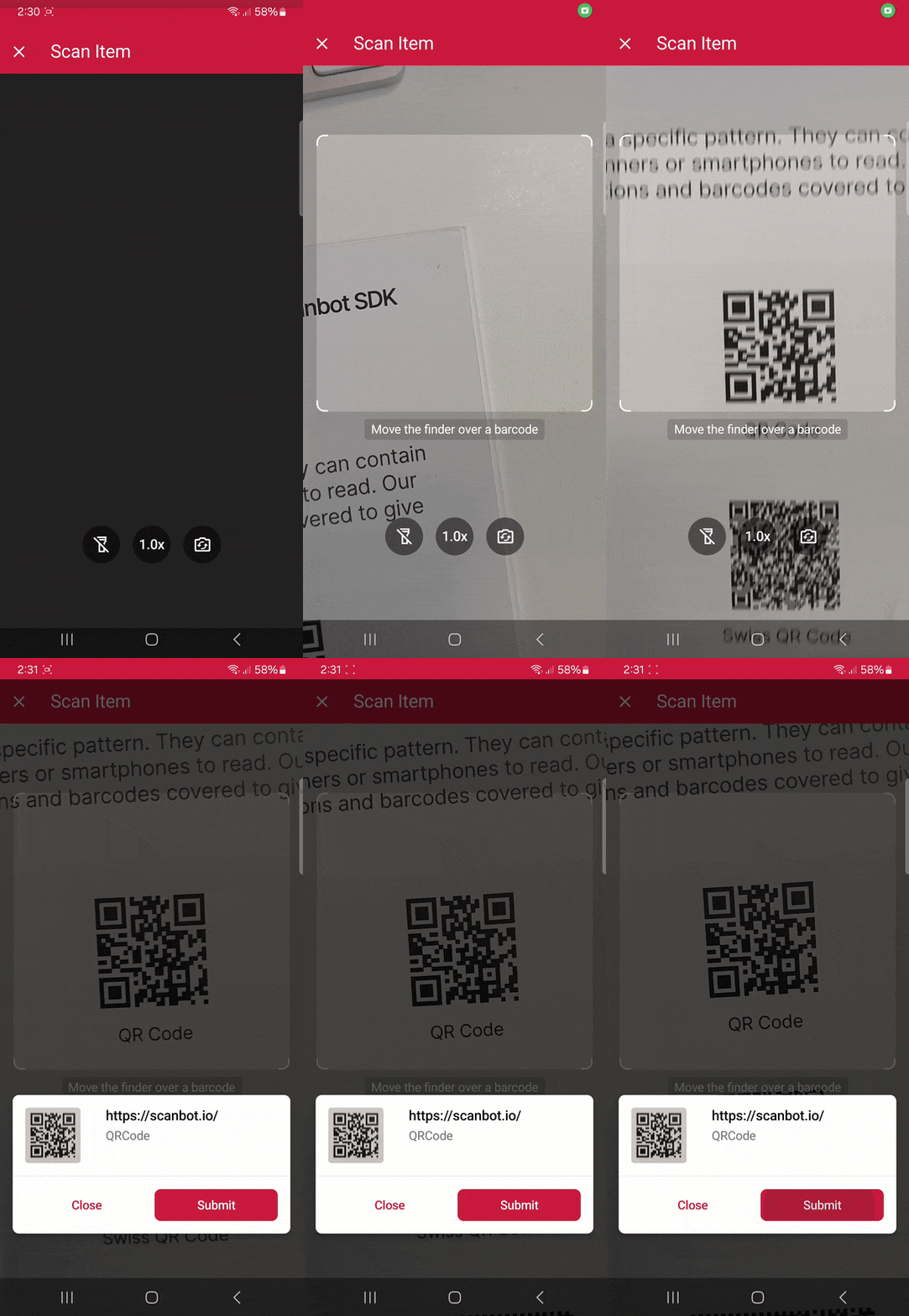
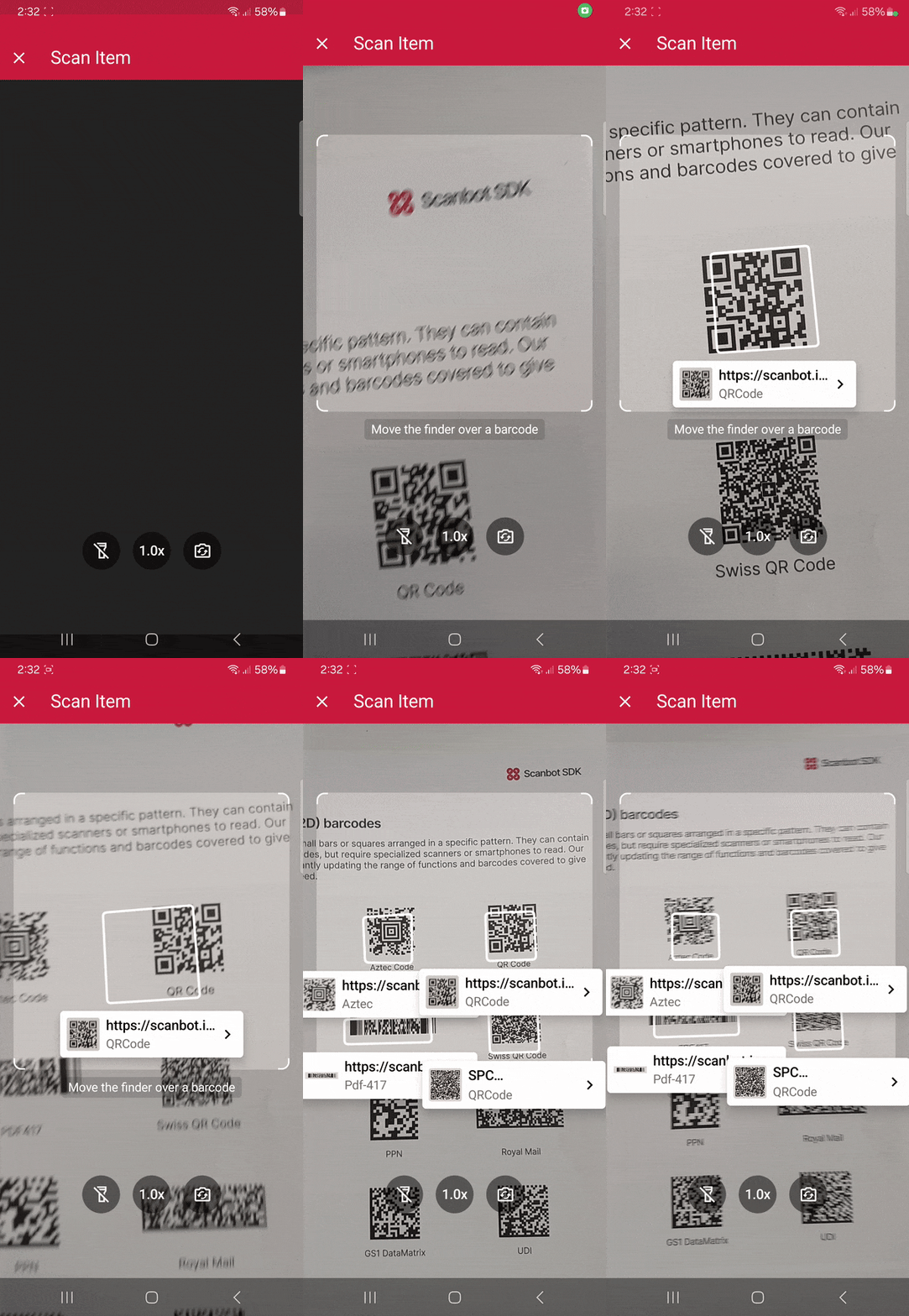
Thanks to the SDK’s Ready-to-Use UI Components, we’ll have an intuitive user interface out of the box.
Step 1: Prepare the project
Create a new Empty View Activity and name the project (e.g., “Android Barcode Scanner”).
When your project is ready, go to settings.gradle.kts and add the Maven repositories for our SDK:
dependencyResolutionManagement {
    repositoriesMode.set(RepositoriesMode.FAIL_ON_PROJECT_REPOS)
    repositories {
        google()
        mavenCentral()

        // Add the repositories here:
        maven(url = "https://nexus.scanbot.io/nexus/content/repositories/releases/")
        maven(url = "https://nexus.scanbot.io/nexus/content/repositories/snapshots/")
    }
}
Now go to app/build.gradle.kts and add the dependencies for the Scanbot SDK and the RTU UI:
dependencies {
    implementation("io.scanbot:scanbot-barcode-scanner-sdk:7.1.0")
    implementation("io.scanbot:rtu-ui-v2-barcode:7.1.0")
Sync the project.
💡 We use Barcode Scanner SDK version 7.1.0 in this tutorial. You can find the latest version in the changelog.
Since we need to access the device camera to scan barcodes, let’s also add the necessary permissions in AndroidManifest.xml:
<?xml version="1.0" encoding="utf-8"?>
<manifest xmlns:android="http://schemas.android.com/apk/res/android"
    xmlns:tools="http://schemas.android.com/tools">

    <uses-permission android:name="android.permission.CAMERA" />
    <uses-feature android:name="android.hardware.camera" />

    <application
    <!-- ... -->
Step 2: Initialize the SDK
Before we can use the Scanbot Barcode Scanner SDK, we need to initialize it. The recommended approach is to do it in your Application implementation. This ensures the SDK is correctly initialized even when the app’s process is restored after being terminated in the background.
First, we need to create an Application subclass by right-clicking on the folder app/kotlin+java/com.example.androidbarcodescanner, selecting New > Kotlin Class/File, and naming it (e.g. “ExampleApplication”).
In the resulting ExampleApplication.kt, let’s first add the necessary imports:
import android.app.Application
import io.scanbot.sdk.barcode_scanner.ScanbotBarcodeScannerSDKInitializer
Then we make ExampleApplication extend the Application class by adding : Application() and add the code for initializing the SDK inside it:
class ExampleApplication : Application() {

    override fun onCreate() {
        super.onCreate()

        ScanbotBarcodeScannerSDKInitializer()
            // Optional: uncomment the next line if you have a license key.
            // .license(this, LICENSE_KEY)
            .initialize(this)
    }
}
💡 Without a license key, our SDK only runs for 60 seconds per session. This is more than enough for the purposes of our tutorial, but if you like, you can generate a license key. Just make sure to change your applicationId in app/build.gradle.kts to io.scanbot.androidbarcodescanner and use that ID for generating the license.
Finally, we need to register the Example Application class in AndroidManifest.xml:
<application
   android:name=".ExampleApplication"
   <!-- ... -->
Step 3: Set up the main screen
We’re going to build a rudimentary UI so we can quickly start the Barcode Scanner from the main screen.
For this tutorial, we’re going to go with a single-button layout, which you can copy and paste into app/res/layout/activity_main.xml:
<?xml version="1.0" encoding="utf-8"?>
<androidx.constraintlayout.widget.ConstraintLayout xmlns:android="http://schemas.android.com/apk/res/android"
    xmlns:app="http://schemas.android.com/apk/res-auto"
    xmlns:tools="http://schemas.android.com/tools"
    android:id="@+id/main"
    android:layout_width="match_parent"
    android:layout_height="match_parent"
    tools:context=".MainActivity">

    <Button
        android:id="@+id/btn_scan_barcodes"
        android:layout_width="0dp"
        android:layout_height="wrap_content"
        android:text="Scan Barcodes"
        app:layout_constraintTop_toTopOf="parent"
        app:layout_constraintBottom_toBottomOf="parent"
        app:layout_constraintStart_toStartOf="parent"
        app:layout_constraintEnd_toEndOf="parent" />

</androidx.constraintlayout.widget.ConstraintLayout>
Next, we’ll connect the button to our RTU UI’s scanning screen.
Step 4: Implement the barcode scanning feature
Go to MainActivity.kt and add the necessary imports:
import android.widget.Button
import android.widget.Toast
import androidx.activity.result.ActivityResultLauncher
import io.scanbot.sdk.ui_v2.barcode.BarcodeScannerActivity
import io.scanbot.sdk.ui_v2.common.activity.registerForActivityResultOk
import io.scanbot.sdk.ui_v2.barcode.configuration.*
In the MainActivity class, add a private property that we’ll use to launch the barcode scanner. We’ll also display the scan result to the user in a Toast message.
private val barcodeResultLauncher: ActivityResultLauncher<BarcodeScannerScreenConfiguration> =
    registerForActivityResultOk(BarcodeScannerActivity.ResultContract()) { resultEntity ->
        // Barcode Scanner result callback:
        // Get the first scanned barcode from the result object...
        val barcodeItem = resultEntity.result?.items?.first()
        // ... and process the result as needed. For example, display as a Toast:
        Toast.makeText(
            this,
            "Scanned: ${barcodeItem?.barcode?.text} (${barcodeItem?.barcode?.format})",
            Toast.LENGTH_LONG
        ).show()
    }
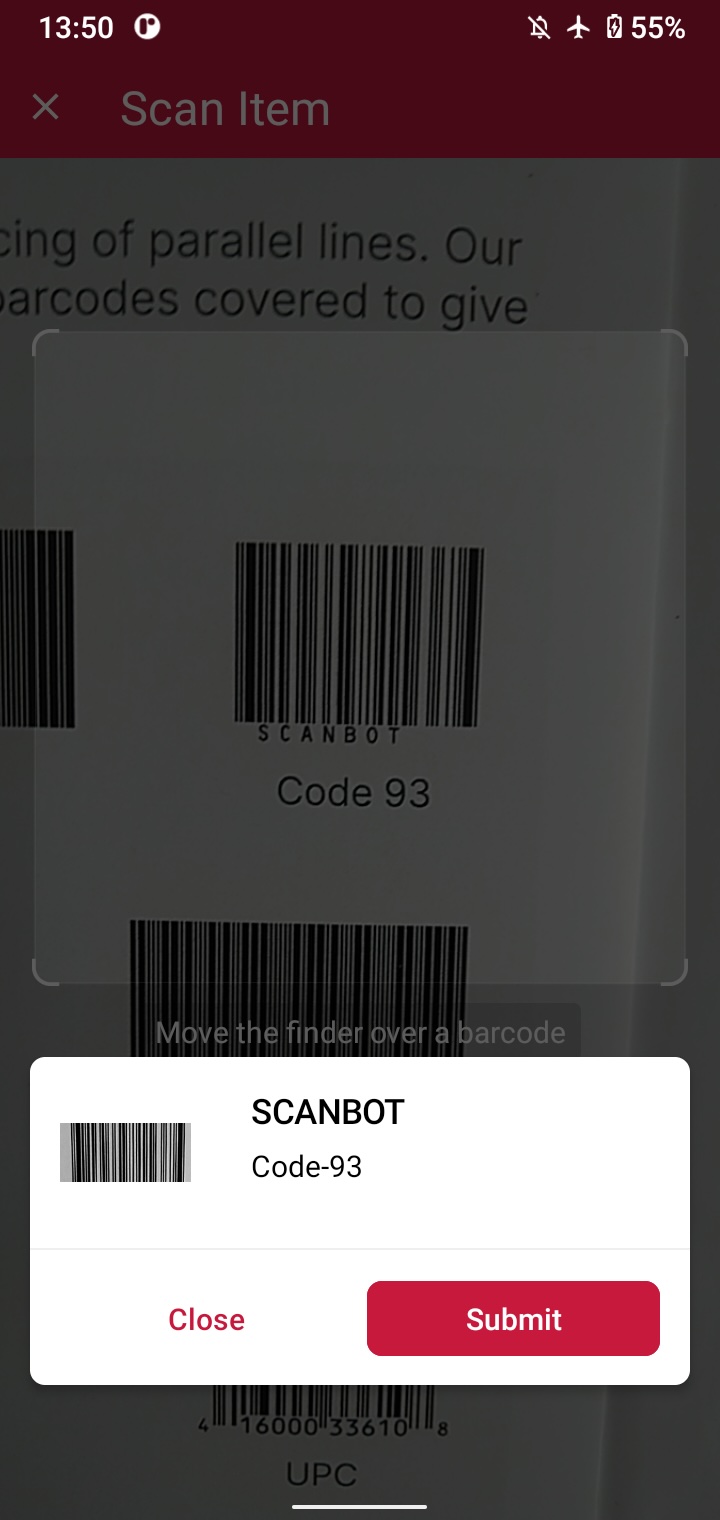
In the onCreate() method, set up an OnClickListener for the Scan Barcodes button. When the button is clicked, it starts the barcodeResultLauncher using a configuration object. We’ll configure the scanner to read a single barcode and display a confirmation dialogue.
findViewById<Button>(R.id.btn_scan_barcodes).setOnClickListener {
    val config = BarcodeScannerScreenConfiguration().apply {
        // Initialize the use case for single scanning.
        this.useCase = SingleScanningMode().apply {
            // Enable and configure the confirmation sheet.
            this.confirmationSheetEnabled = true
        }
    }
    barcodeResultLauncher.launch(config)
}
Build and run the scanner to give it a try!
Optional: Implement multi-barcode scanning with an AR overlay
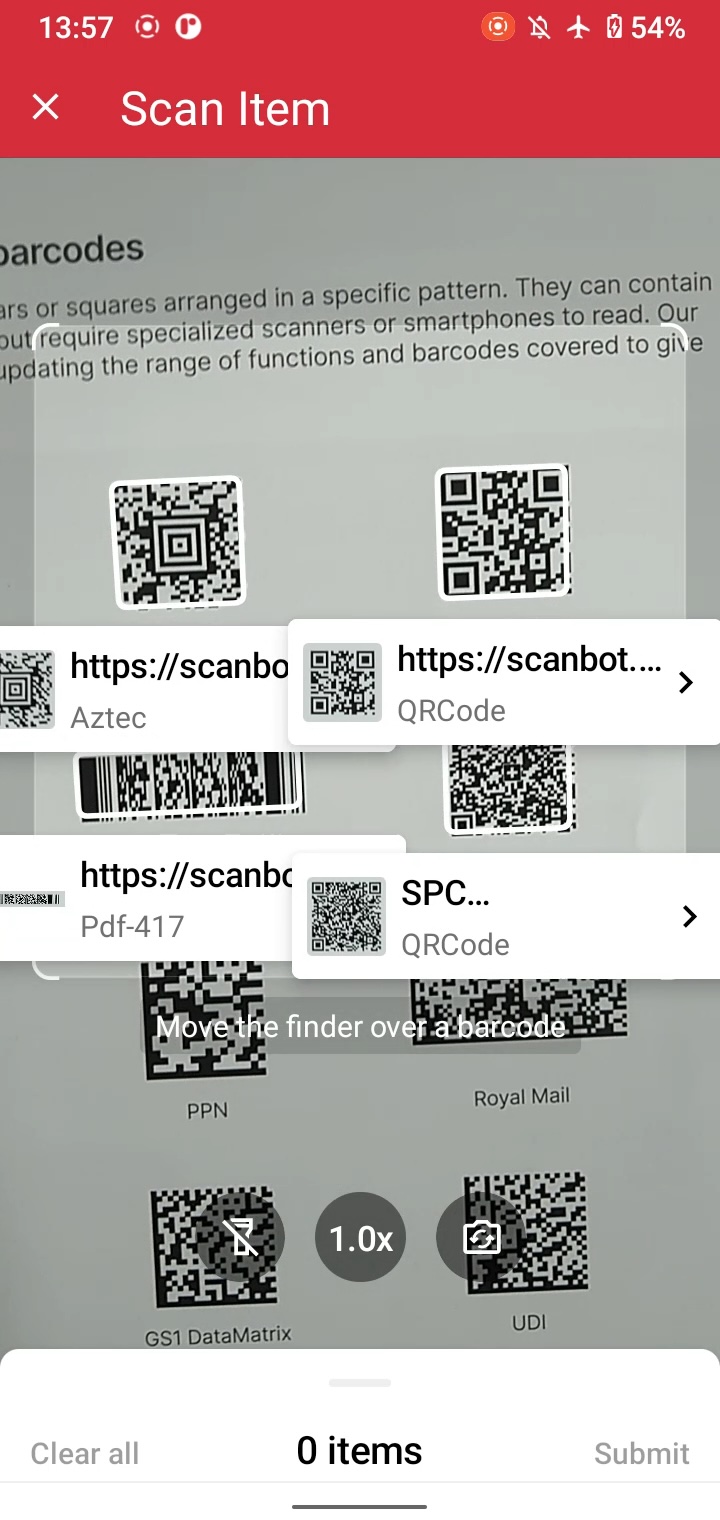
As it is now, our app outputs the value of a single barcode and closes the scanning interface. But we can also scan multiple barcodes at once. As an added bonus, we can also display the barcodes’ values right in the scanning screen while giving users the option to tap on any barcode to add it to a results sheet.
To achieve this, simply replace the single-barcode scanning configuration with the multi-scanning one and also enable the AR overlay:
findViewById<Button>(R.id.btn_scan_barcodes).setOnClickListener {
    val config = BarcodeScannerScreenConfiguration().apply {
        // Initialize the use case for multi-scanning.
        this.useCase = MultipleScanningMode().apply {
            // Enable the AR overlay and let users select barcodes.
            this.arOverlay.visible = true
            this.arOverlay.automaticSelectionEnabled = false
        }
    }
    barcodeResultLauncher.launch(config)
}
Your final MainActivity.kt will look like this:
package com.example.androidbarcodescanner

import android.os.Bundle
import androidx.activity.enableEdgeToEdge
import androidx.appcompat.app.AppCompatActivity
import androidx.core.view.ViewCompat
import androidx.core.view.WindowInsetsCompat
import android.widget.Button
import android.widget.Toast
import androidx.activity.result.ActivityResultLauncher
import io.scanbot.sdk.ui_v2.barcode.BarcodeScannerActivity
import io.scanbot.sdk.ui_v2.common.activity.registerForActivityResultOk
import io.scanbot.sdk.ui_v2.barcode.configuration.*

class MainActivity : AppCompatActivity() {

    private val barcodeResultLauncher: ActivityResultLauncher<BarcodeScannerScreenConfiguration> =
        registerForActivityResultOk(BarcodeScannerActivity.ResultContract()) { resultEntity ->
            val barcodeItem = resultEntity.result?.items?.first()
            Toast.makeText(
                this,
                "Scanned: ${barcodeItem?.barcode?.text} (${barcodeItem?.barcode?.format})",
                Toast.LENGTH_LONG
            ).show()
        }

    override fun onCreate(savedInstanceState: Bundle?) {
        super.onCreate(savedInstanceState)
        enableEdgeToEdge()
        setContentView(R.layout.activity_main)
        ViewCompat.setOnApplyWindowInsetsListener(findViewById(R.id.main)) { v, insets ->
            val systemBars = insets.getInsets(WindowInsetsCompat.Type.systemBars())
            v.setPadding(systemBars.left, systemBars.top, systemBars.right, systemBars.bottom)
            insets
        }
        findViewById<Button>(R.id.btn_scan_barcodes).setOnClickListener {
            val config = BarcodeScannerScreenConfiguration().apply {
                this.useCase = MultipleScanningMode().apply {
                    this.arOverlay.visible = true
                    this.arOverlay.automaticSelectionEnabled = false
                }
            }
            barcodeResultLauncher.launch(config)
        }
    }
}
Now build and run the app again to test your multi-barcode scanner.
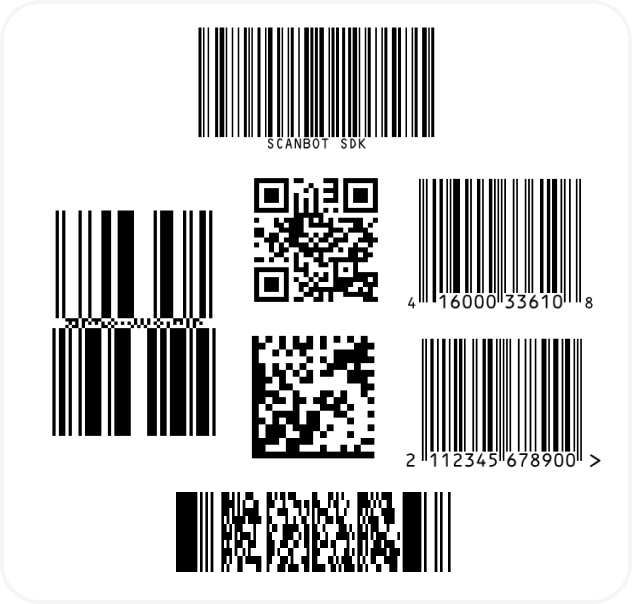
If you’re in need of some barcodes, we’ve got you covered:
Conclusion
🎉 Congratulations! You’ve built a powerful barcode scanning app for Android with just a few lines of Kotlin code!
This is just one of the many scanner configurations the Scanbot SDK has to offer – take a look at the RTU UI documentation and API references to learn more.
Should you have questions or run into any issues, we’re happy to help! Just shoot us an email via tutorial-support@scanbot.io.
Happy scanning! 🤳