Open-source software has reshaped modern development, with adoption climbing across industries and scales. Its chief appeal is clear: it provides a free alternative to proprietary solutions.
In this post, we look at two popular open-source React Native document scanners: react-native-document-scanner and react-native-document-scanner-plugin. We compare their capabilities, customizability, ease of integration, and maintenance as well as their limitations.
No time to read all the details? Let’s start with a short summary.
📌 TL;DR
Both libraries provide document edge detection, auto capture and cropping, perspective correction, torch control, and a document overlay.
- On iOS, react-native-document-scanner also offers image filters and compression.
- react-native-document-scanner-plugin provides filters on both platforms and allows setting a maximum number of pages on Android.
Neither library offers OCR functionality. They are strictly focused on document scanning.
- react-native-document-scanner is highly customizable, both in terms of user interface and underlying behavior.
- react-native-document-scanner-plugin offers limited UI customization, and no option to modify the scanning logic.
- react-native-document-scanner requires manual linking of external dependencies, making setup more complex.
- react-native-document-scanner-plugin offers simple plug-and-play integration.
- react-native-document-scanner is deprecated, with its latest release dating to 2017.
- react-native-document-scanner-plugin is actively maintained.
- react-native-document-scanner is essentially abandoned, with little community activity and no formal support.
- react-native-document-scanner-plugin has an active community, but there is no professional support.
Both libraries are under MIT licenses, meaning you can distribute them freely as long as you include the original copyright notice and the license text.
react-native-document-scanner is unmaintained, causing build failures and other issues. For the library to be useful, developers must manually modernize the codebase, which requires significant effort and ongoing maintenance.
- react-native-document-scanner-plugin
- Auto scan mode causing unintentional scans
- Scanner crashes on Android
- Issues scanning on low contrast backgrounds
- Inconsistent behavior between platforms
A side-by-side comparison: react-native-document-scanner vs. react-native-document-scanner-plugin
react-native-document-scanner is an open-source live document detection library for React Native. On iOS, it is based on InstaPDF’s IPDFCameraViewController, which implements a custom camera pipeline using AVFoundation. On Android, it uses OpenCV.
react-native-document-scanner-plugin wraps Google’s ML Kit Document Scanning API on Android and Apple’s Vision Kit on iOS.
Features and capabilities
Both libraries can detect and scan documents using the live camera stream and offer some basic scanning functionalities.
For react-native-document-scanner, that includes features like edge detection, automatic capture and cropping. Additionally, it provides a rectangular overlay for highlighting the document. The scanner returns both the full image and the cropped image URIs.
On iOS, the library adds more capabilities such as image compression, filters (brightness, saturation, contrast), and returning the image as a base64 string. It also includes an onRectangleDetect callback that indicates whether the document is in ideal position, at a bad angle, or too far away.
react-native-document-scanner-plugin provides the same core features: edge detection, auto-capture and auto-crop, a rectangle overlay, and the choice of returning the image through a file path or in base64 format. Some additional functionalities are specific to either Android or iOS.
On Android, the plugin lets you limit the number of scans using the maxNumDocuments property. The pre-built scanning UI includes an image enhancement feature to compensate for stains and shadows as well as a set of basic filters. It also provides a simple zoom toggle (1x and 2x).
On iOS, pinch-to-zoom is supported, along with built-in filters such as Color, Grayscale, and Black and White.
| Feature | react-native-document-scanner | react-native-document-scanner-plugin |
| Scan multiple pages | ⚠️ iOS only | ✅ Yes |
| Scan from image | ❌ No | ⚠️ Android only |
| Edge detection | ✅ Yes | ✅ Yes |
| Auto-capture | ✅ Yes | ✅ Yes |
| Auto-cropping | ✅ Yes | ✅ Yes |
| Torch toggle | ✅ Yes | ✅ Yes |
| Perspective correction | ✅ Yes | ✅ Yes |
| Document overlay | ✅ Yes | ✅ Yes |
| User guidance | ⚠️ iOS only | ✅ Yes |
No OCR capabilities
Neither react-native-document-scanner nor react-native-document-scanner-plugin offers OCR functionality. Both libraries are strictly focused on image capture and document detection rather than text extraction.
If you need to extract text from scans, you will have to plug the resulting image into a separate OCR library (such as Tesseract or a cloud-based vision API).
Customization
In terms of user interface and scanning behavior customization, the libraries offer different levels of control.
react-native-document-scanner offers a high level of customizability and fine-grained control of scanning behavior. However, developers must build their own UI around the <DocumentScanner /> camera component.
react-native-document-scanner-plugin provides a pre-built native scanner UI, with customization being rather limited. As the plugin relies on proprietary APIs, developers don’t have access to the actual scanning engine. They cannot adjust or fine-tune the scanner’s behavior.
Integration complexity
Customizability is directly related to the complexity of setting up the scanner.
react-native-document-scanner-plugin is very simple to set up. It follows a standard modern plugin architecture. You typically do not even need to prompt the user for camera permissions.
react-native-document-scanner is significantly more complex to integrate, partly because it has been unmaintained for years. Developers will have to manually link external dependencies and resolve build conflicts. In return, however, this library allows you to modify and optimize scanning behavior freely.
Maintenance and updates
react-native-document-scanner shows no recent activity, with the last release dating back to 2017. GitHub issues and pull requests remain open. However, since it’s open source, you can fork the project, apply fixes, and ship your own build when needed.
react-native-document-scanner-plugin is actively maintained. Since it only wraps the native APIs, feature additions and deeper fixes often cannot be implemented at the plugin level. Consequently, updates are bound to the ML Kit and Vision Kit roadmaps.
Community and support
While react-native-document-scanner was once popular and has more GitHub stars, its community is now largely dormant. Responses to issues or questions from the maintainer or other contributors are unlikely.
react-native-document-scanner-plugin has an active community. Open issues are being closed frequently, and pull requests are being merged regularly. While responses are generally quick, some common issues cannot be resolved within the plugin itself, since they would require updates to the underlying core libraries.
In the table below, you’ll find links to relevant developer resources to get you started.
| react-native-document-scanner | react-native-document-scanner-plugin |
| GitHub repository npm package | GitHub repository npm package Documentation Integration tutorial |
Cost and licensing
Both libraries are under MIT licenses. Developers are allowed to include these libraries in commercial or proprietary applications without paying royalties or licensing fees. The primary requirement for distribution is that you must include the original copyright notice and the license text.
For react-native-document-scanner-plugin, the MIT license covers the wrapper code. It does not grant you ownership or rights to the underlying proprietary scanning engines owned by Apple and Google.
Limitations
react-native-document-scanner
The main issue with react-native-document-scanner is that the library is effectively abandoned. It has not been actively maintained for years, and many issues remain unresolved.
Developers have flagged build failures on Android, particularly when OpenCV is not linked correctly, as well as missing native components such as RNPdfScanner. While the README claims support for React Native ≥0.48, there is no indication of compatibility beyond roughly version 0.59–0.60, nor any documentation addressing modern React Native changes.
As a result, the library is unlikely to work out of the box with newer React Native versions, especially given auto-linking and native module architecture updates. Using it today will require forking the project, applying manual patches, and modifying native code.
react-native-document-scanner-plugin
Auto scan mode causing unintentional scans
On iOS, auto scan mode is enabled by default, and the scanner always starts in Auto mode when launched. There is no documented or supported way to programmatically disable or override this behavior, which can result in unintended scans.
Scanner crashes on Android
Scanning a document on Android may cause the app to crash. While the cause is unclear, one developer flags memory warnings in Logcat (TRIM_MEMORY_BACKGROUND). This issue occurs on Android devices only, including more recent Google Pixel models.
Issues scanning on low– contrast backgrounds
While scanning works well on dark backgrounds, react-native-document-scanner-plugin has difficulty detecting document edges on light backgrounds and when the document is held up by hand.
Inconsistent behavior between platforms
Like many libraries that wrap different native libraries, the plugin doesn’t offer feature parity between iOS and Android. Developers flag that on Android, the scanner has weaker edge detection and lacks automatic capture.
So, which document scanning library should you choose?
react-native-document-scanner-plugin is the preferred library for the obvious reason that it is in active development. There is an active community behind it that pushes updates on a regular basis. However, new features and deeper fixes are dependent on ML Kit and Vision Kit releases. It ships with a simple UI. Customization options are few, however, not least because the native APIs are proprietary.
react-native-document-scanner is generally not recommended because the library is deprecated and unmaintained. While it may suit developers who require deep customization of both scanning behavior and UI, doing so comes with a major caveat: the project will need to be forked and require a significant ongoing manual maintenance effort.
While open-source libraries are an attractive option for personal projects, deploying them in production brings risks. Both libraries fully depend on community contributions, so you cannot rely on professional support.
The Scanbot React Native Document Scanner SDK – a commercial alternative
If your project demands enterprise-grade reliability and you can’t afford maintenance uncertainty, consider a commercial SDK such as the Scanbot Document Scanner SDK.
Advanced features that are easy to use
User guidance provides on-screen instructions throughout the scanning process, while real-time feedback confirms when a scan has been successfully captured.
The Document Quality Analyzer evaluates factors such as visibility, clarity, and text readability, providing instant feedback on whether the image meets the desired quality standards. If it doesn’t, the user is prompted to retake the scan, reducing the need for manual intervention in later processing stages.
The scanner supports the following export formats: PDF, TIFF, JPG, and PNG.
Optimized for challenging conditions
Scanning in low light or at angles? No problem. The Scanbot SDK automatically applies perspective correction and enhances the image for artifacts. Custom image filters include binarization, binarization with antialiasing, grayscale, and color.
With this heavy-duty image processing and the Document Quality Analyzer, the SDK makes a stark difference in real-world applications.
“Document photos were often so bad that the back office couldn’t read them, making them hard to audit and manage for record keeping. Scanbot SDK helps ensure that we get quality document scans each time.” (Jason Pesek – Head of Product, Core Platform, and Mobile Apps at Motive)
100% offline and data secure
The Scanbot SDK works fully offline, ensuring uninterrupted workflows independent of the network connection. All data is processed locally on the device. This also ensures complete data security and compliance with GDPR and CCPA regulations.
Developer-friendly integration
The Ready-to-Use UI allows for quick integration and easy customization. Developers can rely on the variety of guides on our tech blog, extensive documentation, example code, and the technical support team.
“Integrating the Scanbot SDK into our application took us only three weeks and left us with countless benefits.” (IT Research & Development Team at VakıfBank)
The Scanbot Document Scanner SDK is also available for Android, iOS, Web, Flutter, .NET MAUI, Capacitor, Cordova, and Xamarin.
Curious to test it out? Try our demo app or request a free 7-day trial license to test our scanner directly in your project!
Setting up the Scanbot React Native Document Scanner SDK
You can set up a fully functional document scanning app in minutes, even without a trial license. The scanner will then run for 60 seconds per session.
Step 1: Prepare the project
After you’ve created your Expo project, generate the native projects.
To install expo-dev-client, we need to run the following command:
npx expo install expo-dev-clientAfterward, we generate our iOS and Android projects with:
npx expo prebuild⚠️ If you’re using a Scanbot SDK trial license, make sure that the Android application ID and iOS bundle identifier are the same.
💡 Npm is the default package manager in this project, so we’ll be using it for this tutorial. Feel free to set up the project with any other package manager supported by Expo.
Step 2: Install the Document Scanner SDK
First, install the React Native Document Scanner SDK:
npm install react-native-scanbot-sdk💡 This will install the latest version of the Scanbot SDK. You can find more information about each version in our changelog.
Now we just need to make the necessary native changes to the projects. We’ll showcase how to use our config plugin below. To manually configure the native projects, navigate to this guide.
Expo config plugin
To utilize the plugin, add the following to your app.json file:
"plugins": [
  [
    "react-native-scanbot-sdk",
    {
      "iOSCameraUsageDescription": "Document & Barcode Scanning permission",
      "largeHeap": true,
      "mavenURLs": true
    }
  ]
],
Then run:
npx expo prebuildNow we’re all set. You can skip the Android and iOS native changes when using this plugin.
Step 3: Initializing the SDK
Before using any feature of the Scanbot SDK, we need to initialize it. Ideally, initialization should be done as soon as the app is launched.
    ScanbotSDK
        .initializeSDK({ licenseKey: "" })
        .then(result => console.log(result))
        .catch(err => console.log(err));
There are several ways to initialize the SDK, depending on your use case. In this tutorial, we’re going to initialize the SDK inside a useEffect in our app/_layout.tsx file.
So _layout.tsx would look like this:
import {Stack} from "expo-router";
import {useEffect} from "react";
import ScanbotSDK from 'react-native-scanbot-sdk';

export default function RootLayout() {

    useEffect(() => {
        ScanbotSDK
            .initializeSDK({licenseKey: ""})
            .then(result => console.log(result))
            .catch(err => console.log(err));
    }, []);

    return (
        <Stack>
            <Stack.Screen name="index"/>
        </Stack>
    );
}
💡 Without a license key, our SDK only runs for 60 seconds per session. This is more than enough for the purposes of our tutorial, but if you like, you can generate a license key using the bundle and application identifiers.
Step 4: Implementing the scanning feature
In app/index.tsx, we’re going to add a button that will call up the scanning interface.
First, let’s add the necessary imports:
import {Button, View} from "react-native";
import {useCallback} from "react";
import ScanbotSDK from "react-native-scanbot-sdk";
import {DocumentScanningFlow, startDocumentScanner} from "react-native-scanbot-sdk/ui_v2";
Since we ran the reset-project command earlier, the file should only contain a single view with a Text component. Let’s replace it with a Button component:
<Button title={"Start Document Scanner"} onPress={onDocumentScanner} />We also need to define onDocumentScanner, which will start the document scanner:
const onDocumentScanner = useCallback(async () => {
    try {
        /** Check license status and return early if the license is not valid */
        if (!(await ScanbotSDK.getLicenseInfo()).isLicenseValid) {
            return;
        }
        /**
         * Create the document configuration object and
         * start the document scanner with the configuration
         */
        const configuration = new DocumentScanningFlow();
        const documentResult = await startDocumentScanner(configuration);
        /**
         * Handle the result if the result status is OK
         */
        if (documentResult.status === 'OK') {
            /* Print out the documentImageURI for each page */
            documentResult.data.pages.forEach((page) => console.log(page.documentImageURI));
        }
    } catch (e: any) {
        console.log("An error has occurred while running Document Scanner", e.message);
    }
}, []);
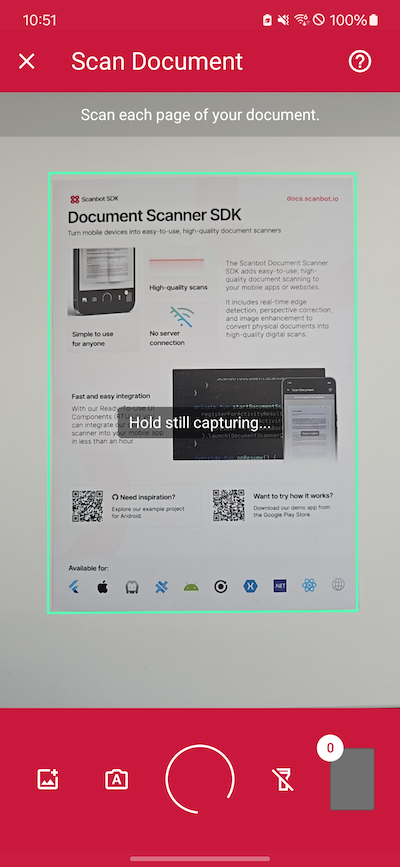
💡 In this tutorial, we use a default configuration object. It will start the Document Scanner UI with the default settings: in multi-page scanning mode with an acknowledge screen after scanning each page.
You can customize the UI and behavior of the Document Scanner by modifying the configuration object. For more information on how to customize the Document Scanner UI, please refer to the SDK’s RTU UI documentation.
Conclusion
And that’s it! You’ve successfully built a cross-platform document scanner with React Native 🎉
If this tutorial has piqued your interest in integrating document scanning functionalities into your React Native app, make sure to take a look at the other neat features in the React Native Document Scanner SDK’s documentation – or run our example project for a more hands-on experience.
Should you have questions about this tutorial or run into any issues, we’re happy to help! Just shoot us an email via tutorial-support@scanbot.io.
Happy scanning! 🤳
FAQ
How do I handle permissions in react-native-document-scanner-plugin?
On Android, you generally do not need to manually prompt for camera permissions unless another plugin in your project has added specific camera permissions to the AndroidManifest.xml.
iOS requires a mandatory addition to the Info.plist file. You must include the NSCameraUsageDescription (Privacy – Camera Usage Description) to explain why the app requires camera access.
Can I still use the react-native-document-scanner library?
While react-native-document-scanner is unmaintained and abandoned, developers can fork the project and update it themselves. It does require significant manual effort to modernize the codebase to make it compatible with current React Native versions and build tools.
What is the best React Native Document Scanner?
In production apps, where reliability, ongoing development, and active maintenance are essential, commercial SDKs are recommended. Solutions like the Scanbot SDK provide advanced features, technical support, and consistent behavior across iOS and Android.
For personal projects where these factors are less important, react-native-document-scanner-plugin is a solid choice. It’s easy to set up and provides basic document scanning features, though customization options are limited.