

Order picking is a critical part of warehouse and fulfillment operations, and barcode scanning is at the heart of getting it right. To ensure smooth operations, a barcode scanner used for order picking should support the following the barcode types:
- Code 128 (including GS1‑128): Dominant in logistics, shipping, and carton labels, SSCC, and internal inventory labels.
- UPC‑A / UPC‑E: Retail product codes used worldwide on consumer goods, especially in North America, and common on many globally distributed items.
- EAN‑13 / EAN‑8: Standard retail product codes in Europe, very common on sellable units.
- Interleaved 2 of 5 (ITF / ITF‑14): Frequently used on outer cartons and pallet labels in warehousing and shipping.
- Code 39: Still widely used for internal IDs, location labels, assets, and legacy systems in warehouses.
In addition, your scanner should support the 2D symbologies GS1 DataMatrix, QR Code, and PDF417. While less relevant for order picking, 2D barcodes are becoming increasingly widespread due to their higher data capacity and growing adoption in modern supply chains.
Whether you’re building an internal tool for your team or a customer-facing app, adding a barcode scanner to your web application doesn’t have to be complicated.
In this tutorial, you’ll learn how to create a JavaScript-based barcode scanner app for order picking in three simple steps. To integrate the scanning functionalities and UI, you’ll use the Scanbot Web Barcode Scanner SDK.
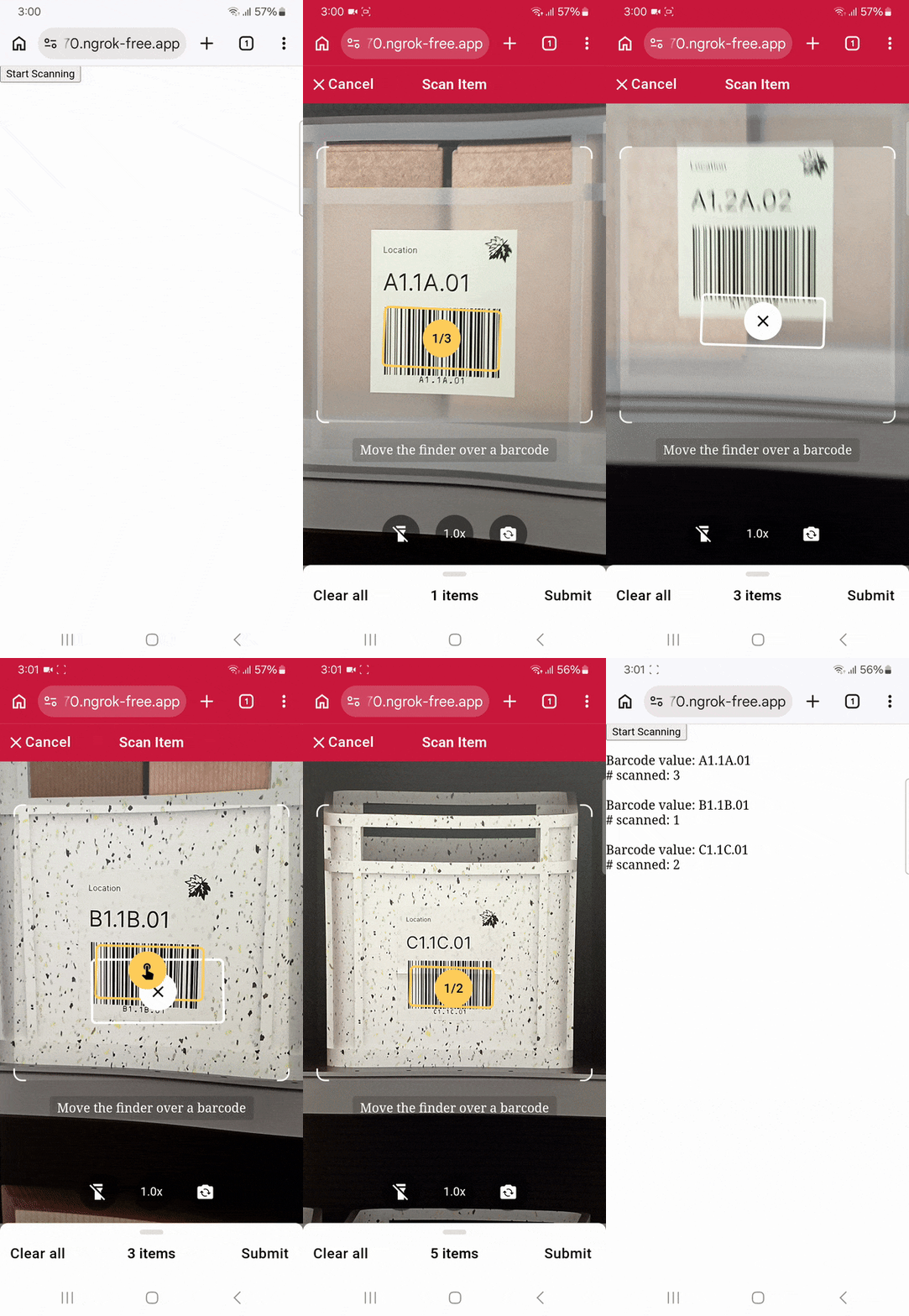
Building your app involves the following steps:
- Setting up the barcode scanner
- Configuring the barcode scanner for order picking
- Displaying the scan results
This example demonstrates a straightforward approach that results in a single, self-contained HTML file. However, feel free to diverge from this and go for a more modular approach by keeping your HTML and JavaScript separate.
Step 1: Set up the barcode scanner
In your project folder, create an index.html with some boilerplate code.
<!DOCTYPE html>
<html lang="en">
    <head>
        <meta charset="UTF-8" />
        <meta
            name="viewport"
            content="width=device-width, initial-scale=1.0, maximum-scale=1.0, user-scalable=0"
        />
        <title>Order Picking Scanner</title>
    </head>
    <body>
    </body>
</html>
In the <body>, add a button that calls up the scanning interface when clicked and include a <p> element on the page for displaying the scanning result.
<body style="margin: 0">
    <button id="start-scanning">Start Scanning</button>
    <p id="result"></p>
</body>
Next, import the Scanbot Web SDK via jsDelivr and initialize it. You can leave the license key empty and still scan for 60 seconds per session. If you’d like to scan longer than that, you can generate a free trial license key in the SDK’s documentation.
<script type="module">
    import "https://cdn.jsdelivr.net/npm/scanbot-web-sdk@8.0.1/bundle/ScanbotSDK.ui2.min.js";
    const sdk = await ScanbotSDK.initialize({

        // Put your license key here if you'd like to scan for longer than 60 seconds.
        licenseKey: "",
        enginePath:
            "https://cdn.jsdelivr.net/npm/scanbot-web-sdk@8.0.1/bundle/bin/barcode-scanner/",
    });
</script>
⚠️ Please note that you should only use a CDN like jsDelivr for quick prototyping. In your production environment, please download the SDK directly and include its files in your project (changing the enginePath accordingly) or install it via npm using npm install scanbot-web-sdk@8.0.1.
💡 Version 8.0.1 is the latest SDK release at the time of this writing, but updates are released regularly. Check the changelog for details.
To finish setting up a basic barcode scanner, attach an event listener to the start-scanning button so it creates a scanner configuration and opens the barcode scanner UI when clicked.
document
    .getElementById("start-scanning")
    .addEventListener("click", async () => {
        // Uses the default barcode scanner configuration.
        const config = new ScanbotSDK.UI.Config.BarcodeScannerScreenConfiguration();

        // Opens the barcode scanner view.
        const scanResult = await ScanbotSDK.UI.createBarcodeScanner(config);
    });
Right now, your index.html file should look something like this:
<!DOCTYPE html>
<html lang="en">
    <head>
        <meta charset="UTF-8" />
        <meta
            name="viewport"
            content="width=device-width, initial-scale=1.0, maximum-scale=1.0, user-scalable=0"
        />
        <title>Order Picking Scanner</title>
    </head>
    <body style="margin: 0">
        <button id="start-scanning">Start Scanning</button>
        <p id="result"></p>
        <script type="module">
            import "https://cdn.jsdelivr.net/npm/scanbot-web-sdk@8.0.1/bundle/ScanbotSDK.ui2.min.js";
            const sdk = await ScanbotSDK.initialize({
                licenseKey: "",
                enginePath:
                    "https://cdn.jsdelivr.net/npm/scanbot-web-sdk@8.0.1/bundle/bin/barcode-scanner/",
            });
            document
                .getElementById("start-scanning")
                .addEventListener("click", async () => {
                    const config = new ScanbotSDK.UI.Config.BarcodeScannerScreenConfiguration();
                    const scanResult = await ScanbotSDK.UI.createBarcodeScanner(config);
                });
        </script>
    </body>
</html>
This is already a functioning barcode scanner, though it doesn’t show the result to the user and isn’t ready to help with order picking yet. Still, feel free to run the app to see if everything is working so far.
In the next step, you’ll configure the barcode scanner so it recognizes pre-defined barcode values and keeps track of the number you’ve already scanned.
Step 2: Configure the barcode scanner for order picking
The Scanbot Barcode Scanner SDK comes with a built-in Find & Pick mode, which lets you define barcode values you’re looking for in advance. These will then be highlighted in the camera view.
First, create a configuration object for the Find & Pick mode:
const useCase = new ScanbotSDK.UI.Config.FindAndPickScanningMode();Then disable automatic scanning of recognized barcodes. This means the user will have to tap on a barcode to scan it. This makes it easier to scan one barcode as many times as needed. However, feel free to change this behavior if it doesn’t fit your use case.
useCase.arOverlay.automaticSelectionEnabled = false;To show the number of barcodes scanned beneath each value, add the following code. This also disables the preview image, since you won’t specify one in this example.
useCase.sheetContent = new ScanbotSDK.UI.Config.SheetContent({
    barcodeItemSubtitle: new ScanbotSDK.UI.Config.StyledText({
        text: "?findAndPickSheetBarcodeItemSubtitle",
        color: "?sbColorOnSurfaceVariant"
    }),
    barcodeItemImageVisible: false
});
Next, define the barcode values you’re looking for and how many need to be scanned to complete the order. If the user tries to exit the scanning view without having scanned all barcodes, a warning will appear.
useCase.expectedBarcodes = [
    new ScanbotSDK.UI.Config.ExpectedBarcode({ barcodeValue: "A1.1A.01", count: 3 }),
    new ScanbotSDK.UI.Config.ExpectedBarcode({ barcodeValue: "B1.1B.01", count: 1 }),
    new ScanbotSDK.UI.Config.ExpectedBarcode({ barcodeValue: "C1.1C.01", count: 2 })
];
💡 This is where you would specify each barcode’s preview image (e.g., barcodeValue: "A1.1A.01", count: 3, image: "https://your.image/path.png").
Finally, apply the configuration.
config.useCase = useCase;Here’s what your index.html should look like at this stage:
<!DOCTYPE html>
<html lang="en">
    <head>
        <meta charset="UTF-8" />
        <meta
            name="viewport"
            content="width=device-width, initial-scale=1.0, maximum-scale=1.0, user-scalable=0"
        />
        <title>Order Picking Scanner</title>
    </head>
    <body style="margin: 0">
        <button id="start-scanning">Start Scanning</button>
        <p id="result"></p>
        <script type="module">
            import "https://cdn.jsdelivr.net/npm/scanbot-web-sdk@8.0.1/bundle/ScanbotSDK.ui2.min.js";
            const sdk = await ScanbotSDK.initialize({
                licenseKey: "",
                enginePath:
                    "https://cdn.jsdelivr.net/npm/scanbot-web-sdk@8.0.1/bundle/bin/barcode-scanner/",
            });
            document
                .getElementById("start-scanning")
                .addEventListener("click", async () => {
                    const config = new ScanbotSDK.UI.Config.BarcodeScannerScreenConfiguration();

                    // Specifies that the barcode scanner should use the built-in Find & Pick mode.
                    const useCase = new ScanbotSDK.UI.Config.FindAndPickScanningMode();

                    // Requires the user to tap on the barcode to scan it.
                    useCase.arOverlay.automaticSelectionEnabled = false;

                    // Show number of barcodes scanned and hide preview images
                    useCase.sheetContent = new ScanbotSDK.UI.Config.SheetContent({
                        barcodeItemSubtitle: new ScanbotSDK.UI.Config.StyledText({
                            text: "?findAndPickSheetBarcodeItemSubtitle",
                            color: "?sbColorOnSurfaceVariant"
                        }),
                        barcodeItemImageVisible: false
                    });

                    // Only barcodes with matching values will be recognized and counted up to the specified number.
                    useCase.expectedBarcodes = [
                        new ScanbotSDK.UI.Config.ExpectedBarcode({ barcodeValue: "A1.1A.01", count: 3 }),
                        new ScanbotSDK.UI.Config.ExpectedBarcode({ barcodeValue: "B1.1B.01", count: 1 }),
                        new ScanbotSDK.UI.Config.ExpectedBarcode({ barcodeValue: "C1.1C.01", count: 2 })
                    ];

                    config.useCase = useCase;
                    const scanResult = await ScanbotSDK.UI.createBarcodeScanner(config);

                });
        </script>
    </body>
</html>
Step 3: Display the scan results
The Find & Pick UI includes a results sheet that keeps track of how many of the pre-defined barcodes you’ve already scanned. However, to demonstrate how to process the extracted data, let’s also display the results on the page after closing the scanning view.
For a straightforward implementation, iterate over each item in the scanResult.items array and append the formatted details to the result element.
if (scanResult?.items?.length > 0) {
    const resultElement = document.getElementById("result");
    resultElement.innerText = "";
    scanResult.items.forEach((item) => {
        resultElement.innerText +=
            `Barcode value: ${item.barcode.text}\n` +
            `# scanned: ${item.count}\n\n`;
    });
} else {
    document.getElementById("result").innerText = "Scanning process canceled";
}
Your final index.html will look like this:
<!DOCTYPE html>
<html lang="en">
    <head>
        <meta charset="UTF-8" />
        <meta
            name="viewport"
            content="width=device-width, initial-scale=1.0, maximum-scale=1.0, user-scalable=0"
        />
        <title>Order Picking Scanner</title>
    </head>
    <body style="margin: 0">
        <button id="start-scanning">Start Scanning</button>
        <p id="result"></p>
        <script type="module">
            import "https://cdn.jsdelivr.net/npm/scanbot-web-sdk@8.0.1/bundle/ScanbotSDK.ui2.min.js";
            const sdk = await ScanbotSDK.initialize({

                // Put your license key here if you'd like to scan for longer than 60 seconds.
                licenseKey: "",
                enginePath:
                    "https://cdn.jsdelivr.net/npm/scanbot-web-sdk@8.0.1/bundle/bin/barcode-scanner/",
            });
            document
                .getElementById("start-scanning")
                .addEventListener("click", async () => {

                    // Uses the default barcode scanner configuration.
                    const config = new ScanbotSDK.UI.Config.BarcodeScannerScreenConfiguration();

                    // Specifies that the barcode scanner should use the built-in Find & Pick mode.
                    const useCase = new ScanbotSDK.UI.Config.FindAndPickScanningMode();

                    // Requires the user to tap on the barcode to scan it.
                    useCase.arOverlay.automaticSelectionEnabled = false;

                    // Show number of barcodes scanned and hide preview images
                    useCase.sheetContent = new ScanbotSDK.UI.Config.SheetContent({
                        barcodeItemSubtitle: new ScanbotSDK.UI.Config.StyledText({
                            text: "?findAndPickSheetBarcodeItemSubtitle",
                            color: "?sbColorOnSurfaceVariant"
                        }),
                        barcodeItemImageVisible: false
                    });

                    // Only barcodes with matching values will be recognized and counted up to the specified number.
                    useCase.expectedBarcodes = [
                        new ScanbotSDK.UI.Config.ExpectedBarcode({ barcodeValue: "A1.1A.01", count: 3 }),
                        new ScanbotSDK.UI.Config.ExpectedBarcode({ barcodeValue: "B1.1B.01", count: 1 }),
                        new ScanbotSDK.UI.Config.ExpectedBarcode({ barcodeValue: "C1.1C.01", count: 2 })
                    ];

                    config.useCase = useCase;

                    const scanResult = await ScanbotSDK.UI.createBarcodeScanner(config);

                    // Displays the count for each specified barcode after the scanning view has closed.
                    if (scanResult?.items?.length > 0) {
                        const resultElement = document.getElementById("result");
                        resultElement.innerText = "";
                        scanResult.items.forEach((item) => {
                            resultElement.innerText +=
                                `Barcode value: ${item.barcode.text}\n` +
                                `# scanned: ${item.count}\n\n`;
                        });
                    } else {
                        document.getElementById("result").innerText = "Scanning process canceled";
                    }
                });
        </script>
    </body>
</html>
Now you can run your app and test it on these example barcodes:
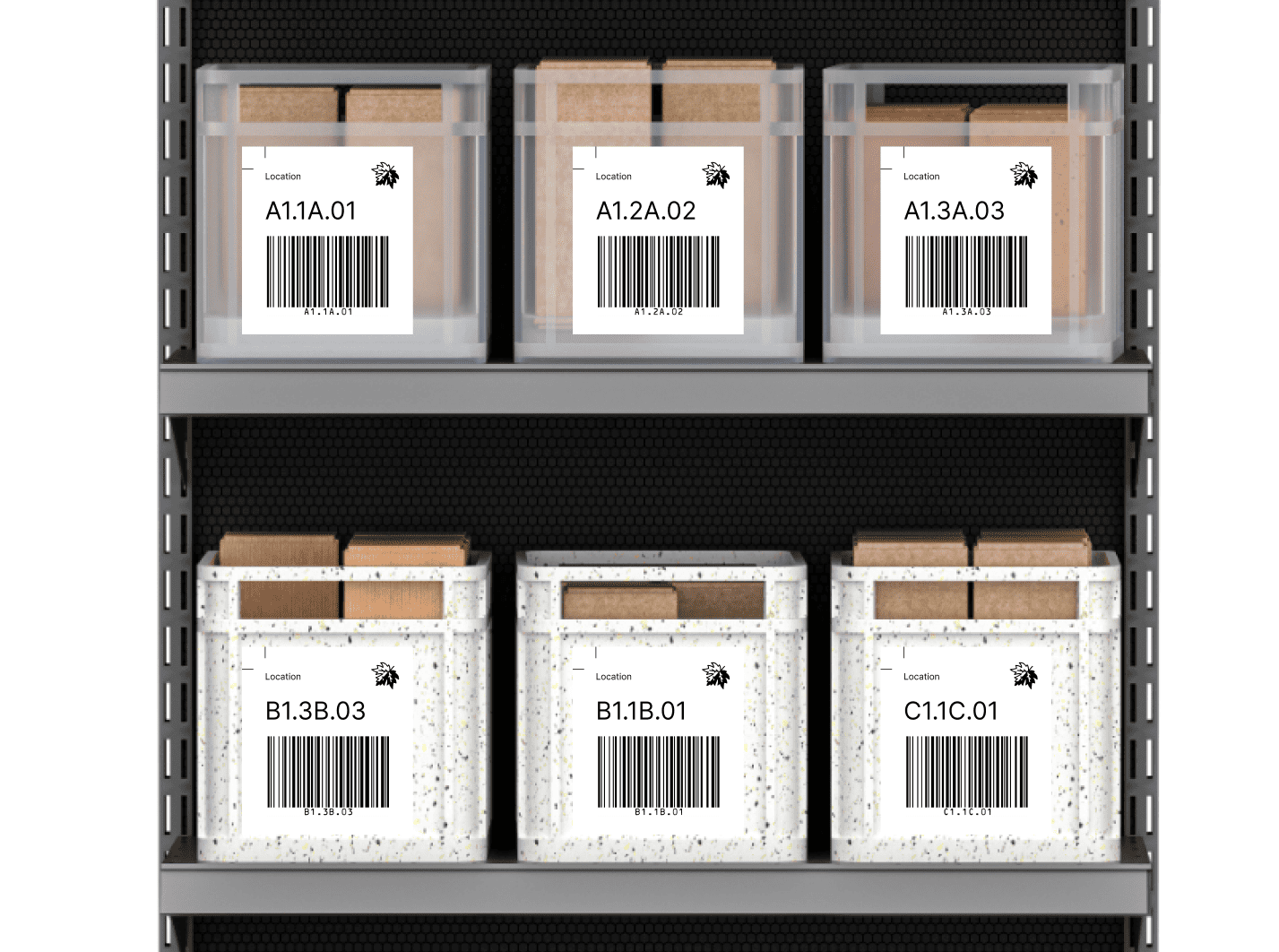
Try to find the three pre-defined barcodes and add them to your list.
💡 To run the app on your phone, you have a few options. One is to use a service like ngrok, which creates a tunnel to one of their SSL-certified domains. Their Quickstart guide will help you set everything up.
Conclusion
Congratulations, you’ve built an order picking scanner app in JavaScript!
If you’d like to further customize the Find & Pick mode, check out the API documentation for details on what’s possible.
This tutorial demonstrated the integration process with JavaScript. However, the SDK is also available for other platforms and frameworks, including Android, iOS, React Native, Flutter, and .NET MAUI. The documentation should help you implement the steps using the tech stack of your choice.
Happy coding!
